How to Edit Text in a PDF (Fix a Typo or Change a Sentence)
Disclosure: this page contains Amazon affiliate links. As an Amazon Associate we earn from qualifying purchases, at no extra cost to you.
Hey there, typo slayer. That one wrong word sitting in a finished PDF is weirdly loud, isn’t it? To edit text in a PDF — fix a typo, swap a word, rewrite a sentence — you need a tool that changes the words themselves, not just one that lays new text on top. Adobe Acrobat Standard or Pro does it directly (you can find Adobe Acrobat Pro subscriptions on Amazon), and there are free ways too: Sejda online, Microsoft Word and Google Docs. Here’s which tool can do what, and exactly where to click.
Short answer: To edit text in a PDF, open it in Adobe Acrobat Standard or Pro, choose Edit, then click the words and type. For free, use Sejda’s online editor, or open the PDF in Microsoft Word or Google Docs and save it back as a PDF. Preview, iPhone and Android can only add new text on top.
- Acrobat Reader can’t do it: Adobe says
Text and image editing is not available in Acrobat Reader
— you need Acrobat Standard or Acrobat Pro. - Preview can’t either: Apple’s Preview guide says plainly that you
can’t edit the text of a PDF in Preview
; it can add text boxes instead. - Free online limit: Sejda’s free online editor edits existing text in up to 3 tasks per hour, on documents up to 200 pages or 50 MB (Sejda’s editor page).
- Word and Google Docs convert a copy: the words become editable, but the layout can shift — Microsoft says Word’s conversion
works best with PDFs that are mostly text
. - Scanned PDFs are pictures: their words have to be recognized first with OCR (optical character recognition) before any editor can change them.
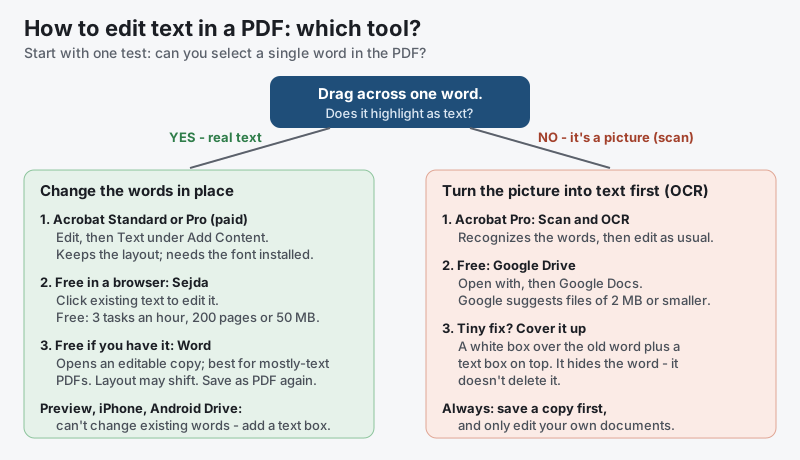
What the flowchart says, in text:
- Test first: drag across one word. If it highlights, the PDF holds real text; if the whole page selects like a photo, it’s a scan.
- Real text: Acrobat Standard or Pro (Edit, then Text under Add Content); Sejda online for free (3 tasks an hour, 200 pages or 50 MB); Microsoft Word for free if you have it (converts a copy, layout may shift).
- Preview, iPhone Markup and the Android Drive app: can’t change existing words — only add a text box on top.
- Scans: run OCR in Acrobat Pro, or open the file with Google Docs from Google Drive (Google suggests 2 MB or smaller); or, for one tiny fix, cover the old word with a white box and type over it — which hides the word but doesn’t delete it.
How do you edit text in a PDF with Adobe Acrobat?
To edit text in a PDF with Adobe Acrobat, select Edit in the bar at the top, select Text under Add Content in the Edit pane, then click the words you want to change and type. Acrobat keeps the rest of the page in place, which is why it’s the cleanest way to fix a typo in a PDF.
These are the steps from Adobe’s help page on editing text in Acrobat:
- Save a copy first. Use File, then Save As, so the original PDF stays untouched.
- Select Edit in the global bar at the top of the Acrobat window.
- Select Text under Add Content in the Edit pane. Boxes appear around every block of text on the page.
- Click the words you want to change and type, or select them and press Delete (Mac) or Backspace (Windows).
- Match the look with the Format Text options: font, size, color, alignment and spacing.
- Click outside the text box to apply the change, then save.
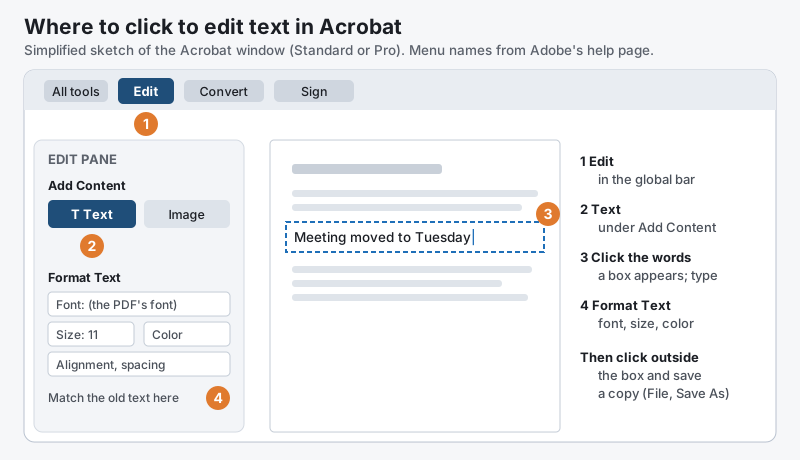
What the sketch shows, in text: (1) Edit in the global bar; (2) Text under Add Content in the Edit pane; (3) click the words on the page and an editable box appears; (4) Format Text holds the font, size, color and alignment. Then click outside the box and save a copy.
Adobe also lists a conversational option: Acrobat’s AI Assistant can make text edits when you describe them, on plans that include it.
Why doesn’t the font match when you edit PDF text in Acrobat?
The font in an edited PDF doesn’t match when the original font isn’t installed on your computer. Adobe’s help page explains that to edit text in a specific font, that font has to be installed; if it’s only embedded in the PDF, Acrobat lets you change just the text’s color or size, and new words can fall back to a different font. To see which fonts a PDF uses, open File, then Properties, and the Fonts tab — this works in the free Acrobat Reader too. Installing the same font family (or the closest one you have) and setting the same size in Format Text usually makes a fixed typo invisible.
Which Acrobat plan can edit text in a PDF?
Adobe Acrobat Standard and Adobe Acrobat Pro can both edit text in a PDF; the free Acrobat Reader can’t. Adobe’s Acrobat Reader page says that Text and image editing is not available in Acrobat Reader
and points to a Standard or Pro subscription. Reader can still add comments, highlights and free-text notes, and fill in and sign forms. Adobe’s free online PDF editor works the same way: it adds text boxes, notes and drawings, but its own page says it does not let you edit existing body text within a PDF
, and it offers Acrobat Pro’s 7-day free trial for that.
Which tools can actually change the words in a PDF?
Only a few tools truly change the existing words in a PDF: Acrobat Standard and Pro, Sejda, Smallpdf’s paid plan, and Word or Google Docs on a converted copy. Most free tools — Preview, Acrobat Reader, iPhone Markup, the Android Drive app — can only add new text on top of the page.
| Tool | Change existing words? | Add new text on top? | What you need |
|---|---|---|---|
| Adobe Acrobat Standard or Pro | Yes, in place | Yes | Paid subscription (Pro has a 7-day free trial) |
| Adobe Acrobat Reader | No | Yes, as comments and free-text notes | Free |
| Adobe Acrobat online editor | No | Yes, text boxes | Free Adobe account to download |
| Sejda online PDF editor | Yes (not inside scans) | Yes | Free: 3 tasks per hour, 200 pages or 50 MB |
| PDF24 Tools | Not directly — PDF24 suggests converting to Word | Yes | Free, no registration |
| Smallpdf | Pro plan only | Yes | Pro subscription (7-day free trial) |
| Microsoft Word | Yes, on a converted copy | Yes | Word for Microsoft 365, 2024, 2021, 2019 or 2016 |
| Google Docs (through Google Drive) | Yes, on a converted copy; much formatting is lost | Yes | Free Google account; 2 MB or smaller suggested |
| Apple Preview (Mac) | No | Yes, Text tool in the Markup toolbar | Built into macOS |
| iPhone and iPad (Files, Markup) | No | Yes, Add Text | Built in |
| Android (Google Drive app) | No | Pen and highlighter; typing only into form fields | Free |
If the change is a whole new paragraph, a converted copy in Word is often easier than Acrobat. If it’s one typo on a designed page, Acrobat or Sejda keeps the layout exactly as it was.
How do you edit text in a PDF for free online?
To edit text in a PDF for free online, upload it to Sejda’s online PDF editor, click the existing text, type your change, then select Apply changes and download the new file. Sejda’s free version allows 3 tasks per hour on documents up to 200 pages or 50 MB.
- Open Sejda’s PDF editor in your browser and upload the PDF.
- Stay on the Text tool and click any existing text to start editing it.
- Type the correction. Sejda’s toolbar lets you change the font, size and color of the selected text.
- Apply changes, then Download the edited PDF and check it before you send it anywhere.
Other free online editors work differently. PDF24’s Edit PDF tool is free with no registration and lets you write on pages and add images, shapes and signatures, but for changing existing text its own page suggests converting the PDF to Word first. Smallpdf’s editor says Direct PDF text editing requires a Pro subscription
; its free version adds text, images and drawings on top.
Is it safe to edit a PDF with a free online editor?
A free online PDF editor is fine for everyday files, but it means uploading your document to someone else’s server. Sejda says uploaded files are automatically deleted after 2 hours, and PDF24 says its server deletes files after one hour. For anything private — medical forms, contracts, tax papers — an editor that runs on your own computer (Acrobat, Word, or Sejda’s desktop app) keeps the file off the internet.
How do you edit a PDF in Microsoft Word?
To edit a PDF in Microsoft Word, go to File, then Open, choose the PDF, and select OK when Word says it will convert a copy. The text becomes a normal Word document you can change, and the original PDF isn’t touched.
Honestly, the biggest surprise for most people is that so many free PDF tools can write on a page but can’t touch the words already there — once you know that, the right tool picks itself.
Microsoft’s “Edit a PDF” support page covers Word for Microsoft 365, Word 2024, 2021, 2019 and 2016:
- File, then Open, and find the PDF (you may need to select Browse).
- Select OK when Word says it will make a copy and convert it. The original PDF won’t be changed.
- Edit the text like any Word document.
- Save it as a PDF again: File, then Export, then Create PDF/XPS Document, then Publish — or choose PDF in the Save As box.
Microsoft is honest about the catch:
This works best with PDFs that are mostly text. … The converted document might not have a perfect page-to-page correspondence with the original.
So a letter, a report or a simple resume usually comes through well in Word; a brochure, a form with boxes or a page of columns often shifts. Word’s PDF conversion also doesn’t read scanned pages — those need OCR first.
How do you edit a PDF in Google Docs?
To edit a PDF in Google Docs, upload it to Google Drive, right-click it and choose Open with, then Google Docs. Google turns the PDF into an editable document — it even reads scanned pages — and you save it back with File, then Download, then PDF Document. Google’s Drive Help page on converting PDFs says bold, italics, font size, font type and line breaks are likely to carry over, but Lists, tables, columns, footnotes, and endnotes are not likely to be detected
, and it suggests files of 2 MB or smaller. Google Docs is the best free choice when the words matter more than the exact layout.
Can you edit text in a PDF with Preview on a Mac?
No, Preview on a Mac can’t change the existing text in a PDF — Apple’s Preview User Guide says you can’t edit the text of a PDF in Preview
. What Preview can do is add new text: click the Show Markup Toolbar button, click the Text tool, type, and drag the box where you want it.
For one small fix, a Preview cover-up works: in the Markup toolbar, add a rectangle shape with a white fill and no border over the old word, then add a text box on top with the new word, matched with the Text Style tool (font, style, color). Apple’s guide says that to flatten the markup so it can’t be moved, you choose File, then Print, then Save as PDF.
If you’re on a Mac and need true text editing for free, Sejda in Safari or Chrome, or Google Docs, does what Preview can’t. Word for Mac users can also try opening the PDF in Word.
How do you edit text in a PDF on an iPhone or Android phone?
On an iPhone or Android phone, the built-in tools can add text to a PDF but can’t change the words already in it. To change existing text on a phone, use a full editor: Acrobat’s mobile app with an Acrobat subscription, or Sejda in your phone’s browser.
- iPhone and iPad: open the PDF in the Files app, tap Markup, then tap the Add button and Add Text, and type into the box (Apple’s iPhone User Guide on Markup). The Add menu also has Add Signature and Add Shape — a white shape plus a text box is the same cover-up as on a Mac.
- Android: the Google Drive app lets you annotate a PDF with a pen, highlighter and eraser and type into a PDF form’s fields (tap Edit, then Form filling), but it has no tool for changing a PDF’s own words.
- Acrobat on a phone: Adobe’s Reader FAQ says that with an Acrobat subscription you can edit PDFs from the Acrobat Reader app on a tablet or phone, so the same paid plan covers your computer and your phone.
For long changes, a computer is still the comfortable place to do it; a phone is best for a quick note or a filled-in field.
Why can’t I edit the text in my PDF?
You usually can’t edit the text in a PDF for one of four reasons: the page is a scanned picture, the file is password-protected against editing, the text is inside a form field, or the PDF has been signed. Each one has a different fix.
- It’s a scan
- If dragging across a word selects nothing (or the whole page), the PDF is an image of paper. Recognize the text first with OCR — Acrobat Pro’s Scan and OCR tool, or Google Docs through Google Drive — and then edit it. A cleaner scan gives better OCR, which is where a document scanner beats a phone photo.
- It’s locked
- Some PDFs carry a password that restricts editing, and Adobe notes that tools for restricted features are greyed out. Ask the person who made the file for an unlocked copy or for the original document.
- It’s a form
- Text in a fillable form field changes by clicking into the field, not with the edit tool. Acrobat Reader, Preview, iPhone Markup and the Android Drive app can all fill form fields for free.
- It’s signed
- Once a PDF carries a digital signature, any change to it makes the signature show as modified — Adobe’s guide to validating signatures says Acrobat warns that the document
has been modified after signing
.
Save a copy, make your fix, and give that corrected PDF one proud final read before you hit send.
Sources and further reading
- Adobe Help: Edit text in PDFs in Acrobat — Edit in the global bar, Text under Add Content, Format Text options; installed-font rule
- Adobe: Acrobat Reader — "Text and image editing is not available in Acrobat Reader"; needs Acrobat Standard or Pro
- Adobe: free online PDF editor — adds text boxes and comments; doesn’t edit existing body text; free account to download; Acrobat Pro 7-day trial
- Adobe Help: Acrobat Reader FAQ — editing on a phone or tablet with an Acrobat subscription
- Adobe: validate digital signatures in PDFs — "This document has been modified after signing"
- Apple Preview User Guide: annotate a PDF — "can’t edit the text of a PDF in Preview"; Text tool, Text Style, Print to Save as PDF to flatten
- Apple iPhone User Guide: add text, shapes and more with Markup — Add, then Add Text / Add Shape / Add Signature
- Microsoft Support: Edit a PDF — Word 2016 to Microsoft 365; "works best with PDFs that are mostly text"; Export to PDF
- Google Drive Help: convert PDF and photo files to text — Open with Google Docs; what formatting carries over; 2 MB or smaller
- Google Drive Help: annotate PDFs on Android — pen, highlighter, eraser
- Google Drive Help: fill out PDF forms on Android — Edit, then Form filling
- Sejda: online PDF editor — click existing text to edit; free 3 tasks per hour, 200 pages or 50 MB; files deleted after 2 hours
- PDF24 Tools: Edit PDF — free, no registration; files deleted after one hour; suggests converting to Word to change text
- Smallpdf: Edit PDF — "Direct PDF text editing requires a Pro subscription"
Questions and answers
Can I edit text in a PDF for free?
Yes. Sejda’s online editor changes existing PDF text for free (3 tasks per hour, documents up to 200 pages or 50 MB), and Microsoft Word or Google Docs can open a PDF as an editable copy that you save back as a PDF. Acrobat Reader and Preview are free too, but they only add new text on top.
Why can’t I edit a PDF in Adobe Acrobat Reader?
Acrobat Reader is the free viewer, and Adobe says text and image editing isn’t available in it — that needs Acrobat Standard or Acrobat Pro. Reader can still add comments and free-text notes, fill in forms and add a signature.
How do I change text in a PDF without changing the font?
Install the font the PDF uses (File, then Properties, then Fonts in Acrobat shows which fonts it has), then edit in Acrobat Standard or Pro and set the same size in Format Text. Adobe says that when a font is only embedded and not installed, you can change just the text’s color or size.
How do I edit text in a scanned PDF?
Recognize the text first with OCR: Acrobat Pro’s Scan and OCR tool, or upload the PDF to Google Drive and open it with Google Docs. After that the words can be edited like any document; check names and numbers, because OCR can misread them.
Can I edit a PDF on my iPhone?
You can add text to a PDF on an iPhone with Markup in the Files app (Add, then Add Text), but you can’t change the words already there. To change existing text on an iPhone, use the Acrobat app with an Acrobat subscription or an online editor like Sejda in Safari.