Flutter Setup YouTube Video
Here's a YouTube flutter tutorial that covers all these subjects in just 3 minutes:
How to run existing Flutter application in VSCode on Android Emulator
If you need to setup Flutter to run in VSCode from scratch, this is a more detailed tutorial.
To run existing flutter app in Visual Studio Code on Android Emulator, you need to open VSCode, go to File menu, and click Open Folder... option. Locate your existing flutter project and click on its folder one time. Click on "Select Folder" button, to open that flutter projects in your Visual Studio Code.
How to run an existing Flutter app in VSCode:
To run an existing flutter project in VSCode, follow these steps:
- Open VSCode
- Go to File, Open Folder... and locate flutter project
- Click on Flutter project folder and click Select Folder button
- In lower right corner click on No Device button and select "Run in flutter emulator" from the drop down. This should automatically launch android emulator you set up in Android Studio.
Following these steps will launch your flutter app in VSCode.
How to fix: Failed to launch emulator error: Emulator didn't connect within 60 seconds
If you're running flutter app for the first time, you might encounter the following error:
Failed to launch emulator, flutter did not connect in 60 seconds.
To solve this error, open your Android Studio, on create new project window, click on 3 dots in upper right corner, and select Virtual Device Manager:
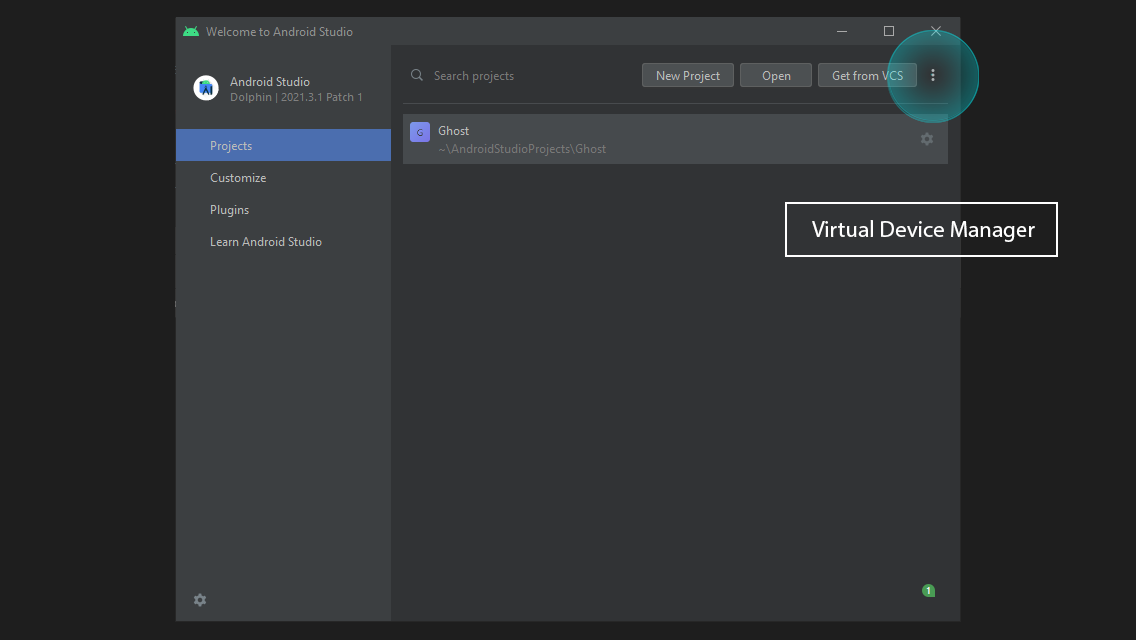
On the next page, click on your flutter emulator, and go to 3 dots again:
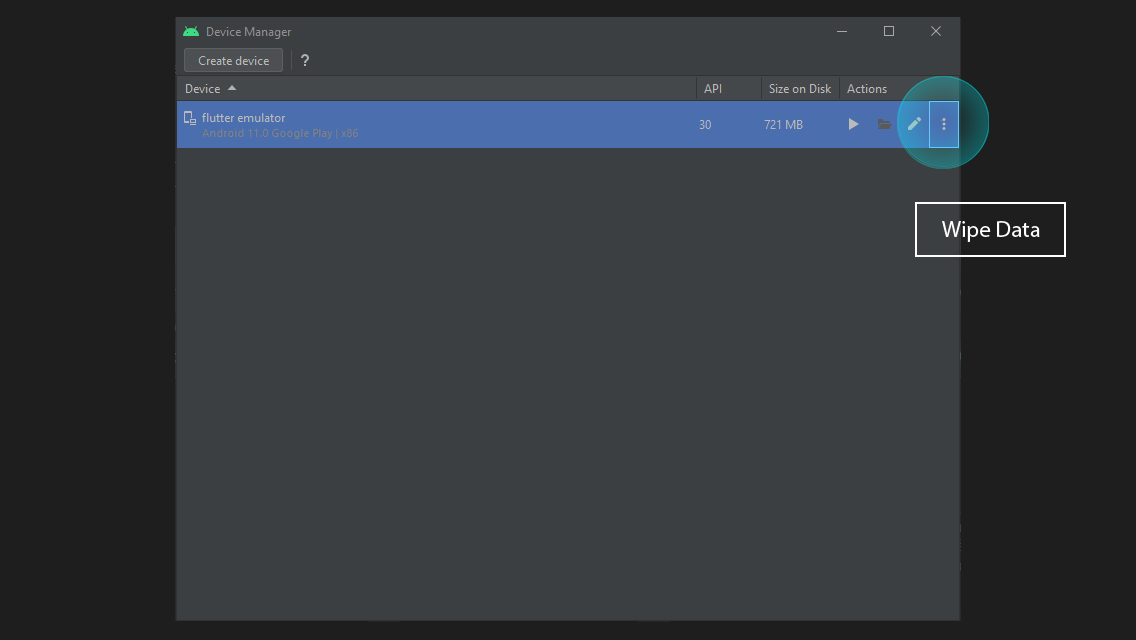
Click on Wipe Data, this should reset your flutter emulator and it will start working when you launch it from VSCode (as explained in previous steps.)
Video Chapters:
=========- 00:00 How to run existing flutter app in vscode
- 00:36 Install Dart and Flutter VSCode Extensions
- 00:59 How to open and run existing flutter app in vscode
- 01:22 Launching flutter app in android emulator for the first time in vscode
- 01:45 How to fix Failed to launch emulator did not connect in 60 seconds error
- 02:22 How to connect flutter to android emulator and launch your flutter app
Keywords:
=======- how to open a new flutter project
- how to open a new flutter project in vscode
- how to open a new flutter project in visual studio code
- how to create a new flutter project
- how to run flutter app
- run existing flutter app
- how to run existing flutter project in vscode
Please watch this video to support our content network 🙂