Creating an AI image from a photo of yourself, or just any face in general, is one of the easiest things you can do with Midjourney. To make an AI generated picture from a photo all you need is a URL to that photo.
Anyways, this tutorial is probably the best 1 minute of your time spent showing how turning your photo in a thematic AI generated avatar works:
Learn How to use Midjourney (beginner's tutorial) in this other tutorial!
Oh and one more thing guys...I'm an independent author, I would be grateful if you shared this article around.
It took hours to put this material together. Please help me out by sharing it 🙂
Click button below to share link on WhatsApp or Discord or with friends:
This is really helping me write more free Midjourney tutorials!
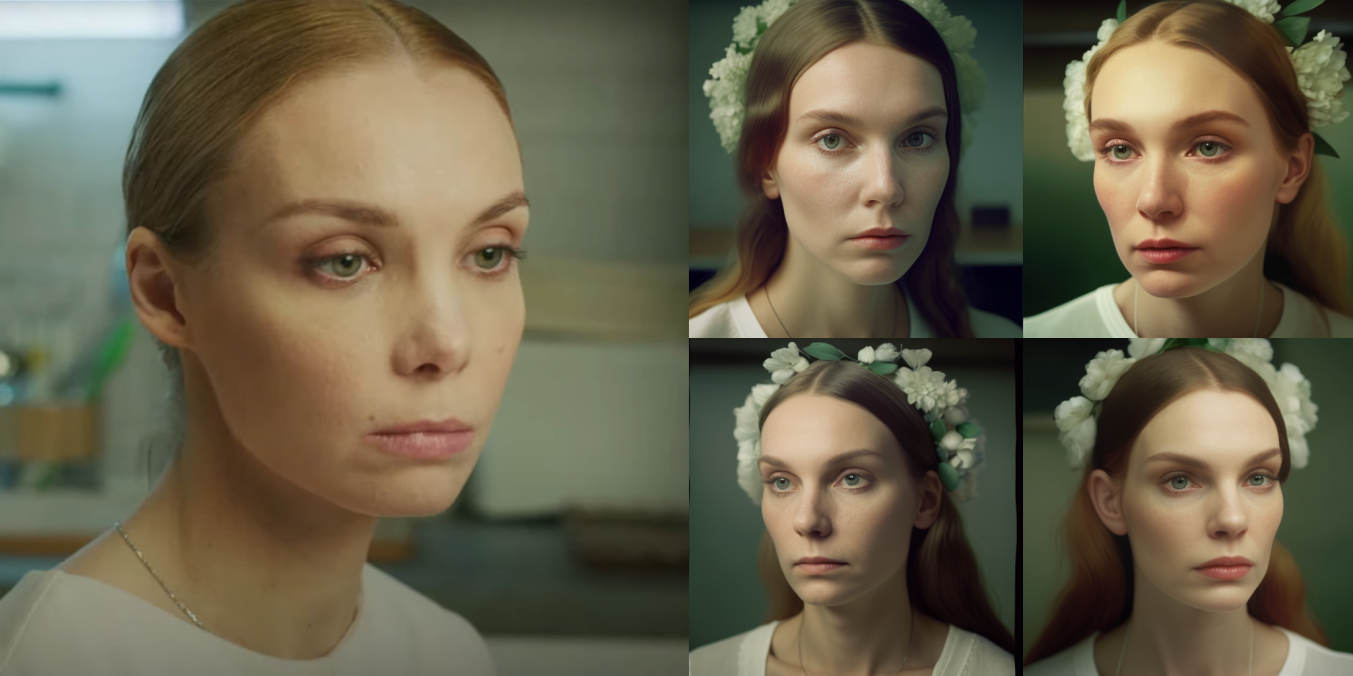
How to use a photo to generate a Midjourney prompt
Here's best way to turn your photo to avatar using AI art (another tutorial on this site.)
Here's an even better step-by-step tutorial on how to turn your photo to TikTok avatar with detailed instructions. (Of course, it doesn't have to be TikTok, the same avatar can be used for Facebook, Twitter, Instagram or any other social media that requires a circle avatar.)
Most images generated using Midjourney prompts will produce 4 more or less random compositions. To give a bit of direction to a Midjourney prompt, you can also use an image instead of just the keywords.
Midjourney will get hints from photo you feed it, and focus on details like face angle, eye color, hairstyle, etc. While the images will still be mostly random, they will look a lot closer to content provided in the prompt photo.
Created portraits will bear resemblance to the person in original photo. This makes Midjourney a great tool for making avatars or making personal portraits or "selfies" look better.
How To Make Midjourney Portrait Prompts From Photo
You can give Midjourney a photo to use as a reference for your portrait prompt.
Stemming a prompt from a photo is often used to create social media avatars.
Image prompts can also be used to simply make a better image.
To make a portrait prompt from a photo:- Locate URL address of an existing photo you want to use as the reference.
- Alternatively, right-click the URL of an existing photo and choose "copy image location".
- Type /imagine and paste your photo URL as first parameter of the prompt.
- Type space, and continue writing your prompt as usual.
- To add multiple images, separate URLs by space.
If you want to use your own photo, upload it, or tweet it, and then extract the URL from the online page you posted your photo on (Right click on the photo, and select "Copy Image Location" option.)
Examples Of Prompts Created From A Photo
Now is a good time to pick a good photo reference. All you need is just a URL address to the image you want to use to kick off your prompt!
Midjourney Prompt From Image 1
Here is a Midjourney portrait that was generated by using an image:
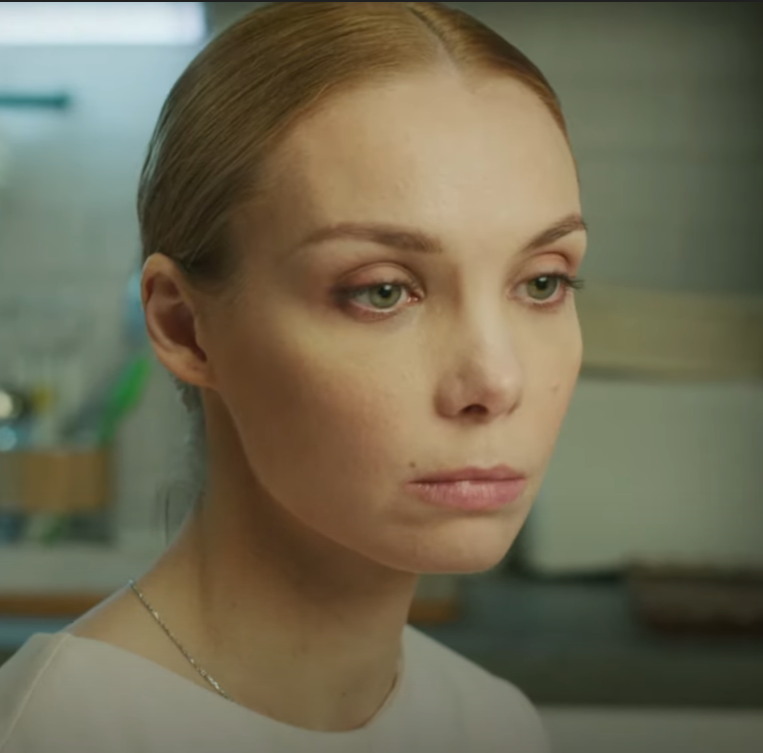
Image used as a reference photo for a Midjourney portrait prompt.
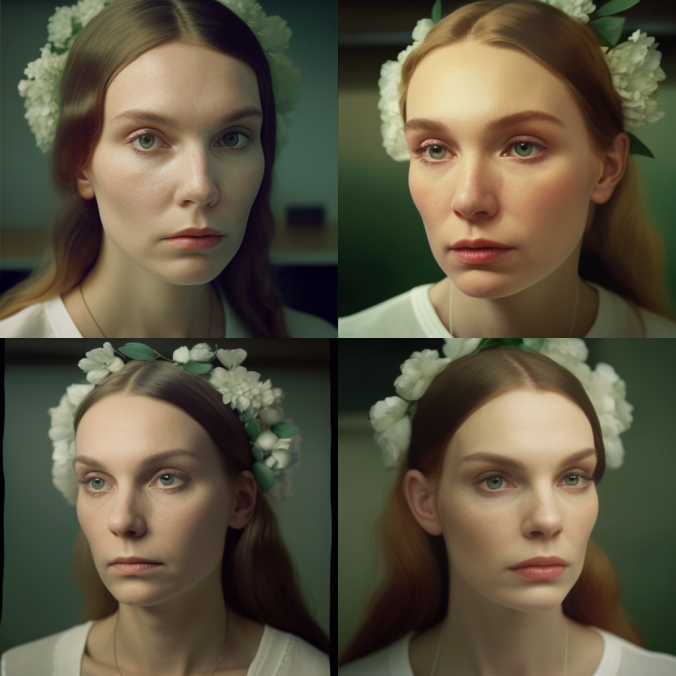
(Note that Midjourney will convert your original image to a short URL, and you can reuse this short URL in future prompts, instead of the long address.)
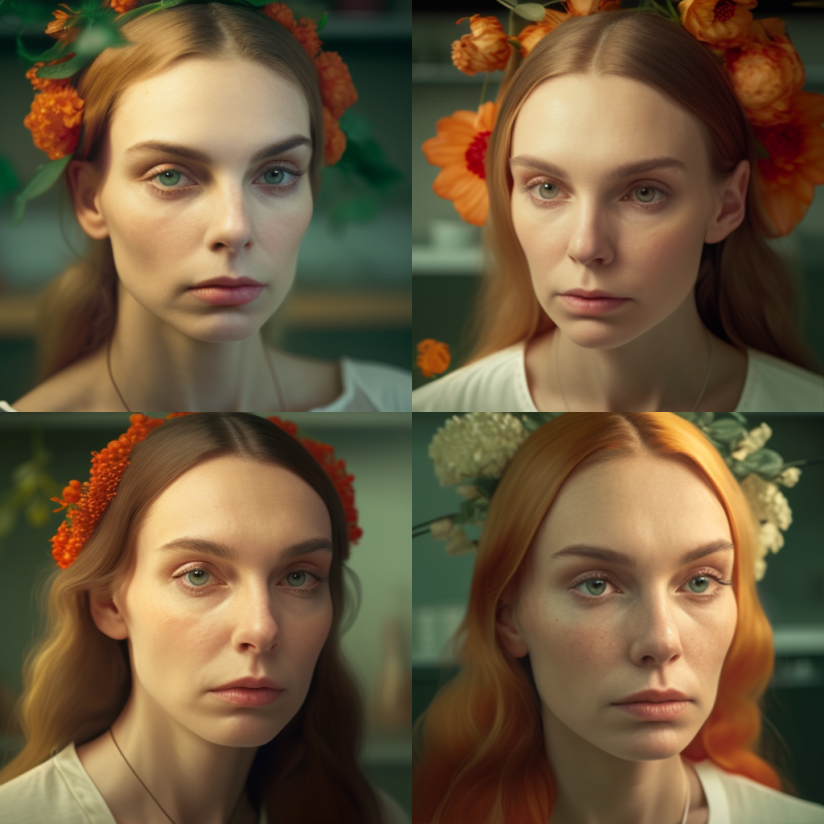
Midjourney Prompt From Image 2 (added wreath and orange flowers)
The same prompt, but with white flowers replaced with orange flowers:
Midjourney Prompt From Image 3 (added snowflakes)
Same prompt with snowflakes added:
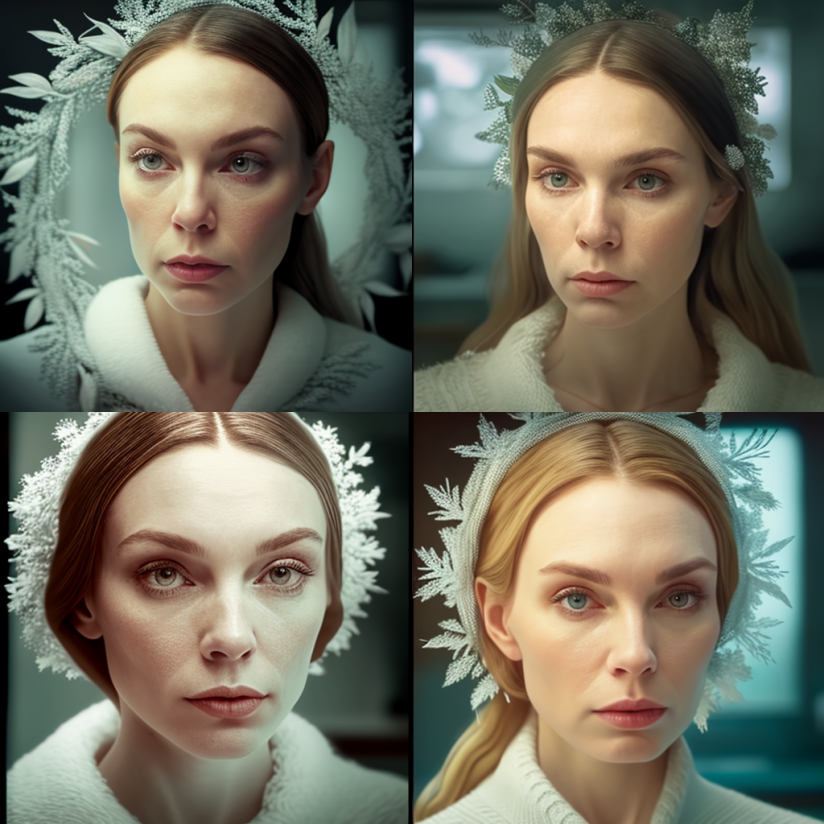
In each of the examples you'll notice how replacing keywords not only added the requested object to the generated images, but also modified ambient light to match the overal theme.
Thanks so much for reading my article! Suggestions are welcome.
Resources related to creating Midjourney prompts from a photo.
I like to write about AI, image processing and ChatGPT. But my work is not limited to these subjects. Oh, and I never use AI to generate my content.
Oh, and another thing...I am an independent writer, so if you help share this article on Discord or WhatsApp or whatever app you're active on, I would be very grateful! Thank you 🙂
It took hours to put this material together. Please help me out by sharing it 🙂
Click button below to share link on WhatsApp or Discord or with friends: