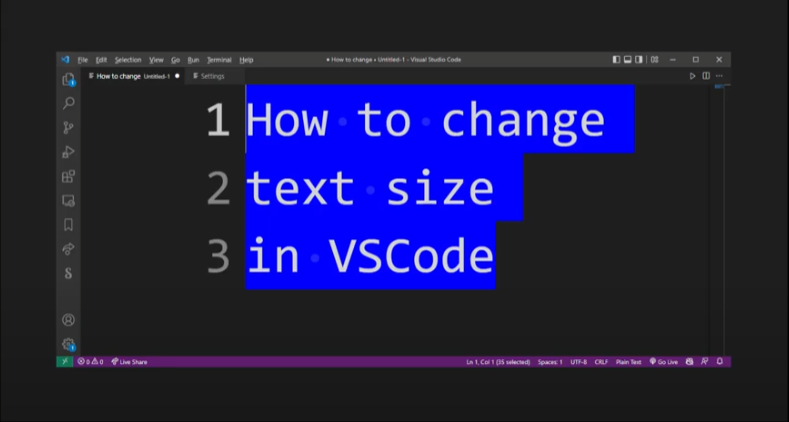
So how do you change text size in Visual Studio Code? 🙂
(Little-known fact, you can also change the scale of VSCode editor UI frame itself.)
For visual speed-learners...here's a 2 minute video:
If you find that the default font size in VSCode is too small or too large, you can easily change it to better suit your needs.
Here's how to change font size:
- Open VSCode and click on the File menu.
- Select Preferences > Settings.
- On the left sidebar, select User Preferences.
- On the right side, locate the setting titled "Editor: Font Size".
- Click on the dropdown arrow and select the desired font size.
- Close the Settings window and enjoy your new font size!
How to change vscode color theme:
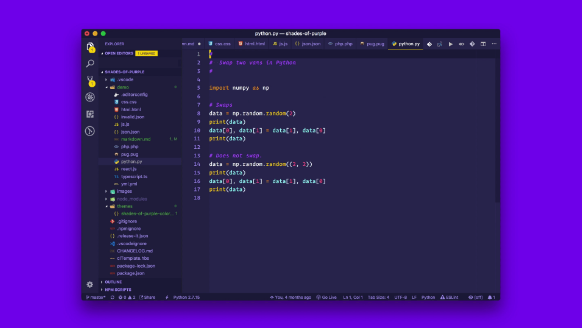
(Example of a VSCode Theme: Shades of Purple)
- Open VSCode and click on the File menu.
- Select Preferences > Settings.
- On the left sidebar, select User Preferences.
- On the right side, locate the setting titled "Theme".
- Click on the dropdown arrow and select the desired color theme.
- Close the Settings window and enjoy your new color theme!
How to change vscode cursor color:
- Open VSCode and click on the File menu.
- Select Preferences > Settings.
- On the left sidebar, select User Preferences.
- On the right side, locate the setting titled "Cursor Color".
- Click on the dropdown arrow and select the desired cursor color.
- Close the Settings window and enjoy your new cursor color!
How to change color of currently selected highlighted line vscode settings:
- Open VSCode and click on the File menu.
- Select Preferences > Settings.
- On the left sidebar, select User Preferences.
- On the right locate the setting titled "Highlight Line".
- Click on the dropdown arrow and select the desired color theme.
- Close the Settings window and enjoy your new color theme!
That's pretty much all there is to changing text size, currently selected/highlighted line, and color theme in Visual Studio Code? 🙂