If you want to quickly learn how to create a new file in VS Code, this tutorial is for you. You can watch the video below or scroll down to see opening new file keyboard shortcuts for Windows and Mac.
This video listed below is a walkthrough for the process of creating a new file.
In Visual Studio Code you can create files in many different ways.
Watch this video, it is probably the fastest way to learn about all of the different buttons and keyboard shortcuts that trigger creation of a new file in VSCode!
How to open and create a new empty file:
To create a new blank file in VSCode, follow these steps:
- Press Ctrl + N Windows keyboard shortcut.
- Use Command + N keyboard shortcut on a Mac.
- Use Control + Alt, Windows + N key of chord progression.
- To create new blank file, double click on empty space in the tabs bar.
How to add a new file to a VSCode project:
Sometimes you want to add an existing file to your Visual Studio Code project. No problem, it's actually very simple
To add a new file in VSCode, follow these steps:
- Create or open an existing project.
- Right click anywhere in project pane and select New File.
- Alternatively, to add a new file in VSCode, click on small "Create New File" icon on top of project pane.
How to create a new text file and then select a language
After opening a new file in VSCode you will be asked to select a language.
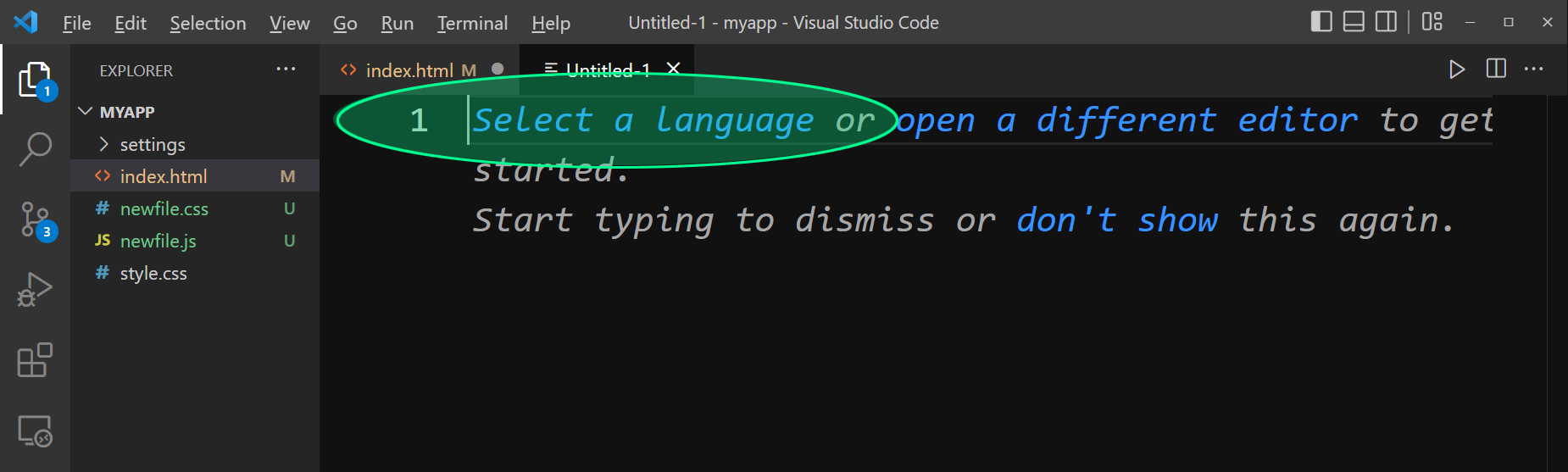
VSCode automatically adapts to file extension. So if you're creating a JavaScript, HTML, or CSS file it will color code keywords specific to that language. It will also provide automatic look up specific to the language matching extension of the file you just created.