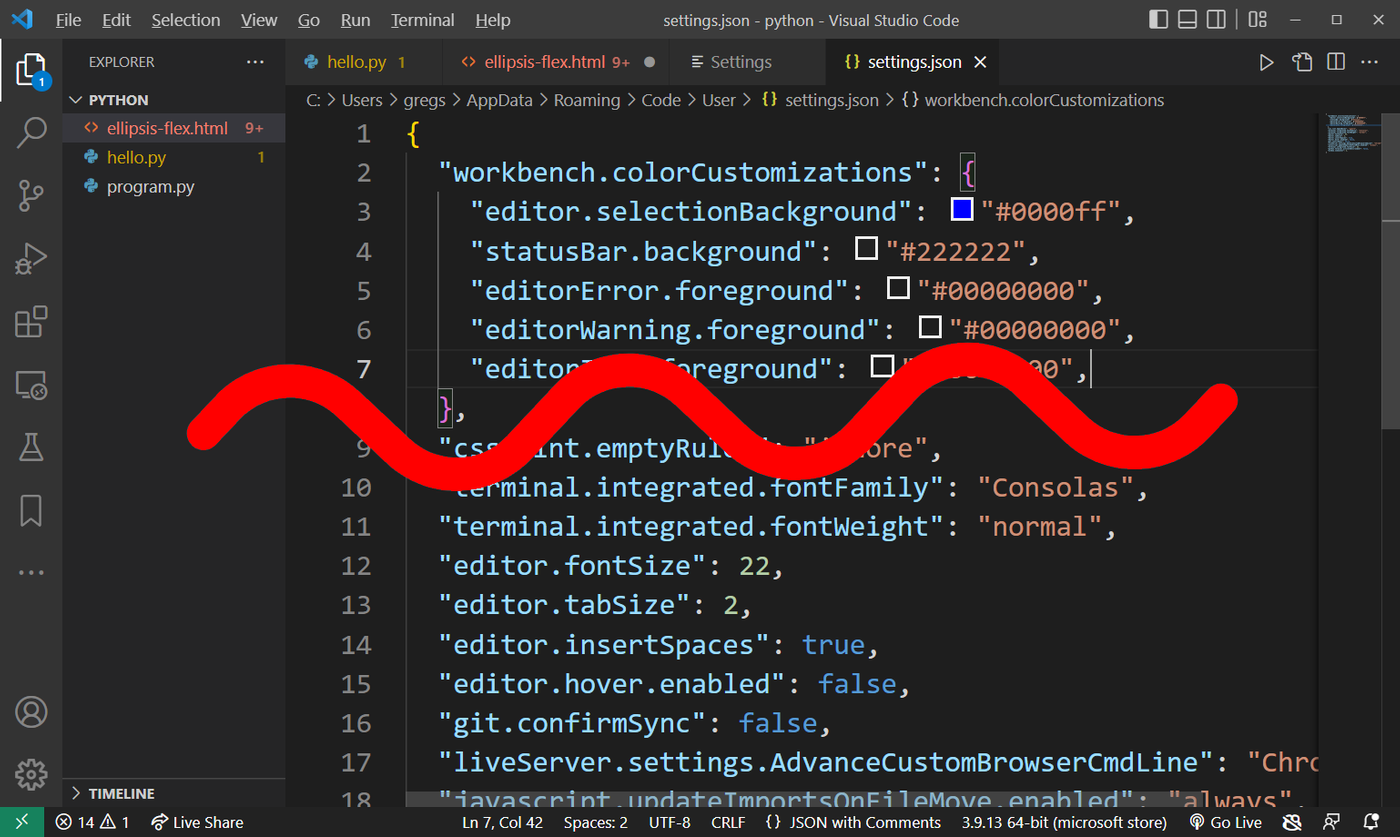
Oof! Those red wavy error underlines can be annoying. They show up in Visual Studio Code when there is an error with your JavaScript, Python, CSS or code in any other language.
But sometimes it's just a warning, and not a code-breaking error.
In VSCode turning off errors and warnings underneath keywords isn't straightforward. (at least at the time of writing this tutorial.) So to "disable" underlines in VSCode, it's best to just change their color to an invisible color. It's not an ideal solution, but it works. It also makes it easy to enable them again in the future, in case you decided you want to actually keep your errors underlined.
Please watch this video to support our content network 🙂
First, there error warning engine in VSCode can recognize multiple languages. So you can easily disable wavy underlines for CSS error checks.
But there isn't a simple way to do it for each different language individually. So if you want to disable wavy underlines just for JavaScript or Python, you have to do it one language at a time. And that's just way too cumbersome.
Watch this video tutorial that explains how to disable the red wavy underline in VSCode.
TLDR: There is no easy way. Change underline color by setting it to transparent color.
Follow these instructions:
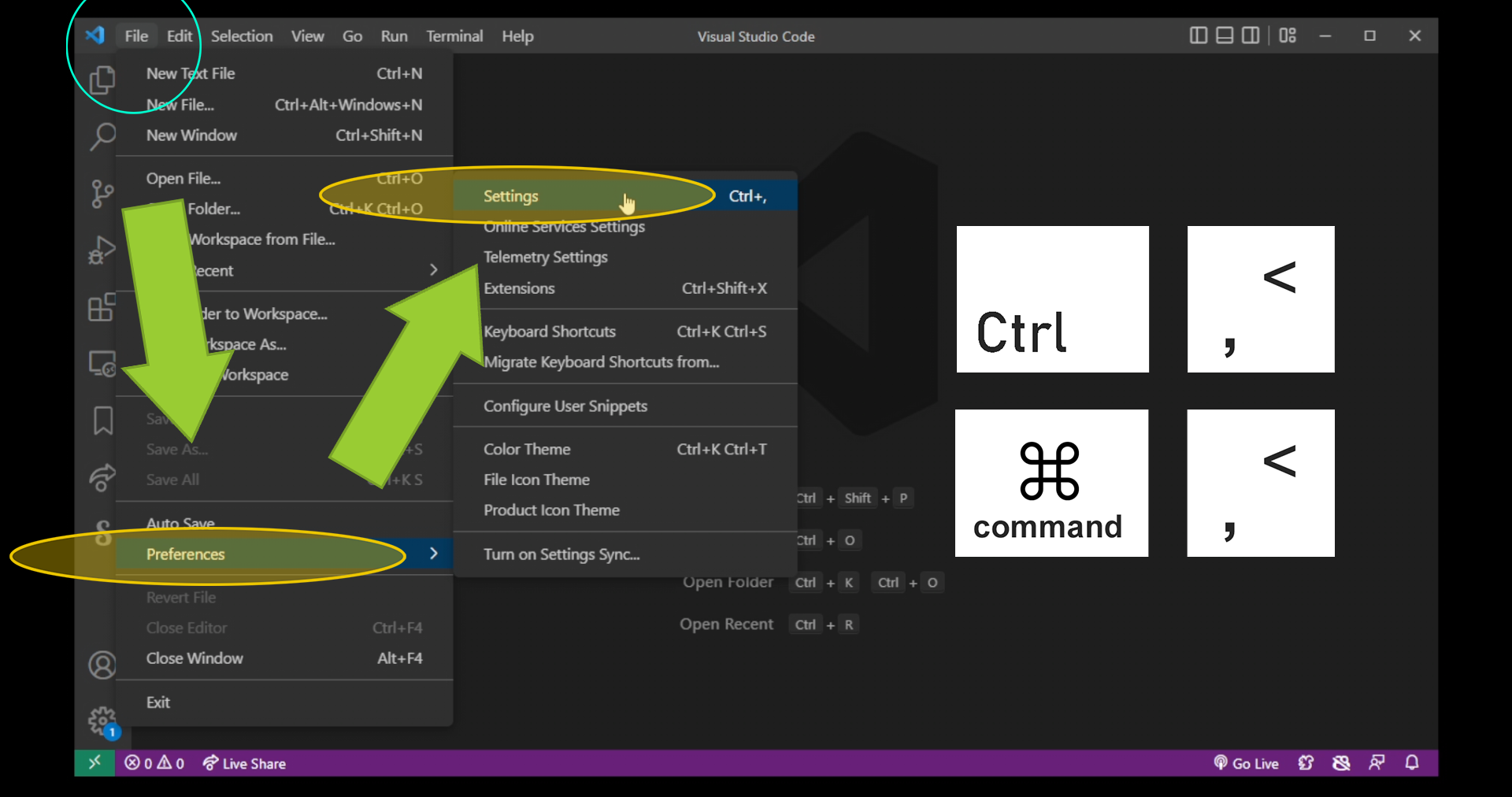
First...open VSCode settings by hitting Ctrl + , on Windows or command + , on a Mac.
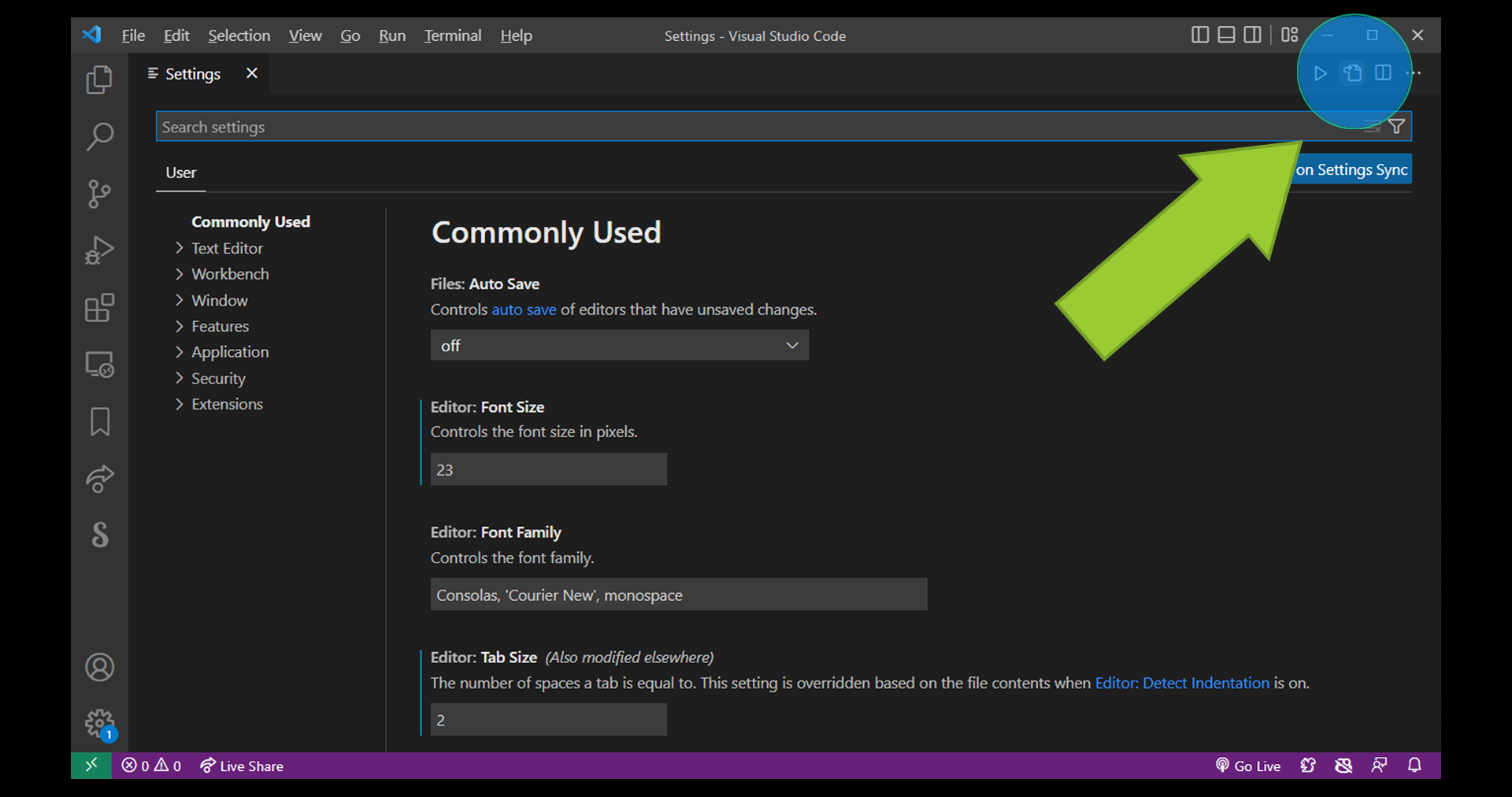
Now navigate to upper right corner and click settings.json button.
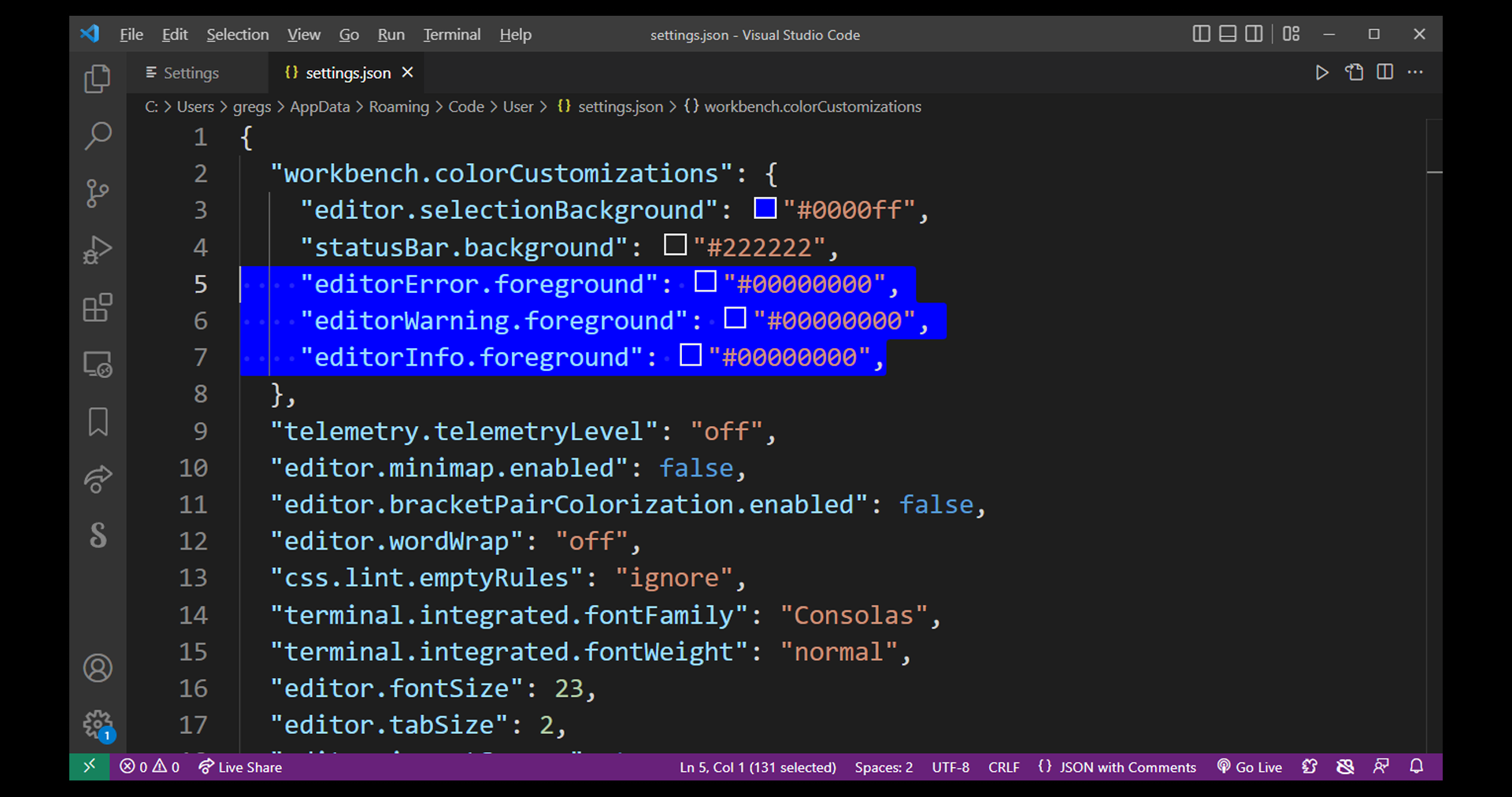
Now under workbench.colorCustomizations, change the following 3 properties:
    "editorError.foreground": "#00000000",
    "editorWarning.foreground": "#00000000",
    "editorInfo.foreground": "#00000000",
If you don't have workbench.colorCustomizations, you can add it into your existing settings.json file yourself. (Empty settings.json files are common after a new VSCode installation.)
The solution is to simply change the color of the underlines to a transparent HTML color, by adding two 00 to the end of the hexadecimal color value.
It doesn't matter what color you set it to, as long as it has two trailing 00. Because HTML colors follow the pattern: RRGGBBAA, where AA is the alpha channel you want to tamper with.
So for example #ffffff00 this color is white with alpha transparency of 0, which is invisible. Setting this color to your error and underline property in settings.json will change ALL of your underlines to an invisible color. They'll still be there, but you won't be able to see them. And that's as good as disabled.
Please watch this video to support our content network 🙂