If you just want to watch the video tutorial on how to setup Angular for VSCode here it is:
I put a lot of effort into making this granular step-by-step Angular installation guide for Visual Studio Code (VSCode) for Mac, Windows or Linux.
Please share the link to this article, so we become #1 search result on Google over the official Angular page on how to set up Angular :)
You don’t actually run Angular in VSCode. Just edit it. Wait. What?
Angular is not the easiest of frameworks to write JavaScript apps on (Compared to React, for example.) But it’s probably one of the easiest ones to install and launch apps on from command line or in VSCode Terminal.
If you’re new to Angular and want to make your first Angular app this tutorial is for you. You can also use this guide to run an existing Angular project from command line or VSCode. All of the details are here.
You don’t actually run Angular in VSCode. Just edit it. Wait. What?
Angular is executed in NodeJS - a JavaScript environment.
It’s part of your local web development environment.
This is what allows you to run Angular on localhost in your browser.
Every time you edit Angular in VSCode, it will automatically reload in the browser, and this is called “hot reload”. But it doesn’t run in VSCode itself.
This means first you need to install Node. (go to NodeJS)
When installing Node JS to run Angular, pick a simple to remember location like C:\nodejs (instead of Program Files) This will really pay off later just in case you need to use NodeJS with a simple and short path.
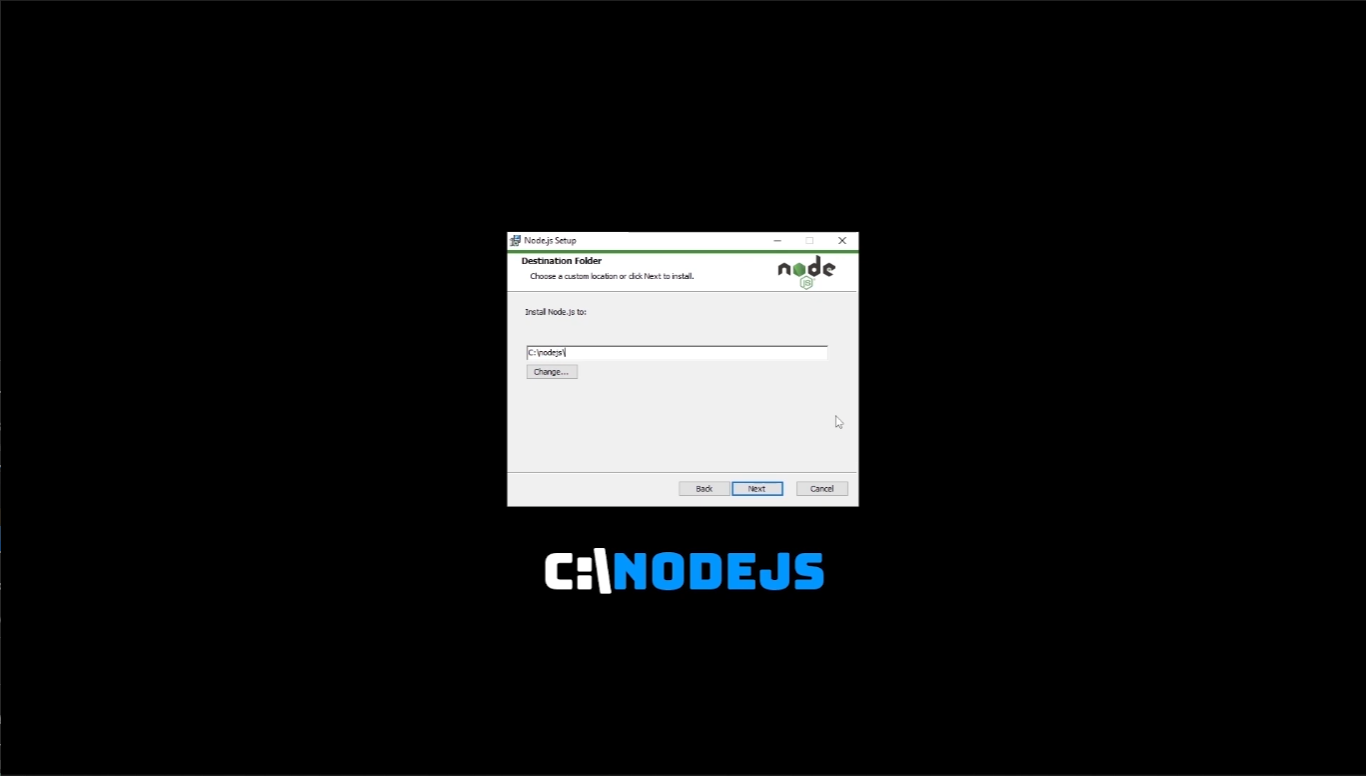
Installing NodeJS, by rewriting default location to c:\nodejs in this example.
Now that Node JS is installed, go to Start button:

And start typing: environment variables:
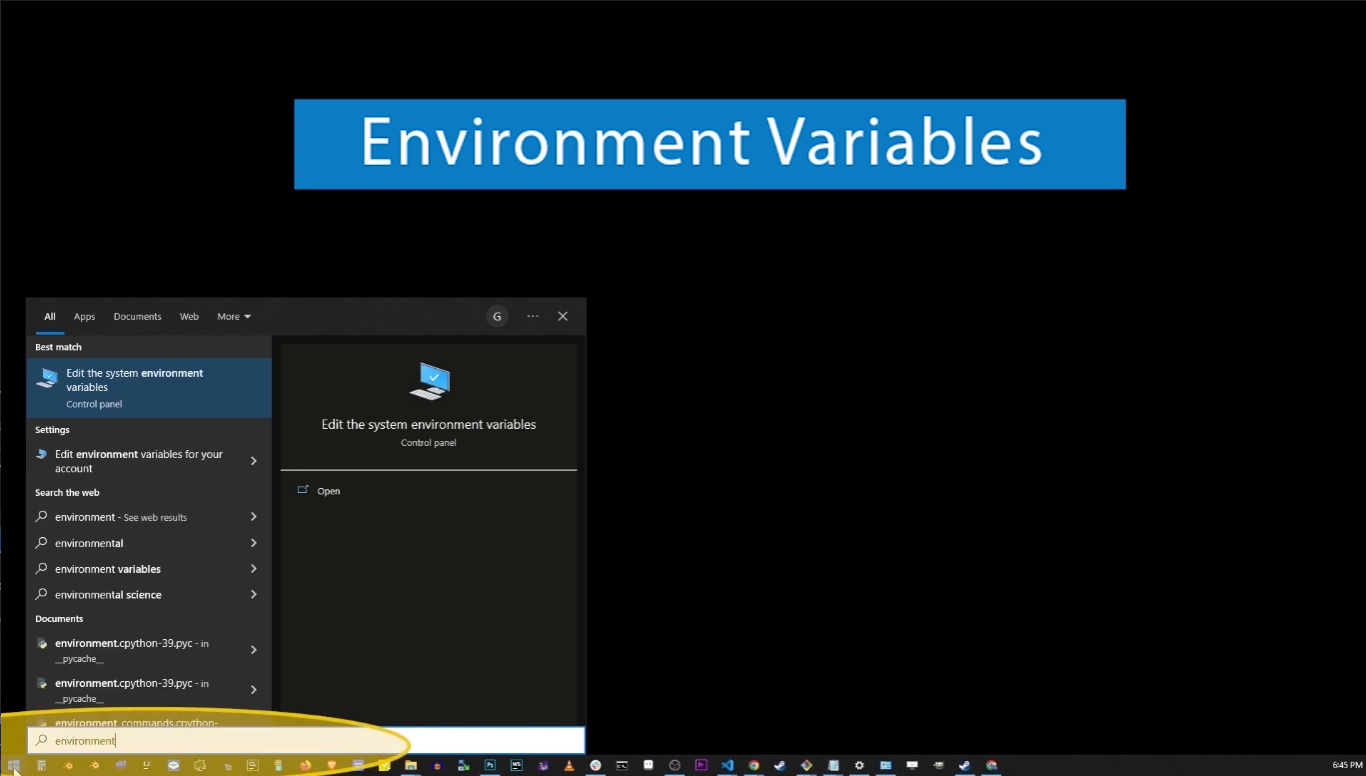
The easiest way to find Environment Variables on Windows (Go to Start button, and type “environment variables”, then click on the Open button in the right panel, or hit Enter.)
On the window that shows up, click Environment Variables button:
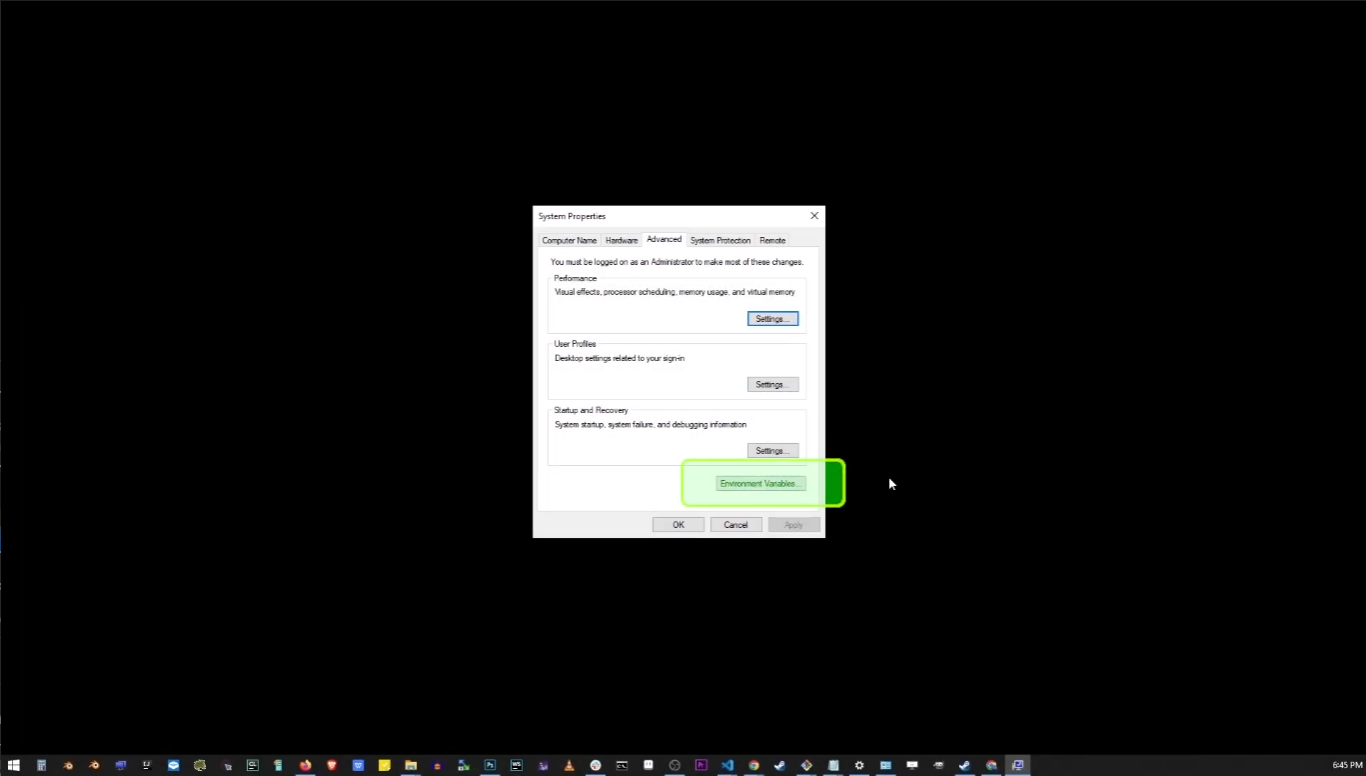
Click on Environment Variables button.
On next screen, find Path variable (in second box):
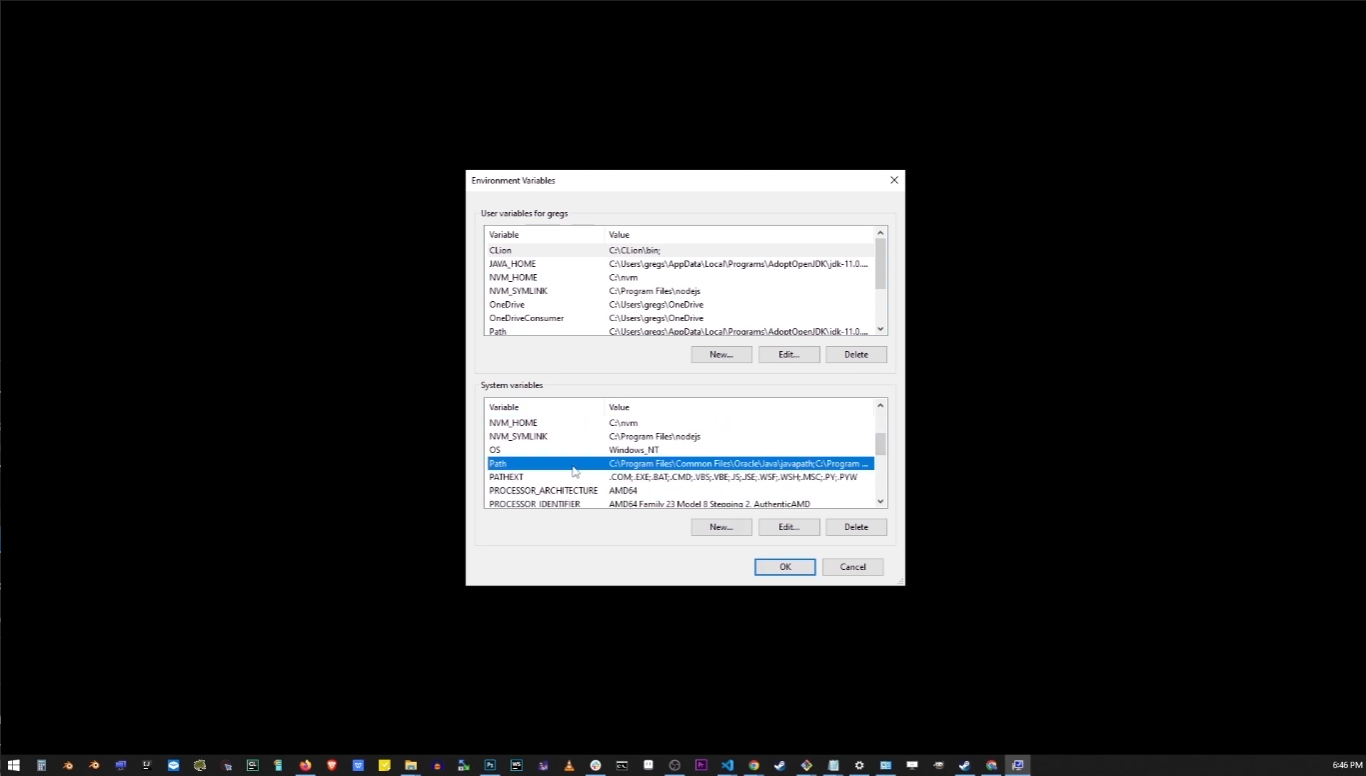
Find Path variable in second box under System variables.
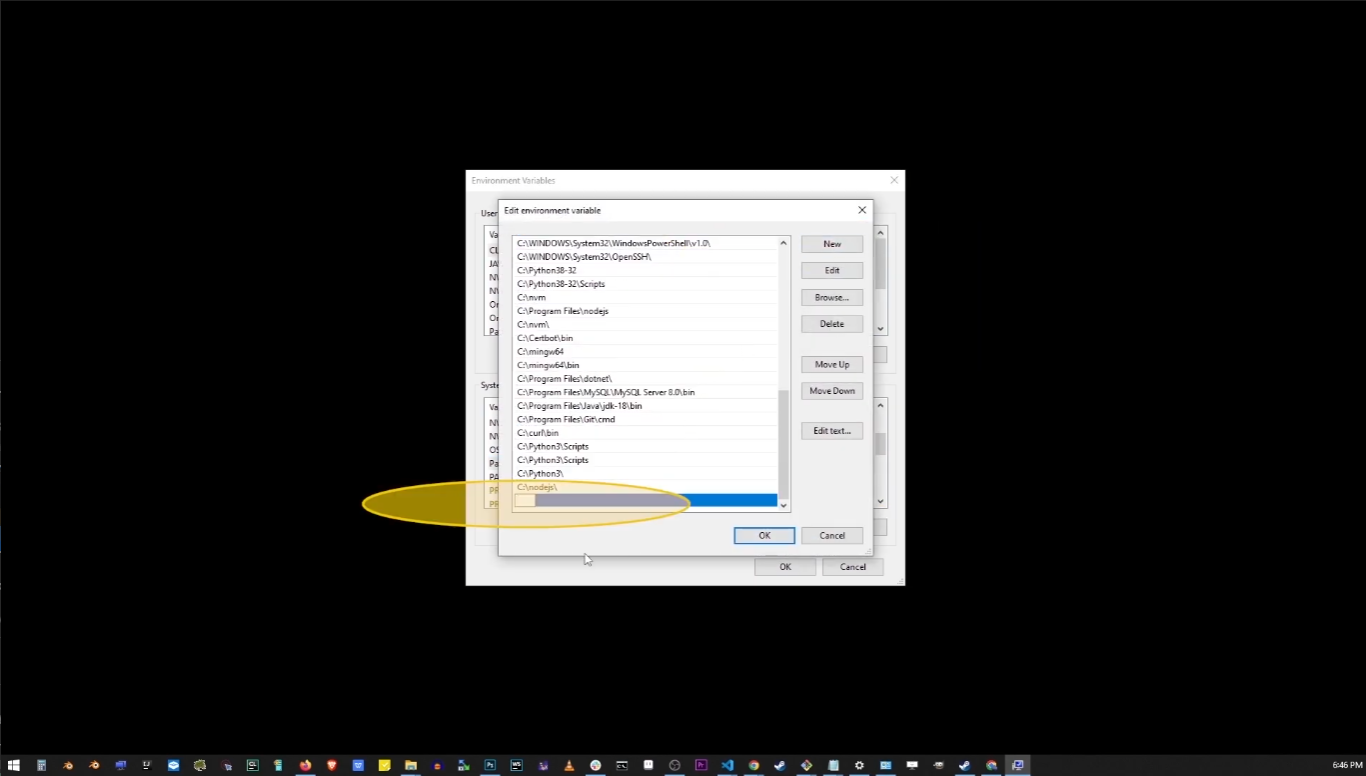
Now click on New button, and type c:\nodejs (or the path where you installed NodeJS in previous step.)
How to add Node JS to PATH environment variables in Windows.
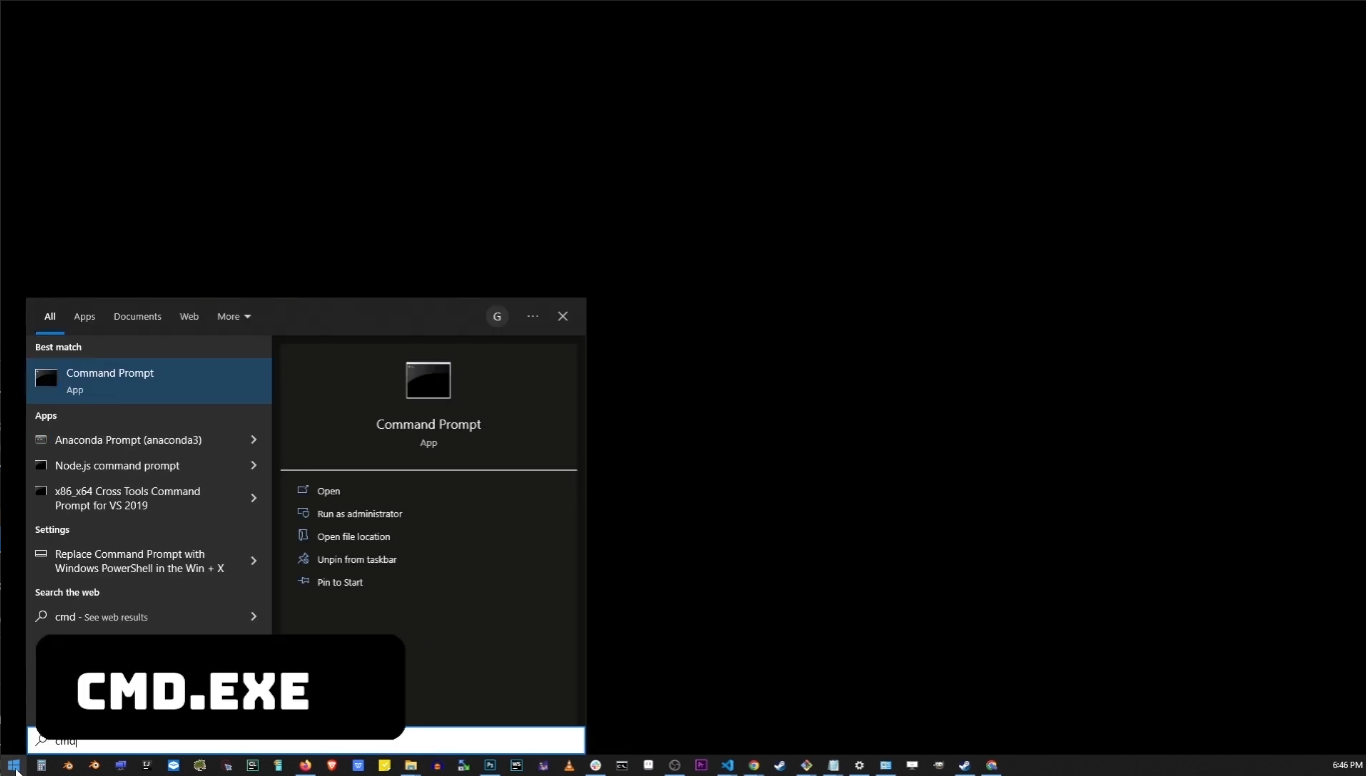
Click on Start button again, and type cmd or cmd.exe and hit Enter.
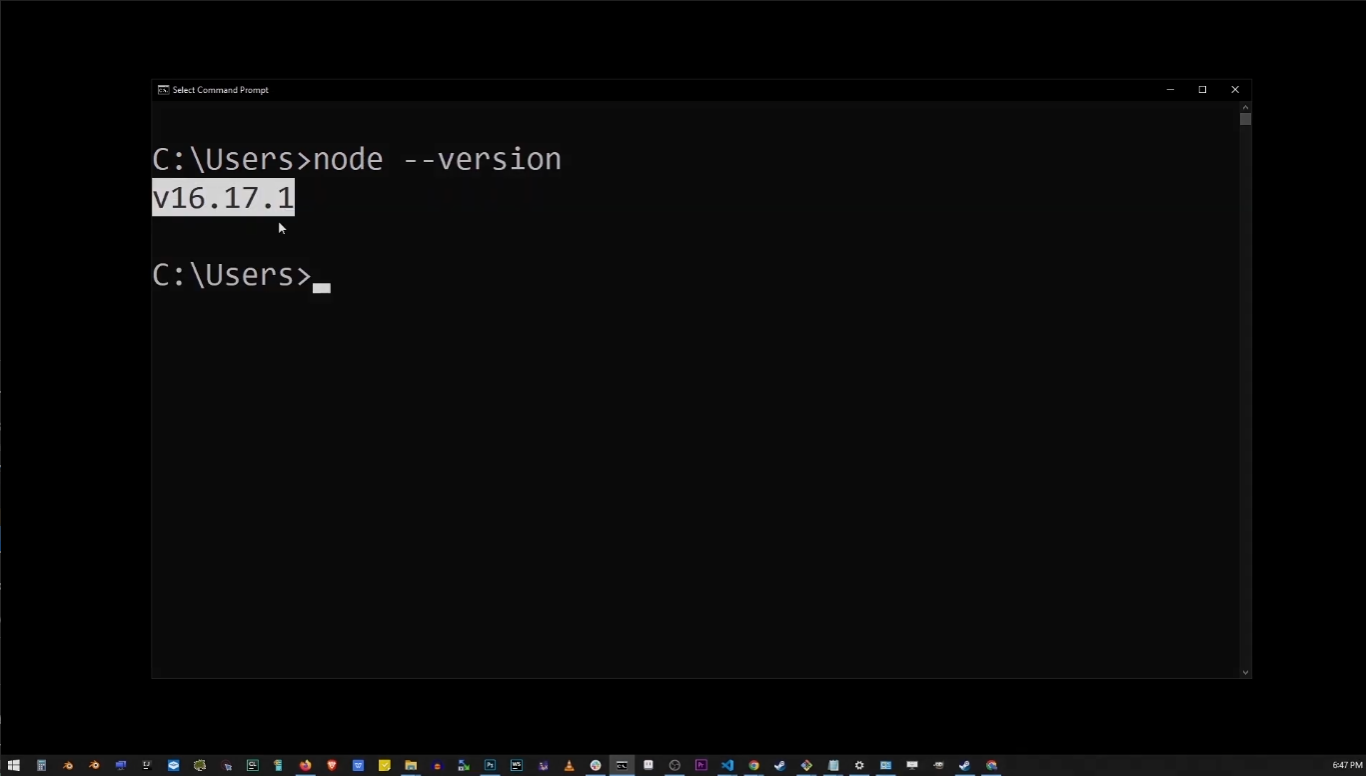
Now run command line in Windows (Go to Start, type cmd.exe, hit Enter.)
In the command line prompt, type:node --version
Check which version of NodeJS I am running in Window command line (cmd.exe)
On my computer it printed out v16.17.1 but yours should be most recent version of NodeJS. (Or whatever you installed in previous step.)
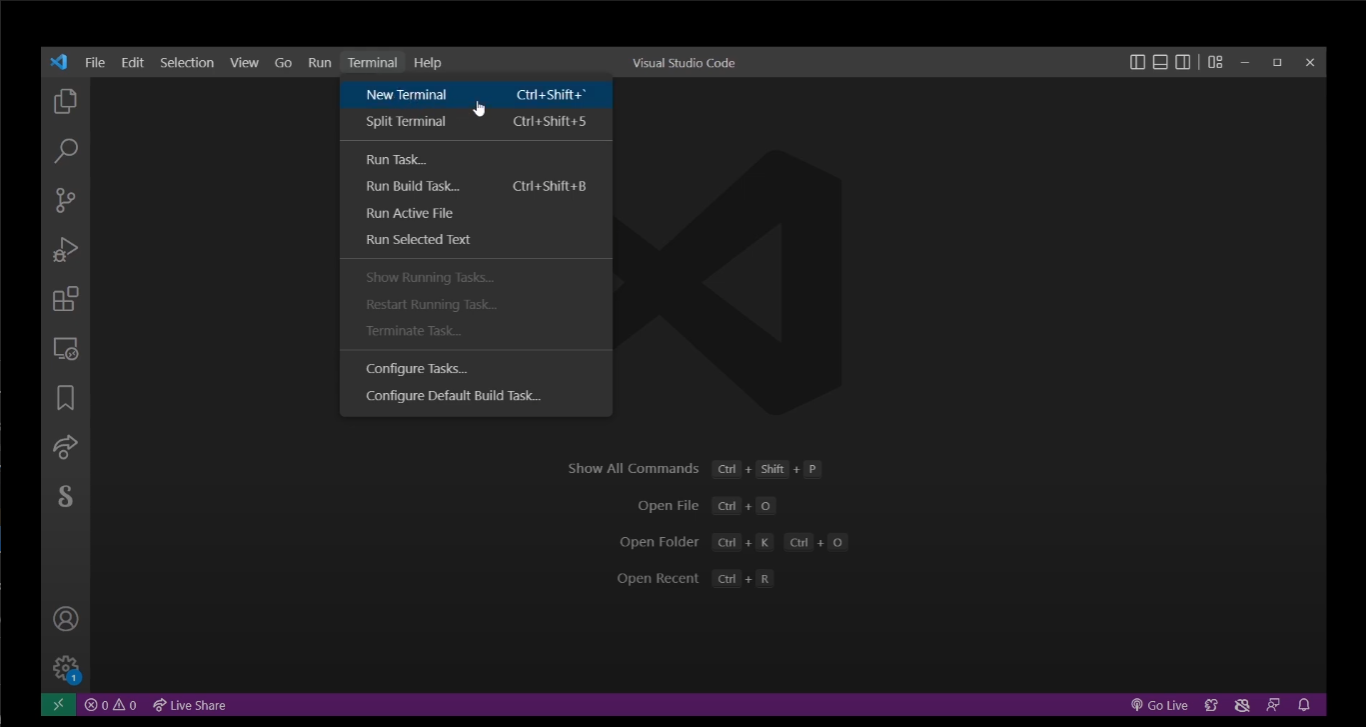
Go to Terminal tab, then go to New Terminal in VSCode. This will open command line in Visual Studio Code.
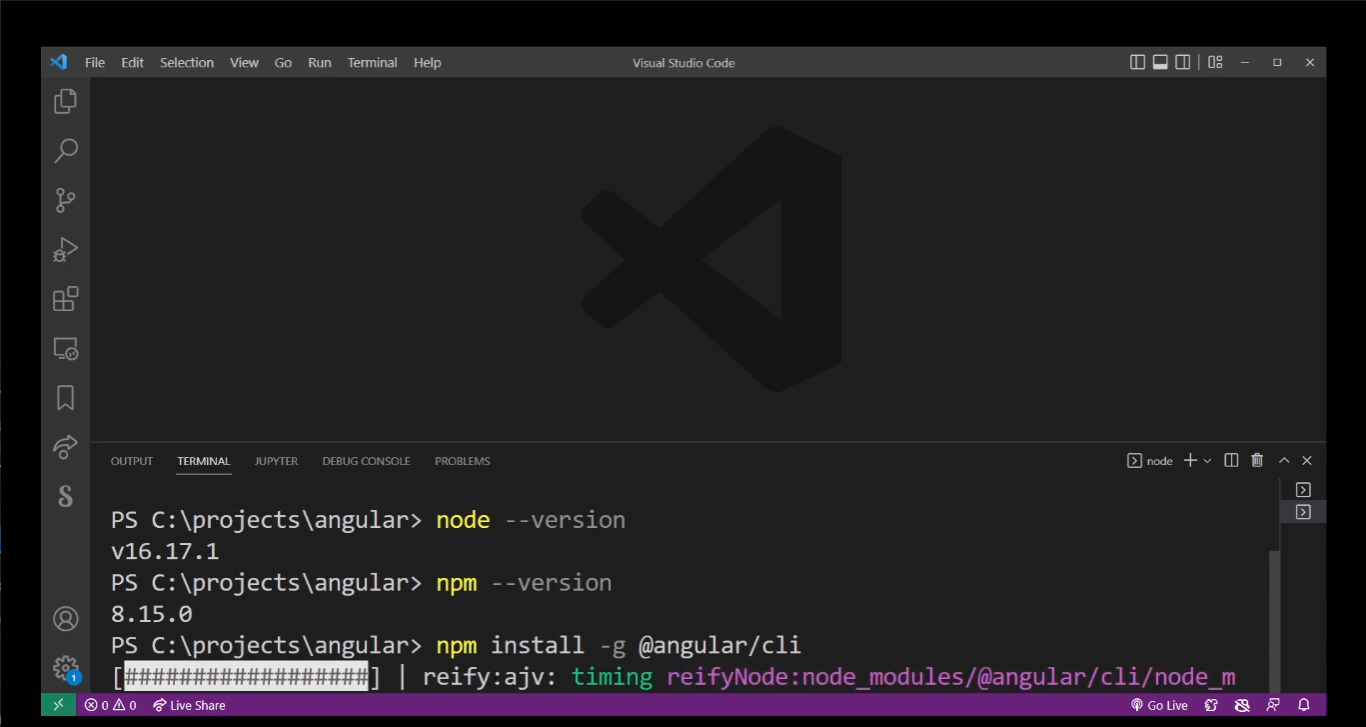
Create and navigate to location on your hard drive where you created your Angular project.
On the command line, use cd command to navigate to the directory where you want any of your Angular projects to be located. (Just a general use folder for all of your Angular programs, not specific project folder.)
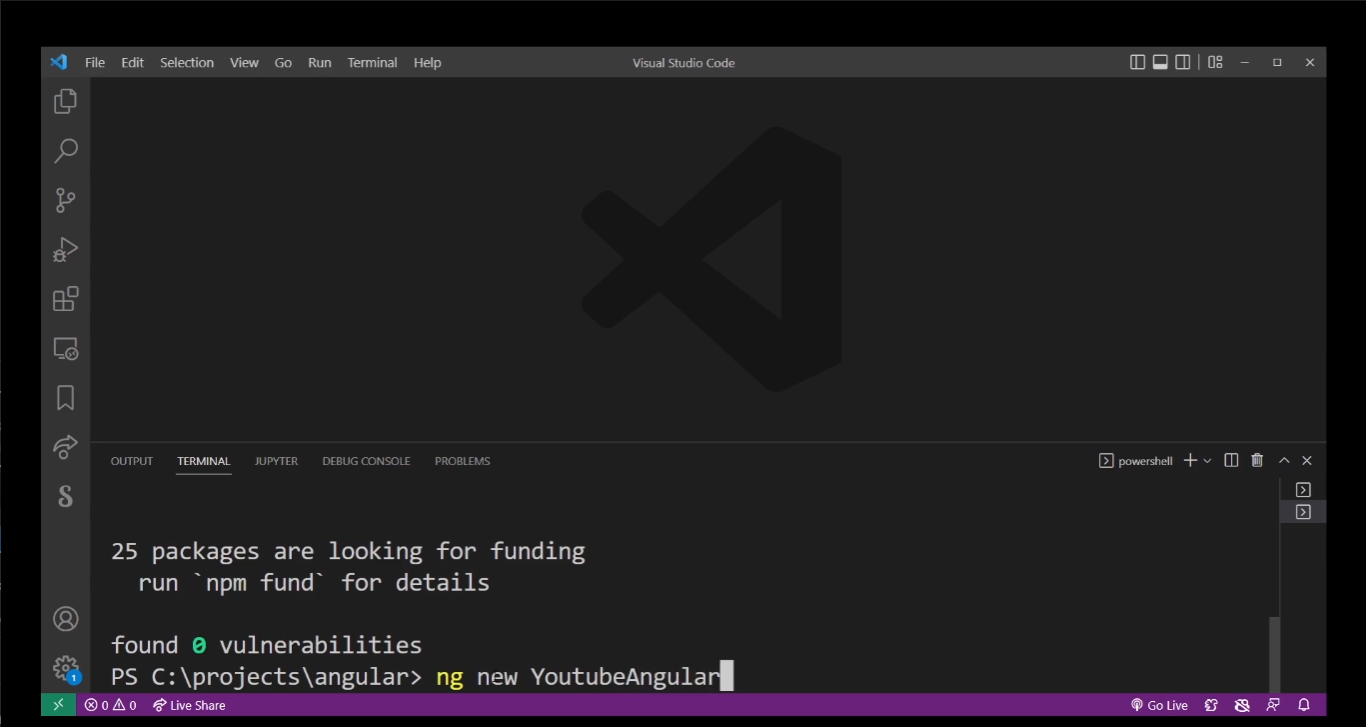
The command to install Angular in a folder is:
npm install -g @angular/cli
This command will install Angular server in that directory.
How to create and name a new Angular project in a folder.
Now type ng new projectName on command line:
ng new YoutubeAngular
Here YoutubeAngular can be anything you want. This is your Angular project name. Replace it with your own folder name. This command will create a new Angular application in the specified folder.
Now in any Terminal or command line prompt, type:
cd YoutubeAngular
(Again, replace with your own project name.)
Use cd command to change directory to your created Angular project folder and run ng serve.
That’s all. Your Angular app should now be running live on localhost:4200 in your browser (just open your browser to verify this.)
And finally launch your app on Angular server by typing ng serve:
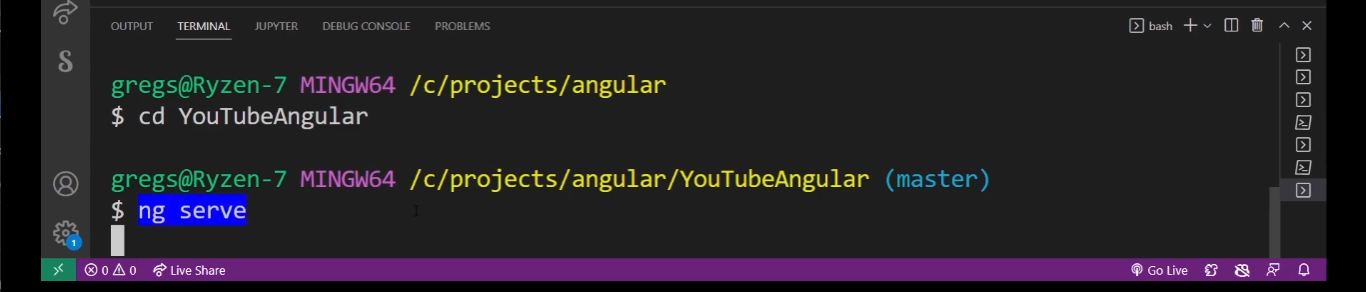
Run this command to start your new Angular app on localhost:
ng serve
ng serve is the command that will launch your Angular application. Once its setup, simply open your browser at localhost:
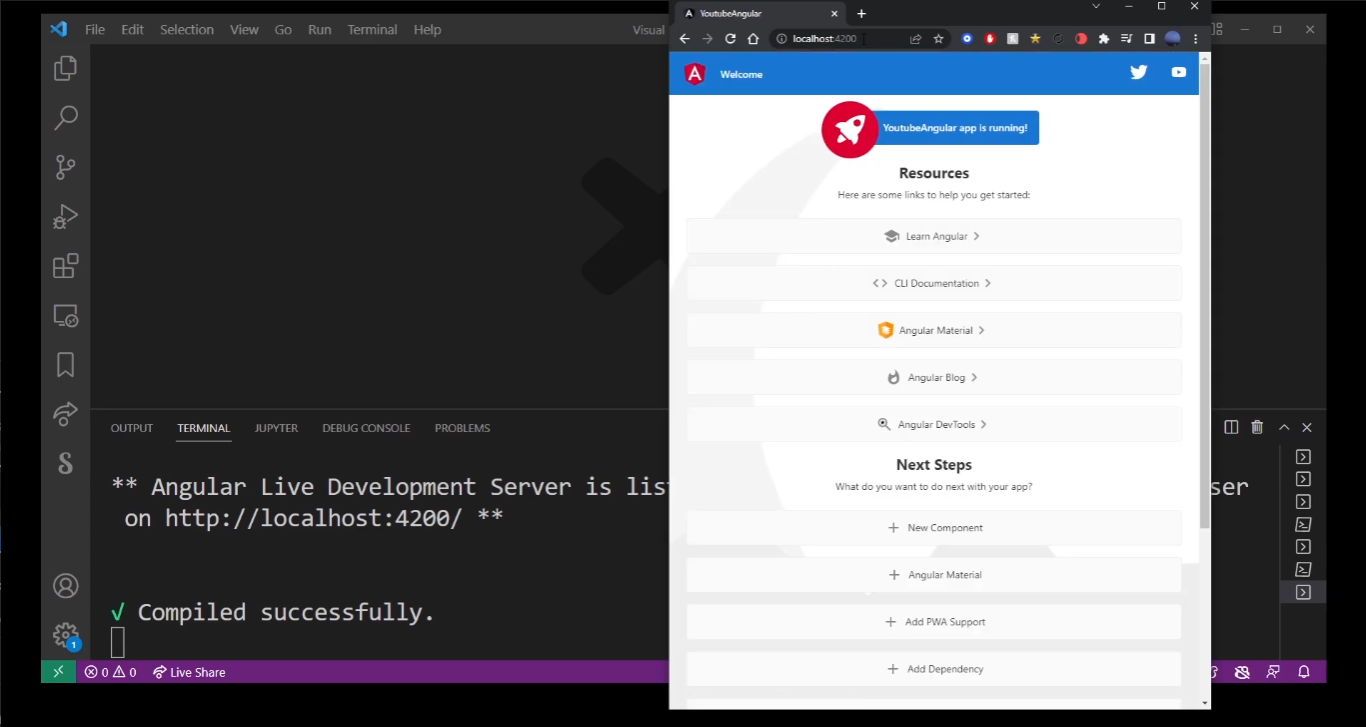
(Image above: Running your first Angular app on localhost:4200 in browser.)
Note that your app will launch on port 4200 on localhost:4200.
(This is the default port Angular will use to run your app.)
And here is the video again, just in case you prefer visual instructions:
Video Chapters:
- 00:00 How to run Angular in VSCode (Intro)
- 00:13 First, download NodeJS
- 00:30 Installing Node JS
- 00:41 Adding Node.JS to Environment Variables (PATH)
- 01:32 Open Visual Studio Code editor
- 01:48 Check node version in vscode terminal (and npm version)
- 02:03 Run “npm install -g @angular/cli” in VSCode terminal to install Angular CLI
- 02:20 First attempt at creating angular app in PowerShell (SecurityError, UnauthorizedAccess)
- 02:55 Second attempt at creating angular app in Bash
- 03:29 Run Angular server by typing “ng serve”
- 03:53 Open Angular in browser on localhost:4200
- 04:06 Opening your Angular app in VSCode for editing