Learning Davinci Resolve for the first time can be an overwhelming experience. While the edit mode does resemble Premiere Pro's user interface, many areas of Davinci Resolve are completely unique and impossible to understand without training.
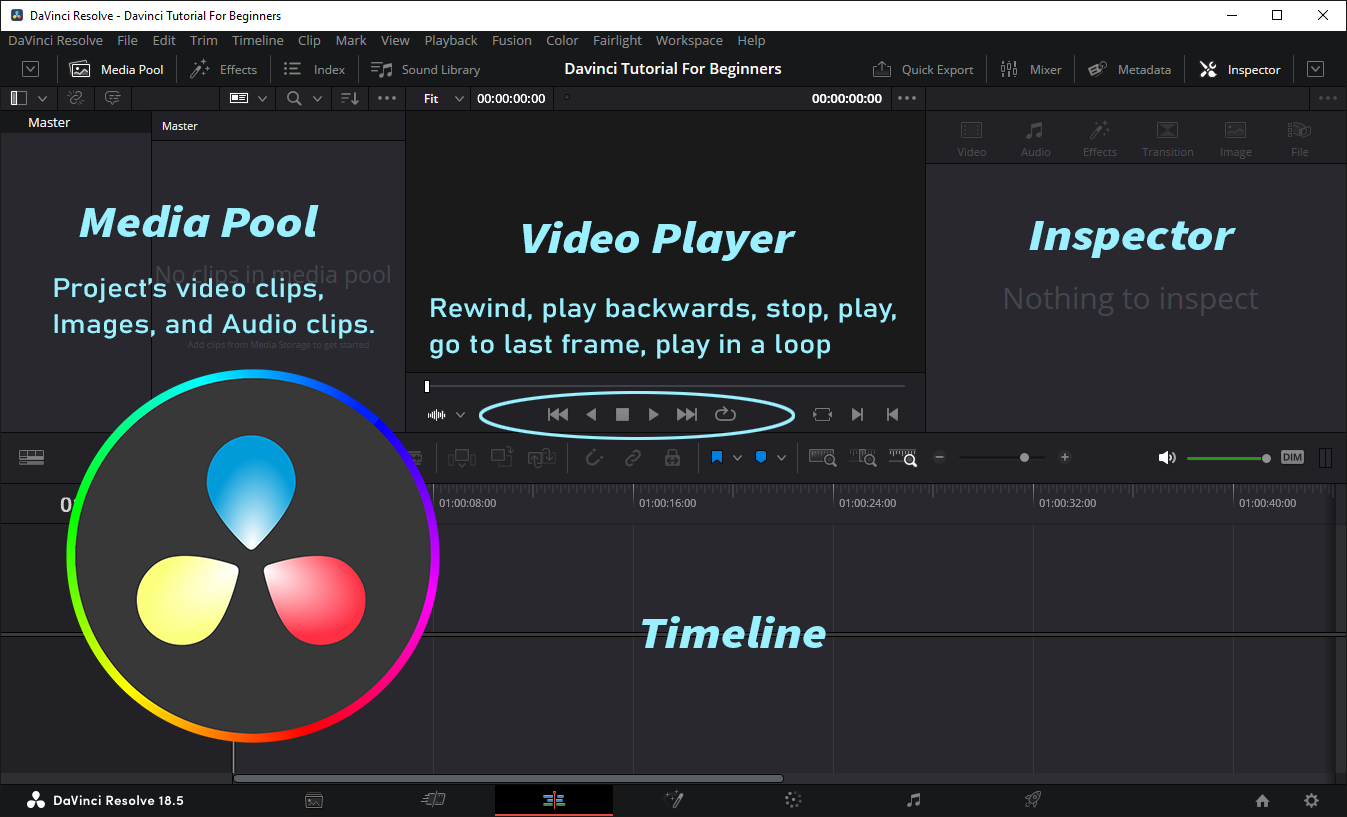
Watch this YouTube Davinci Resolve video to get started:
- This guide is designed for beginners to introduce the DaVinci Resolve 18 interface and essential tools. Learn how to import video and audio files, navigate the Media Pool, and use basic functions of the DaVinci Video Player.
- Step by step, learn to manage video and audio tracks on the main timeline, cut and move clips, adjust volume levels, and use advanced techniques like keyframes and flipping video.
- Focus on the Fairlight panel to record and edit audio professionally. Troubleshoot common issues, such as a non-responsive microphone, adjust audio settings, change aspect ratio in project settings, and export your finished product as an MP4 file.
Davinci Resolve 18 Tutorial For Beginners
This Davinci Resolve 18 tutorial for beginners explains some of the most basic features to get you started with editing video and audio. This tutorial is based on common questions asked by beginners using Davinci Resolve for the first time. It's a bit different than Premiere Pro, and some of the familiar features mirroring Premiere Pro user interface are not easy to find in Davinci.
How to Switch to Edit Mode
Davinci Resolve has navigation bar at the bottom. It consists of several buttons including Media, Cut, Edit, Fusion, Color, Fairlight (dedicated dashboard for editing audio,) and Deliver.
There is a dashboard for every task in the production process.
The best view for editing your video and audio tracks is the Edit mode.
To switch to Edit mode, click on 3rd button on the navigation bar:
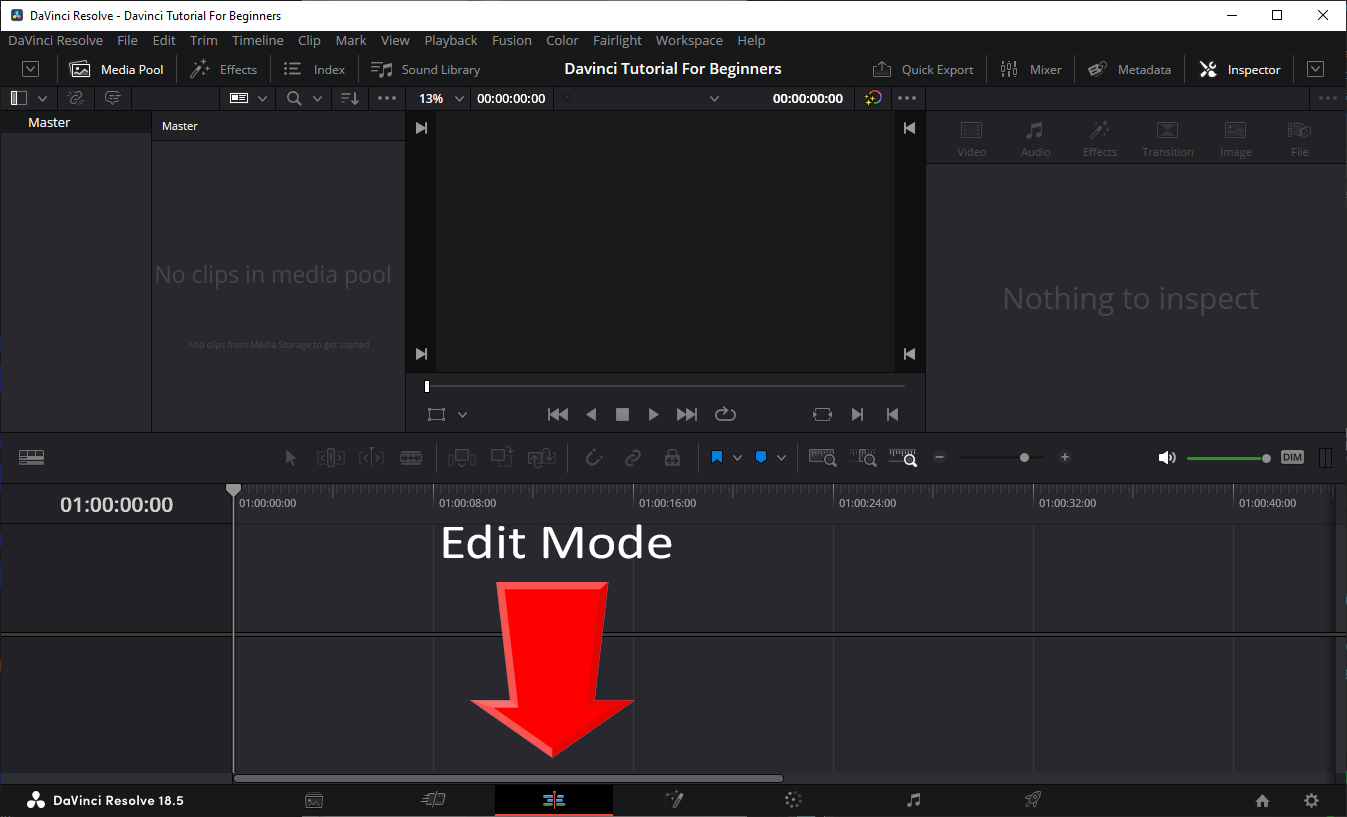
To start editing your video, switch to Edit mode by clicking on 3rd button that has a small icon of video and audio tracks on it. This will open Davinci Resolve's video and audio editor dashboard that resembles Premiere Pro.
How to Import Image, Video or Audio into Media Pool
To prepare your project, drag some resources onto Media Pool.
You can add images, audio and video files.
At this point they won't be added to the timeline yet.
These are just the files that you will work with to build your video project.
It can contain background images, sound effects you want to use during the video, or separate videos you want to use as an overlay to the main video.
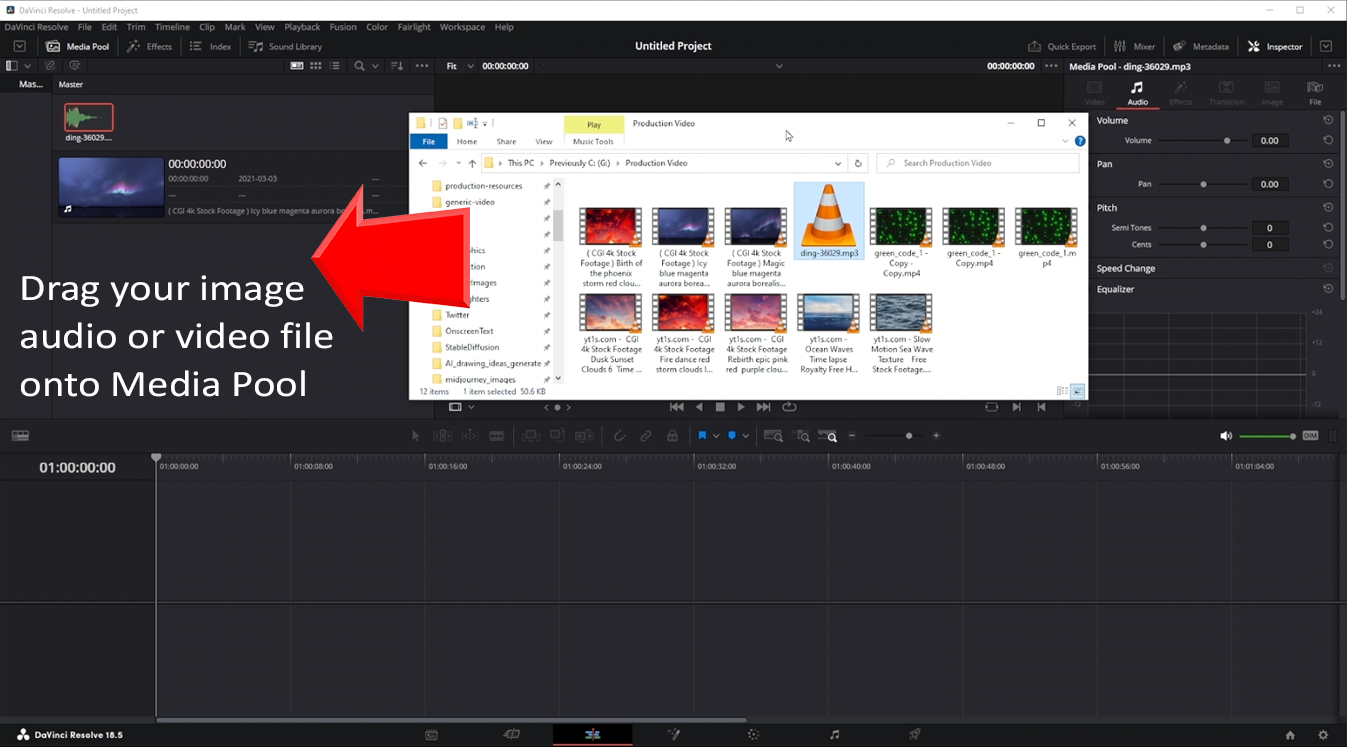
Now that you have some assets available in Media Pool for this project, it's time to drag them onto the main timeline.
How to See Audio Waveform Preview in Media Pool
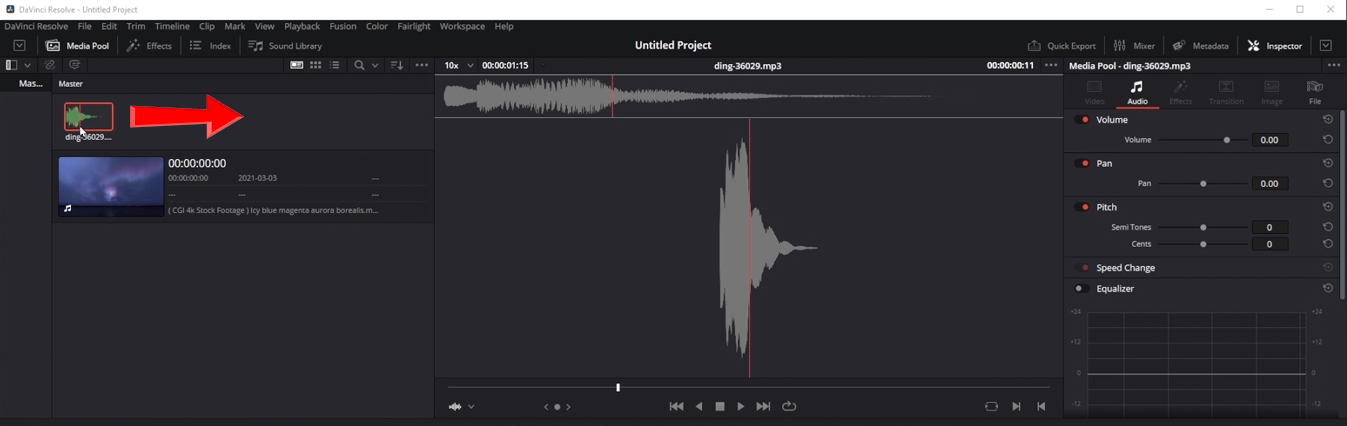
If you drag your mouse over an asset in the media pool, you can preview it.
If it's a video, dragging the mouse over it will play it in Davinci Player view:
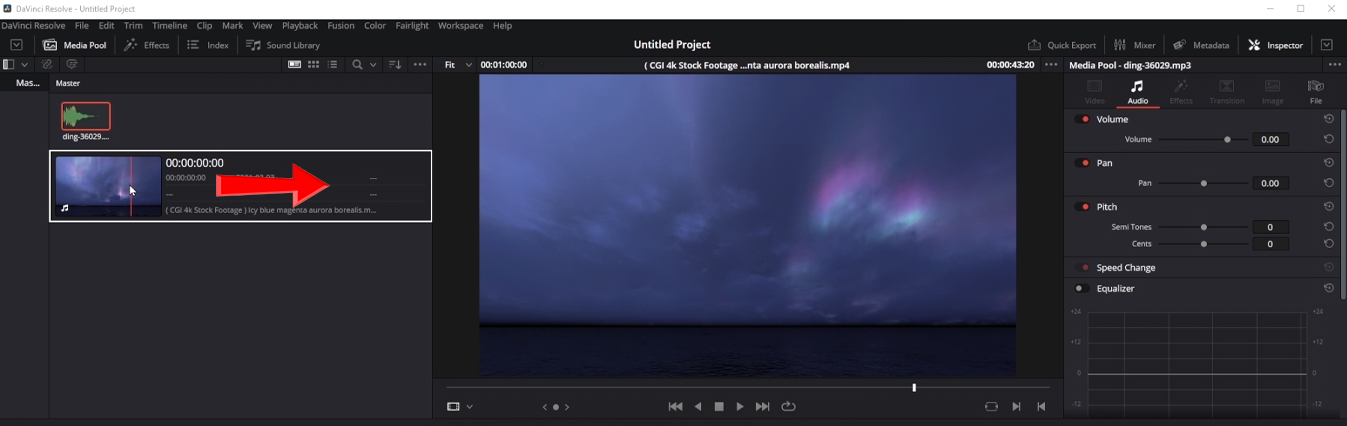
If it's an audio, you will see its waveform and the sound will play as you drag the mouse:
How to Find and Open Media Pool
If you can't locate Media Pool in Davinci Resolve, follow the red arrow on this image to figure out where it is. The Media Pool is located in the upper left corner of the screen in Edit mode:
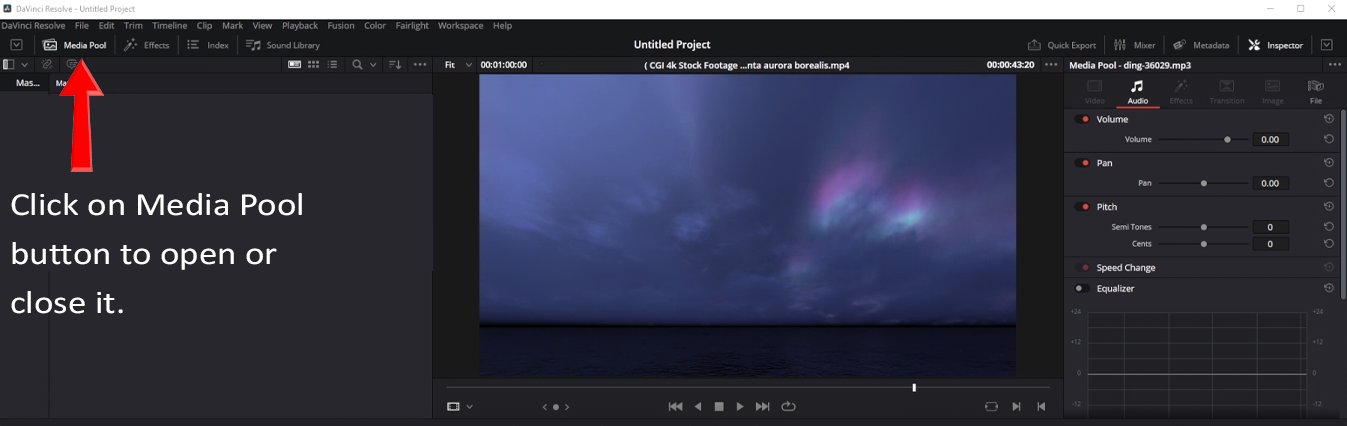
Media Pool can be opened by clicking on Media Pool button in upper left corner. If you don't see it, make sure that you first switch to Edit mode by clicking on 3rd button in main navigation bar at the bottom.
How to Play, Stop, Rewind and Play Video in a Loop in Davinci Video Player
How to Open Inspector Tab (where is inspector tab)
Where is Main Timeline (edit view)
How to Drag Video into Media Pool
How to Drag Video Clip into a Video Track on Main Timeline
How to Edit Video and Audio on Main Timeline
How to Detach Audio Track from Video Track (chain button)
Change Timeline Video or Audio Track Background Color
How to Attach Audio Track Back to Video Track
How to Cut Your Video Track into Multiple Parts (razor blade tool)
How to Select Multiple Tracks and Move Them
How to Delete Just the Audio Track Using Cut Option
How to Add Music, Soundtrack or Speech to Your Video
How to Increase or Decrease Audio Track Volume
How to Add Multiple Volume Adjusters (Alt + Click Horizontal Volume Bar)
Adjusting Volume Gradually in Different Places of Audio Track
How to Fade In Audio at the Start of Audio Track
How to Gradually Adjust Fade In Effect Using a Curve on Audio Track
How to Fade Out Clip at the End, Linear or Gradually with a Curve
How to Show and Hide Waveform Fix (waveform is not showing up)
How to Change Volume of Your Audio Track in Inspector Tab
How to Decrease Height of Audio Track
How to Mute Audio Track
How to Zoom In and Out Video
How to Animate Video Zoom While Video is Playing Using Keyframe
How to Add Keyframe to the Timeline for Dynamic Animation
How to Remove Keyframe from Timeline
How to Flip Video Vertically or Horizontally
How to Select Everything to the Right on Your Timeline (audio and video track)
Using Track Select Forward Tool in Premiere Pro (Select Everything to the Right)
How to Select Everything to the Right with Alt+Y (Windows) or Option+Y (Mac)
How to Create Crossfade Effect Between Two Videos
How to Use Crossfade Effects to Fade Between Two Videos
How to Record Audio Over Your Video in Fairlight
Microphone is Not Working (how to select microphone in audio I/O settings)
How to Add a New Audio Track in Fairlight Dashboard
How to Fix Microphone Not Working on Audio Track in Fairlight
How to Arm Track and Record Audio in Fairlight
How to Change Aspect Ratio (change video resolution) in Project Settings
How to Export Video to MP4 (h264 h265)
The free version of DaVinci Resolve is full of features, more than many paid software options. You can edit and finish videos at up to 60 frames per second, in very high resolutions of up to 3840 x 2160. It gives you a wide range of color grading tools, like luma, HSL, and 3D keyers, as well as a color warper and HDR tools.
You can also create video collages, adjust audio timing, and more. Plus, it lets multiple people work on the same project at the same time. As you get more comfortable with DaVinci Resolve, you can consider upgrading to DaVinci Resolve Studio. The free version has over 50 extra features, including the DaVinci Neural Engine, more Resolve FX, and options for 3D work.
Table of Contents:
- Davinci Resolve 18 Tutorial For Beginners
- How to Switch to Edit Mode
- How to Import Image, Video or Audio into Media Pool
- How to See Audio Waveform Preview in Media Pool
- How to Find and Open Media Pool
- How to Play, Stop, Rewind and Play Video in a Loop in Davinci Video Player
- How to Open Inspector Tab (where is inspector tab)
- Where is Main Timeline (edit view)
- How to Drag Video into Media Pool
- How to Drag Video Clip into a Video Track on Main Timeline
- How to Edit Video and Audio on Main Timeline
- How to Detach Audio Track from Video Track (chain button)
- Change Timeline Video or Audio Track Background Color
- How to Attach Audio Track Back to Video Track
- How to Cut Your Video Track into Multiple Parts (razor blade tool)
- How to Select Multiple Tracks and Move Them
- How to Delete Just the Audio Track Using Cut Option
- How to Add Music, Soundtrack or Speech to Your Video
- How to Increase or Decrease Audio Track Volume
- How to Add Multiple Volume Adjusters (Alt + Click Horizontal Volume Bar)
- Adjusting Volume Gradually in Different Places of Audio Track
- How to Fade In Audio at the Start of Audio Track
- How to Gradually Adjust Fade In Effect Using a Curve on Audio Track
- How to Fade Out Clip at the End, Linear or Gradually with a Curve
- How to Show and Hide Waveform Fix (waveform is not showing up)
- How to Change Volume of Your Audio Track in Inspector Tab
- How to Decrease Height of Audio Track
- How to Mute Audio Track
- How to Zoom In and Out Video
- How to Animate Video Zoom While Video is Playing Using Keyframe
- How to Add Keyframe to the Timeline for Dynamic Animation
- How to Remove Keyframe from Timeline
- How to Flip Video Vertically or Horizontally
- How to Select Everything to the Right on Your Timeline (audio and video track)
- Using Track Select Forward Tool in Premiere Pro (Select Everything to the Right)
- How to Select Everything to the Right with Alt+Y (Windows) or Option+Y (Mac)
- How to Create Crossfade Effect Between Two Videos
- How to Use Crossfade Effects to Fade Between Two Videos
- How to Record Audio Over Your Video in Fairlight
- Microphone is Not Working (how to select microphone in audio I/O settings)
- How to Add a New Audio Track in Fairlight Dashboard
- How to Fix Microphone Not Working on Audio Track in Fairlight
- How to Arm Track and Record Audio in Fairlight
- How to Change Aspect Ratio in Project Settings
- How to Export Video to MP4 (h264 h265)