How to Sign a PDF on a Computer or Phone
Disclosure: this page contains Amazon affiliate links. As an Amazon Associate we earn from qualifying purchases, at no extra cost to you.
Well hello, signature superstar. Printing a page just to sign it and scan it back feels like sending a fax in a spaceship, doesn’t it? To sign a PDF you don’t need a printer, a pen and a scanner anymore — the free Adobe Acrobat Reader, Preview on a Mac and the Files app on an iPhone can all put your signature on a PDF in about a minute. If you sign a lot of documents at a desk, a USB signature pad on Amazon lets you sign with a real pen-style stylus instead of a mouse. Here’s every free way, with exactly where to click.
Short answer: To sign a PDF for free, open it in Adobe Acrobat Reader, choose Fill & Sign, select Add signature, then type, draw or upload your signature and click where it goes. On a Mac use Preview’s Sign button; on an iPhone open the PDF in Files and tap Markup, then Add Signature; on Android use the Acrobat Reader app.
- Acrobat Reader is enough: the free Reader signs PDFs with a typed, drawn or picture signature — you don’t need Acrobat Standard or Pro just to sign your own name.
- Preview has three ways to sign: with your Mac’s trackpad, by holding a paper signature up to the camera, or by signing on a nearby iPhone or iPad (Apple’s Preview User Guide).
- iPhone, in Apple’s words:
Tap Add Signature, sign your name with your finger, then tap Done.
- Asking other people to sign is a different job: an eSignature request. Google’s eSignature handles up to 10 signers per request on eligible Google Workspace plans.
- A typed or drawn signature isn’t a “digital signature”: a digital signature uses a certificate-based digital ID that proves who signed and flags any change made afterwards.
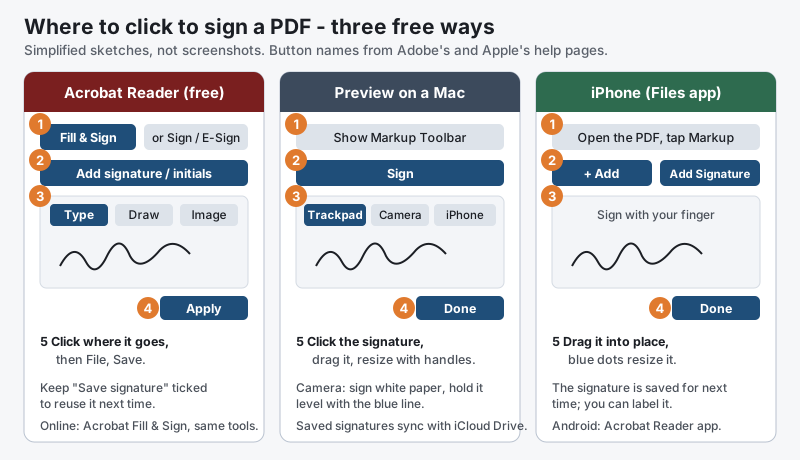
What the sketch shows, in text:
- Acrobat Reader (free): (1) Fill & Sign, or the Sign / E-Sign button; (2) Add signature or initials; (3) Type, Draw or Image; (4) Apply; (5) click where the signature goes, then File, Save. Keep “Save signature” ticked to reuse it. Acrobat’s free online Fill & Sign has the same tools.
- Preview on a Mac: (1) Show Markup Toolbar; (2) Sign; (3) Trackpad, Camera or iPhone; (4) Done; (5) click the signature, drag it and resize it with the handles. For the camera, sign white paper and hold it level with the blue line. Saved signatures sync to your other Macs through iCloud Drive.
- iPhone (Files app): (1) open the PDF and tap Markup; (2) Add, then Add Signature; (3) sign with your finger; (4) Done; (5) drag the signature into place — the blue dots resize it. Android: use the Acrobat Reader app.
How do you sign a PDF for free with Adobe Acrobat Reader?
To sign a PDF with the free Adobe Acrobat Reader, open the PDF, choose Fill & Sign, select Add signature, then type, draw or upload an image of your signature, click Apply and click the spot on the page where it belongs. Then save the file. No paid Acrobat plan is needed to sign your own name.
These steps follow Adobe’s help page on signing PDFs in Acrobat Reader and its e-signatures overview for Acrobat:
- Open the PDF in Acrobat Reader on Windows or Mac.
- Choose Fill & Sign from All tools — or select E-Sign or the Sign icon, depending on your version’s layout.
- Select Add signature (or Add initials).
- Make the signature one of three ways: Type your name and Acrobat turns it into a script-style signature, Draw it with a mouse, trackpad or touchscreen, or pick an Image of your handwritten signature.
- Select Apply, then click where the signature goes. Drag the corner to resize it.
- Save with File, then Save (or Save As, to keep the unsigned original too).
If you leave Save signature ticked and you’re signed in to an Adobe account, Adobe keeps the signature in its Document Cloud so it’s ready next time — on your computer, the web and the Acrobat mobile app. The same Fill & Sign panel also adds your typed name, the date, text and check marks, which is handy when a form wants “Date” right beside the signature.
Can you sign a PDF online with Adobe for free?
Yes, Adobe’s free online Fill & Sign tool signs a PDF in your web browser with no software to install. Upload the PDF to Acrobat’s online Sign PDF page, sign in with a free Adobe account (Adobe says You must be signed in to complete the fillable form
), then select Add signature, type or draw it, select Save, place it and download the signed file. Adobe’s Acrobat on the web help page adds that you can choose Image to use a picture of your signature. The same page notes that requesting signatures from other people and audit trails may need a paid Acrobat plan.
Which tools can sign a PDF, and how?
Every common PDF tool can put a drawn signature on a PDF, but only some can type one, use a photo of your signature, sign with a certificate, or send the file for other people to sign. This table compares 11 tools side by side.
| Tool | Draw | Type | Photo or image | Certificate | What you need |
|---|---|---|---|---|---|
| Adobe Acrobat Reader (desktop) | Yes | Yes | Yes | Yes, with a digital ID | Free |
| Adobe Acrobat online Fill & Sign | Yes | Yes | Yes | - | Free Adobe account |
| Apple Preview (Mac) | Yes, trackpad or iPhone/iPad | - | Yes, paper held to the camera | - | Built into macOS |
| iPhone and iPad (Files, Markup) | Yes, finger (Apple Pencil on iPad) | - | - | - | Built in |
| Acrobat Reader app (Android) | Yes | - | Yes, an image | - | Free app |
| Google Drive app (Android) | Freehand pen only | - | - | - | Free |
| Google Workspace eSignature | Yes (signers) | Yes (signers) | - | - | Workspace Individual or an eligible business plan; signs up to 10 people |
| Microsoft Word | Yes, Draw tab | - | Yes, Insert, Pictures | For Word files only | Word; save as PDF afterwards |
| Sejda online | Yes | Yes | Yes | - | Free: 3 tasks per hour, 50 MB per file |
| PDF24 Tools | Yes | - | Yes, upload or camera | Yes, self-signed or your own .p12/.pfx | Free, no registration |
| Smallpdf | Yes | Yes | Yes | - | Free without an account; unlimited with Pro |
Our count from the table: all 11 tools can draw a signature, 5 of 11 can type one, 8 of 11 accept a picture of your handwritten signature, and 3 of 11 can add a certificate-based digital signature (Acrobat Reader, PDF24, and Word for Word documents). If you only ever sign your own name, Acrobat Reader or the app already on your phone covers it.
How do you sign a PDF on a Mac with Preview?
To sign a PDF on a Mac, open it in Preview, click Show Markup Toolbar, click the Sign button, create a signature with the trackpad, the camera or your iPhone, then click it and drag it into place. Preview is built into macOS, so it’s free and works offline.
Apple’s Preview User Guide on filling out and signing PDF forms gives three ways to make the signature:
- Trackpad
- Click Trackpad and sign with your finger on the trackpad. Press any key when you’re finished, then click Done. On a Force Touch trackpad, pressing harder draws a heavier, darker line.
- Camera
- Click Camera, sign your name on white paper, and hold it facing the camera, level with the blue line in the window. Click Done when it appears.
- iPhone or iPad
- Click iPhone or iPad (Select Device if more than one is nearby), sign on the device with your finger or an Apple Pencil, and tap Done. The device has to meet Apple’s Continuity requirements.
Then click the signature to drop it on the page, drag it into position and use the handles to resize it. Apple says signatures are saved for apps that use Markup on your Mac, and if you use iCloud Drive they’re available on your other Macs too. To delete one, click Sign, hold the pointer over the signature and click the X.
How do you sign a PDF on an iPhone or iPad?
To sign a PDF on an iPhone or iPad, open the PDF in the Files app, tap Markup, tap the Add button, then Add Signature, sign with your finger and tap Done. Drag the signature where it belongs and resize it with the blue dots.
These steps come from Apple’s iPhone User Guide on filling out forms and signing documents:
- Open the PDF. If it arrived in Mail or Messages and your iPhone asks, open it in the Files app and tap Save.
- Tap Markup, then the Add button in the Markup toolbar.
- Tap Add Signature. Choose a saved signature, or sign with your finger to make a new one and tap Done. On an iPad, an Apple Pencil works too.
- Place it: drag the signature to the line, and drag a blue dot on its box to resize it.
- Finish: tap Done, or use the Share button to send the signed PDF straight back.
Apple notes that saved signatures stay ready for next time, and you can label one (for example, your initials). The same Add menu has a text tool for printing your name and the date beside the signature — see our guide to adding and changing text in a PDF for what an iPhone can and can’t change.
How do you sign a PDF on an Android phone?
The easiest way to sign a PDF on an Android phone is the free Adobe Acrobat Reader app: open the PDF, tap the edit (pen) button, choose Fill & Sign, tap the signature tool and Create Signature, sign with your finger, tap Done, then tap where it goes. Android itself has no built-in signature tool.
Here’s the fun bit: the tool you need is probably already on your computer or phone — the free Acrobat Reader, Preview or the Files app — so most people never have to pay a cent just to sign their own name.
- Acrobat Reader app: Adobe’s Android guide to filling and signing forms opens a form in Fill & Sign mode from the edit button. You can draw the signature with your finger or use an image of it, and if you’re signed in to your Adobe account the saved signature syncs with your other devices.
- Google Drive app: Drive’s PDF viewer can annotate a PDF with a pen, highlighter and eraser, so you can write your signature freehand with a finger — it works in a pinch, but there’s no saved signature, typed signature or easy resizing.
- Your phone’s browser: free online signers like Sejda, PDF24 and Smallpdf (next section) work on a phone too.
Some Android phones come with their own PDF or notes apps from the phone maker; if yours has one, look for a signature or pen option in its markup tools.
How do you sign a PDF online for free without Adobe?
To sign a PDF online for free without Adobe, upload it to Sejda, PDF24 or Smallpdf, create a typed, drawn or picture signature, place it on the page and download the signed PDF. None of the three needs software, and PDF24 and Smallpdf work without an account.
- Sejda Sign PDF: upload, click Sign, then Add Signature; type your name in a handwriting style, draw it with a mouse or trackpad, or upload an image, then click where it goes. Free use is limited to 3 tasks per hour and 50 MB per file.
- PDF24 Sign PDF: free, no registration, and PDF24 says files are automatically deleted from its server after one hour. Draw with a mouse or touchpad, upload an image or use your camera. It can also add a certificate signature with its own self-signed certificate or your .p12/.pfx file — PDF24 notes a self-signed certificate shows as not verified.
- Smallpdf Sign PDF:
Draw, type, or upload your signature
, then Finish & Sign and download. Smallpdf says you can sign without an account and files are deleted after one hour unless you save them; unlimited signing comes with Smallpdf Pro.
Is it safe to sign a PDF with a free online tool?
Signing a PDF with a free online tool means uploading the document, and a picture of your signature, to someone else’s server. PDF24 and Smallpdf say they delete files after one hour. For contracts, medical forms or tax papers, signing on your own device — Acrobat Reader, Preview, or the Files app on an iPhone — keeps both the file and your signature off the internet.
Can you sign a PDF in Word or Google Docs?
Yes, but Microsoft Word signs a converted Word copy, not the PDF itself: open the PDF in Word, draw your signature on the Draw tab or insert a picture of it, then save the document as a PDF again. Google Docs signs PDFs through its eSignature feature, which needs an eligible Google Workspace plan.
In Word, Microsoft’s guide to drawing with ink in Office says In Word, you must be in Print Layout to draw with ink.
Pick a pen on the Draw tab and sign with a touchscreen, pen or mouse. If you don’t see the Draw tab, go to File, then Options, then Customize Ribbon and tick Draw. Or use Insert, then Pictures, to place a photo of your signature. Then save with File, then Export, then Create PDF/XPS Document. Word’s PDF conversion works best on simple, mostly-text PDFs, so check the layout before you send it.
Word’s own Signature Line (Insert, then Add a Signature Line) is a different thing: it’s for a certificate-based digital signature on a Word file, and Microsoft says To create a digital signature, you have to have a signing certificate, which proves identity.
How do you send a PDF for someone else to sign?
To send a PDF for someone else to sign, use an eSignature request: the service emails each signer a link, they sign, and you get back one signed PDF with a record of who signed and when. Google’s version works from Google Drive: open the PDF, choose eSignature from the menu, drag Signature, Initials, Name, Text or Date signed fields onto the page, then select Request signature.
Google’s eSignature help page gives the limits: You can add up to 10 signers to an eSignature request
, up to 200 fields per document, and the PDF locks while the request is open. Reminders go out automatically after 3 days, and the finished PDF gets an audit trail page. It’s available on Google Workspace Individual and, once an administrator turns it on, Business Standard and Plus, Enterprise and Education Plus plans; people without a Workspace plan can sign up for Workspace Individual. Adobe Acrobat Sign does the same job in Adobe’s paid plans.
What’s the difference between an electronic signature and a digital signature?
An electronic signature is any mark that shows you meant to sign — a typed name, a drawn signature or a picture of your handwriting. A digital signature is a special kind of electronic signature that uses a certificate-based digital ID to prove who signed and to show whether the PDF changed afterwards.
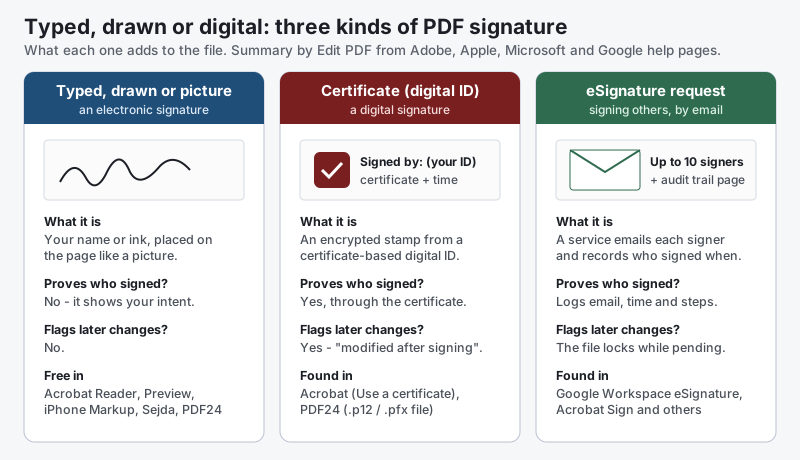
| Kind | What it is | Proves who signed? | Shows later changes? | Where you find it |
|---|---|---|---|---|
| Typed, drawn or picture (electronic signature) | Your name or ink placed on the page | No — it shows your intent | No | Acrobat Reader Fill & Sign, Preview, iPhone Markup, Sejda, PDF24, Smallpdf |
| Certificate (digital signature) | An encrypted stamp from a certificate-based digital ID | Yes, through the certificate | Yes — Acrobat reports the file was modified after signing | Acrobat and Acrobat Reader (Use a certificate), PDF24, Word for Word files |
| eSignature request | A service emails each signer and records the steps | Records email, time and steps in an audit trail | The PDF locks while the request is open | Google Workspace eSignature (up to 10 signers), Adobe Acrobat Sign |
Microsoft describes a digital signature as an electronic, encrypted, stamp of authentication on digital information
. Adobe’s page about certificate signatures in Acrobat says certificate signatures are also known as digital signatures, and that people with a certificate-based digital ID can sign PDFs in Acrobat or the free Acrobat Reader. In Acrobat the tool is All tools, then Use a certificate. You need a digital ID first: Acrobat can create a self-signed one, but a self-signed ID only says this is me
— for official work, your employer, a government portal or a certificate authority usually supplies the ID.
Is an electronic signature on a PDF legally binding?
In the United States, an electronic signature on a PDF generally counts like a handwritten one: the federal ESIGN Act says a signature can’t be rejected just because it’s electronic. The law, 15 U.S.C. 7001, says:
a signature, contract, or other record relating to such transaction may not be denied legal effect, validity, or enforceability solely because it is in electronic form
There are exceptions — the ESIGN Act leaves out wills, for example — and other countries have their own rules. Whoever asks for your signature decides what they accept: some ask for a drawn signature, some for a certificate-based one, and some still want ink on paper. This guide isn’t legal advice; if a document is important, ask the person or office that sent it.
What happens if you change a PDF after signing it?
If you change a PDF after it’s signed with a certificate-based digital signature, the signature shows as modified or invalid — Acrobat warns that the document has been modified after signing
. A typed or drawn signature doesn’t warn anyone, which is exactly why it shouldn’t be used to change an agreement quietly.
- Before you sign: fill in every field, check names, dates and numbers, and save a copy. Once a Fill & Sign signature is saved, it’s part of the page.
- Digital signatures lock the content: Microsoft says
A digitally-signed document becomes read-only to prevent modifications.
To change something, the signature has to come off and everyone signs again. - eSignature requests: Google locks the PDF while signers are working; to change it, you cancel the request and send a new one.
Make your signature once, save it, and the next PDF that lands in your inbox is a ten-second job. Sign it, check it, send it — done.
Sources and further reading
- Adobe Help: Sign PDFs in Adobe Acrobat Reader — Sign icon or Fill & Sign; Add signature or initials; Type, Draw or Image; Apply; Save signature
- Adobe Help: E-signatures in Acrobat — All tools > Fill & Sign; type, draw or image; add name, date and text
- Adobe Help: Fill and sign documents in Acrobat on the web — Add signature, type or draw, Save; Image option
- Adobe: Sign PDFs with a free PDF form filler — free online; "You must be signed in to complete the fillable form"; requesting signatures may need a paid plan
- Adobe: Fill and sign forms (Acrobat Reader for Android) — Fill & Sign mode from the edit button; create signature
- Adobe Help: About certificate signatures in Adobe Acrobat — certificate signatures = digital signatures; sign in Acrobat or Acrobat Reader with a digital ID
- Adobe: validate digital signatures in PDFs — "This document has been modified after signing"
- Apple Preview User Guide: fill out and sign PDF forms — Sign button; Trackpad, Camera, iPhone or iPad; iCloud Drive sync
- Apple iPhone User Guide: fill out forms, sign documents and create signatures — "Tap Add Signature, sign your name with your finger, then tap Done."
- Microsoft Support: Add or remove a digital signature in Office files — signing certificate needed; signature line; "becomes read-only to prevent modifications"
- Microsoft Support: Draw and write with ink in Office — Print Layout; Draw tab; Customize Ribbon to show Draw
- Google Docs Editors Help: eSignature — up to 10 signers, 200 fields; eligible Workspace plans; audit trail; PDF locks while pending
- Google Drive Help: annotate PDFs on Android — pen, highlighter, eraser
- Sejda: Sign PDF — type, draw or upload; free 3 tasks per hour, 50 MB per file
- PDF24 Tools: Sign PDF — free, no registration; draw, image or camera; certificate option; files deleted after one hour
- Smallpdf: Sign PDF — draw, type or upload; no account needed; files deleted after one hour; Pro for unlimited eSign
- Cornell LII: 15 U.S.C. 7001 (ESIGN Act) — electronic signatures may not be denied legal effect solely because they are electronic
Questions and answers
How can I sign a PDF for free?
Open the PDF in the free Adobe Acrobat Reader, choose Fill & Sign, select Add signature, then type, draw or upload your signature and click where it goes. On a Mac, Preview’s Sign button is free too, and on an iPhone the Files app signs PDFs with Markup, then Add, then Add Signature.
How do I sign a PDF on my phone?
On an iPhone, open the PDF in Files, tap Markup, then the Add button and Add Signature, sign with your finger and tap Done. On Android, use the free Adobe Acrobat Reader app: open the PDF, choose Fill & Sign and tap Create Signature.
Is a typed signature on a PDF legally binding?
In the United States, the ESIGN Act says a signature can’t be denied legal effect just because it’s electronic, so a typed or drawn signature generally counts. Some documents, such as wills, are exceptions, and the person asking for your signature decides what they accept. This isn’t legal advice — ask the sender if in doubt.
How do I create a digital signature for a PDF?
A digital signature needs a certificate-based digital ID. In Adobe Acrobat or Acrobat Reader, choose All tools, then Use a certificate, and sign with your digital ID; Acrobat can create a self-signed ID, but official documents usually need one from your employer, a government service or a certificate authority.
How do I sign a PDF and send it back by email?
Sign the PDF in Acrobat Reader, Preview or the iPhone Files app, save it, then attach the saved file to your reply. On an iPhone you can tap the Share button right after signing and choose Mail; check the attachment opens with your signature before you send it.