
How Do You Speed Up an Old PC With ChatGPT?
Disclosure: this page contains Amazon affiliate links. As an Amazon Associate we earn from qualifying purchases, at no extra cost to you.
Ooh, I have a real soft spot for this one, old-computer lifesaver! Say the family PC takes forever to start, the fan sounds like a hair dryer, and opening a browser feels like waiting for a kettle. Before you give up on it, ChatGPT can act like a patient friend who reads your computer’s numbers with you and tells you what to fix first. Often the answer is free, and sometimes it’s one part, like a solid-state drive (Amazon search) that replaces an old spinning hard drive.
Short answer: ChatGPT speeds up an old PC by planning, not by touching it. Give it your specs and Task Manager readings, then work through Microsoft’s free fixes: startup apps, Storage Sense, updates and a malware scan. If the disk or memory still sits near full, an SSD or more RAM usually beats any further tweak.
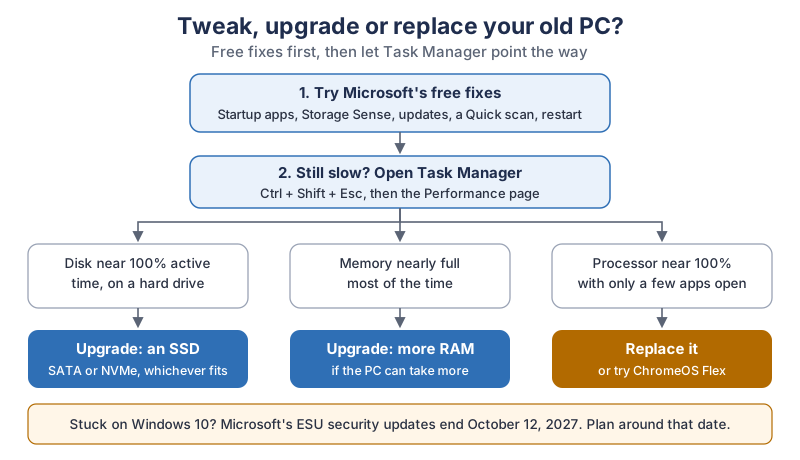
The same decision tree in plain text:
- Free fixes first. Startup apps, Storage Sense, Windows Update, a Quick scan and a restart, all from Microsoft’s own list.
- Still slow? Open Task Manager with Ctrl + Shift + Esc and look at the Performance page.
- Disk near 100% active time, on a hard drive: upgrade to an SSD.
- Memory nearly full most of the time: add RAM, if the PC can take more.
- Processor near 100% with only a few apps open: replace the PC, or try ChromeOS Flex.
- Still on Windows 10? Microsoft’s Extended Security Updates end October 12, 2027, so plan around that date.
Those three Task Manager readings are our own rule of thumb for reading the numbers, not Microsoft’s wording. ChatGPT can talk you through your own readings, which is the whole point of this guide.
Can ChatGPT actually speed up an old PC?
ChatGPT can’t make your PC faster on its own in a normal chat, because it can’t see inside your computer. It can read what you share, like a screenshot of Task Manager, explain what the numbers mean and turn Microsoft’s advice into a short plan for your machine.
That plan has an honest ceiling. Microsoft’s own Tips to improve PC performance in Windows page says it plainly:
Older PCs with outdated hardware may not see significant improvements from these steps. In those cases, upgrading the device may be the best long-term solution.
So think of ChatGPT as the friend who helps you find out which kind of slow you have. Some slowness is clutter, and that’s free to fix. Some is a worn-out part, and no setting will cure that.
What about letting ChatGPT click around your computer for you? OpenAI’s Computer Use lets ChatGPT use desktop apps while it works, and OpenAI’s permissions page says to start with Ask for approval for most work. Its Windows app page also warns that full access mode might perform unintentional destructive actions that can lead to data loss.
For your own system settings, we’d keep ChatGPT in the chat and do the clicking yourself. You’ll learn your machine, and nothing changes that you didn’t choose.
Is ChatGPT or Gemini better for fixing a slow PC?
Either chatbot can help, because the real steps come from Microsoft, not from the assistant. We haven’t compared ChatGPT and Google Gemini on this job, and we won’t pretend we have. Use the one you already know, give it the same readings, and check its advice against Microsoft’s page. If two assistants disagree, Microsoft’s page settles it.
Do you need a paid ChatGPT plan for this?
The Free plan is enough for this job, because it’s a conversation plus a screenshot or two. OpenAI’s image inputs page says you can attach, paste or drag an image into the ChatGPT web composer. Free plans do have upload limits, so pick your clearest screenshots. OpenAI’s upload help page lists the current limits for each plan.
What should you tell ChatGPT about your PC?
Tell ChatGPT your Windows version, processor, memory, drive type and what feels slow, then add a Task Manager screenshot. Every one of those is a few clicks away, and none of it is private.
- Processor and memory. Microsoft’s Windows 11 specifications page says to check Settings > System > About if you’re not sure what processor you have. The About page also shows your installed RAM.
- What feels slow. Be specific.
Takes four minutes to start
orfreezes when I open email
helps far more than “it’s slow”. - How old it is. A rough year is fine. It helps ChatGPT guess which upgrades are even possible.
How do you read Task Manager’s performance numbers?
Task Manager shows how busy your processor, memory and disk are right now, and that’s the best clue to what’s holding your PC back. Microsoft’s page says to press Ctrl + Shift + Esc to open it, then review the Performance and Startup apps pages to find what’s using the most resources.
Open the apps you normally use, wait a minute, then take a screenshot of the Performance page for each of these:
- CPU. How hard the processor is working.
- Memory. How much RAM is in use. This page also shows how many memory slots are used, which tells ChatGPT whether you can add more.
- Disk. How busy the drive is, and whether Windows lists it as an HDD or an SSD.
OpenAI’s image inputs page adds a good habit: Explain what ChatGPT should inspect and what outcome you want; don’t rely on the image alone to communicate the task.
So say what each screenshot shows and when you took it.
What does Microsoft’s PC Health Check app add?
PC Health Check gives you a few more facts worth sharing, including whether your PC can run Windows 11. Microsoft’s PC Health Check page says to search the taskbar for PC Health Check. If it’s not installed, the same page links to the download. Inside, it can:
- check Windows 11 eligibility when you select Check now, and say why your PC does or doesn’t qualify;
- show your Windows Update status, storage capacity and system startup time;
- show battery capacity compared with the original, on devices older than 3 years.
What prompt gets a useful speed-up plan from ChatGPT?
The best prompt gives ChatGPT your facts, asks for steps in order of effect, and bans risky shortcuts up front. Asking it to name the Settings path for each step makes every step easy to check against Microsoft’s page.
My Windows PC is slow and I want a plan to speed it up.
Facts: [Windows version], [processor], [RAM], [drive type and size],
about [year] old. What feels slow: [describe it].
I've attached Task Manager screenshots of CPU, Memory and Disk,
taken with my usual apps open.

Please:
- Tell me what the screenshots suggest is holding the PC back.
- List free fixes first, most helpful first, each with the exact
  Settings path from Microsoft's support pages and how to undo it.
- No registry edits, no third-party "cleaner" apps, and don't turn off
  Windows Security or Windows Update.
- If you give me any command, explain every part of it first.
- Then tell me honestly whether an SSD, more RAM or a new PC would
  help more than any setting, and what I should check before buying.
- Ask me questions if anything is missing.
Expect a few follow-up questions. That’s a good sign, because a guessed answer about your hardware is how people end up buying the wrong part.
Which free fixes should you try first?
Start with Microsoft’s own list, which needs no downloads and no commands. Microsoft recommends trying all of them, because multiple factors can contribute to slow performance.
These are the Windows 11 paths from Microsoft’s performance page:
- Turn off startup apps. Press Ctrl + Shift + Esc, select Startup apps, right-click an app you don’t need at startup and select Disable. Ask ChatGPT about any name you don’t recognize before you turn it off.
- Free up disk space. Go to Settings > System > Storage > Storage Sense and select Run Storage Sense now. Temporary files and Disk Cleanup are on the same path.
- Uninstall apps you don’t use. Go to Settings > Apps > Installed apps, select the three dots next to an app and select Uninstall.
- Stop apps running in the background. In Installed apps, open an app’s Advanced options and set Let this app run in the background to Never.
- Install updates. Go to Settings > Windows Update > Check for updates, then look under Advanced options > Optional updates for driver updates.
- Run a malware scan. Go to Settings > Privacy & security > Windows Security > Virus & threat protection and select Quick scan. Microsoft says malware can eat up processor and disk resources.
- Trim the visual effects. Search Start for Adjust the appearance and performance of Windows, then on the Visual Effects tab select Adjust for best performance.
- Change the power mode. In Settings > System > Power & battery, pick Best performance. Microsoft notes this drains a laptop battery faster and may make it run warmer.
- Optimize drives. Search Start for Defragment and Optimize Drives, pick the drive and select Optimize.
- Close what you’re not using and restart. Microsoft says many open apps or browser tabs can slow a PC, and a restart is the last step on its list.
Microsoft’s page also suggests turning off app notifications you don’t need, and it points to Microsoft’s PC Manager app, which gathers storage cleanup and startup tools in one place. On Windows 10, the paths go through Update & Security instead, and Microsoft’s page has a Windows 10 tab.
Is it safe to run commands that ChatGPT gives you?
Only run a command if you understand what it does, how to undo it, and why the free fixes above didn’t cover it. None of Microsoft’s steps needs a command at all. OpenAI’s own Use ChatGPT guide says A polished response can still be incomplete or wrong, so review the details that matter before you use or share it.
Honestly, there’s something wonderful about a computer everybody gave up on suddenly starting up quick again. It’s like watching a sleepy old dog rediscover the zoomies.
If ChatGPT suggests a PowerShell or Command Prompt line, slow down:
- Paste it into a new chat and ask what each part does, what it changes and how to reverse it.
- Ask whether Microsoft documents a Settings menu path that does the same thing. If it does, use that instead.
- Skip anything that deletes system files, edits the registry, or turns off Windows Security or Windows Update.
- Never paste a “speed-up” or “debloat” script from a video or a stranger’s website. You can’t see what it really does.
How do you back up before changing anything?
Back up your files before you uninstall anything big, swap a drive or change operating systems. Windows has a backup tool built in. Microsoft’s Windows Backup page says to select Start, type backup and choose Windows Backup, then switch on the Desktop, Documents, Pictures, Videos and Music folders you want copied to OneDrive. Microsoft says a free Microsoft account comes with 5 GB of OneDrive storage, so a big photo library may need an external drive as well.
When does an upgrade beat any tweak?
An upgrade beats tweaking when Task Manager shows the same part maxed out even after the free fixes. A hard drive stuck near 100% active time points to an SSD, memory that’s nearly always full points to more RAM, and a processor that’s flat out with little open usually means it’s time for a new PC.
Before buying anything, find out what your exact PC accepts. Crucial’s upgrade page offers an Upgrade Selector, where you pick your computer, and a System Scanner, which Crucial says doesn’t install on your computer and doesn’t access your personal data. Paste the result into ChatGPT and ask it to explain what each line means.
Will an SSD really speed up an old computer?
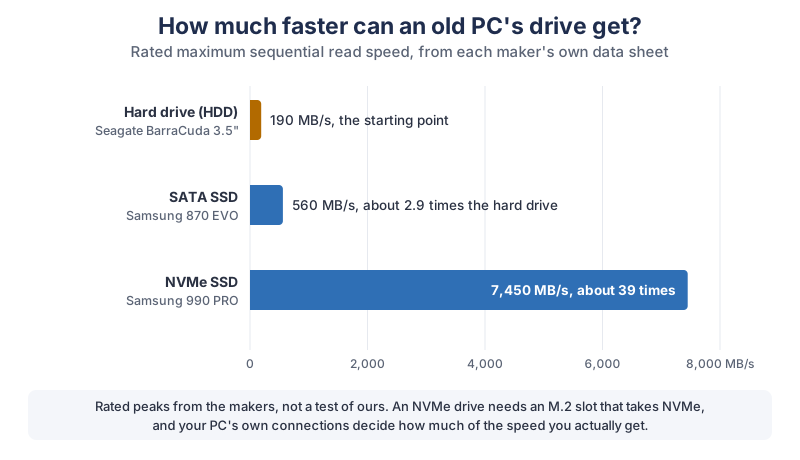
Swapping an old hard drive for an SSD is the upgrade with the biggest jump on paper. We lined up the rated read speeds from three makers’ own data sheets and divided them, so you can see the gap at a glance.
| Drive | Type and connection | Rated max read | Compared with the hard drive |
|---|---|---|---|
| Seagate BarraCuda 3.5” | Hard drive, SATA 6 Gb/s, 7200 RPM (8 TB model 5400 RPM) | 190 MB/s | 1 times (the baseline) |
| Samsung 870 EVO | 2.5-inch SATA SSD | 560 MB/s | about 2.9 times |
| Samsung 990 PRO | M.2 2280 NVMe SSD, PCIe Gen 4.0 x4 | 7,450 MB/s | about 39 times |
Our calculation is each SSD’s rated read speed divided by the hard drive’s 190 MB/s. The figures come from Seagate’s BarraCuda page and data sheet, Samsung’s 870 EVO page and the Samsung 990 PRO data sheet. They’re the makers’ “up to” numbers, measured their way, and Samsung’s sheet says performance may vary with firmware and system. Your old PC won’t hit 39 times faster in daily use, but going from a hard drive to any SSD is the change people tend to notice most.
Which kind fits? A 2.5-inch SATA SSD drops into the same kind of bay and cable many older hard drives use. An NVMe SSD needs an M.2 slot on the motherboard that supports NVMe, and many older PCs don’t have one. Crucial’s scanner or your PC maker’s manual will tell you which you have.
Does adding RAM help an old computer?
More RAM helps when Task Manager shows memory nearly full during normal use. If memory has plenty of room, more of it won’t make much difference. Windows 11 needs at least 4 GB of RAM, according to Microsoft’s specifications page, and that’s a floor, not a comfortable target. Check two things first: how many memory slots Task Manager says are used, and what type of memory your PC takes. Some laptops have their memory soldered to the board, so the maker’s manual or Crucial’s Upgrade Selector is the place to confirm before you buy.
Can ChatGPT walk you through installing an SSD or RAM?
ChatGPT can talk you through an install step by step, as long as you start from your PC maker’s own service manual for your exact model. Paste in the manual’s steps, ask ChatGPT to explain any word you don’t know, and ask what to check before you close the case. Crucial’s site also has memory and storage installation guides. Unplug the PC first, and for a laptop, follow the manual about the battery.
Moving to a new drive means either copying your old drive across or installing Windows fresh. Ask ChatGPT to explain the difference for your situation, and make your backup first either way.
What if your old PC can’t run Windows 11?
If your PC can’t run Windows 11, you can keep Windows 10 safe for a while with Microsoft’s Extended Security Updates (ESU), then upgrade the PC, replace it, or switch it to ChromeOS Flex. Microsoft says Windows 10 support ended on October 14, 2025. Your PC still works, but it no longer gets free security fixes without ESU.
Microsoft’s consumer ESU page says you can enroll any time until the program ends on October 12, 2027. Here’s what it says you need:
- Windows 10, version 22H2, with the latest updates installed;
- a Microsoft account that’s an administrator on the PC, and not a child account;
- to enroll, go to Settings > Update & Security > Windows Update and select Enroll now.
Microsoft lists three ways to enroll: at no extra cost if you sync your PC settings, by redeeming 1,000 Microsoft Rewards points, or with a one-time purchase. One license covers up to 10 devices.
What about forcing Windows 11 onto a PC that doesn’t qualify? Microsoft’s page on unsupported devices says installing it there is not recommended, and that such a PC won’t be entitled to receive updates.
It also says damage from a lack of compatibility isn’t covered by the manufacturer’s warranty. We’d skip that route.
How do Windows 11 and ChromeOS Flex requirements compare?
ChromeOS Flex asks for much less than Windows 11, which is why it suits many older machines. We put the official minimums side by side, along with Microsoft’s bar for a Copilot+ PC, in case you end up replacing the machine.
| Requirement | Windows 11 | ChromeOS Flex | Copilot+ PC (a replacement) |
|---|---|---|---|
| Processor | 1 GHz or faster, 2 or more cores, compatible 64-bit | Intel or AMD x86-64; chips from 2012 and earlier not supported | An NPU with 40+ TOPS, such as AMD Ryzen AI 300 and 400, Intel Core Ultra 200V and 300V, or Snapdragon X series |
| Memory (RAM) | 4 GB | 4 GB | 16 GB DDR5/LPDDR5 |
| Storage | 64 GB or larger | 16 GB | 256 GB SSD/UFS |
| Firmware and security | UEFI, Secure Boot capable, TPM 2.0 | Bootable from USB, full administrator access to the BIOS | Everything Windows 11 needs |
| Graphics and display | DirectX 12 with WDDM 2.0 driver; 720p display over 9 inches | Nvidia graphics from 2014 and earlier not supported | Everything Windows 11 needs |
| Where to check | PC Health Check, Check now | Google’s certified models list | The maker’s product page |
Can you turn an old PC into a Chromebook?
Yes, Google’s free ChromeOS Flex can turn many older Windows PCs into something that works like a Chromebook. Google’s ChromeOS Flex requirements page says you need a USB drive of 16 GB or larger, and that everything on that USB drive will be erased. Google’s steps are to create the USB installer, boot from it, and then either install ChromeOS Flex or run it from the USB drive for a while first.
Try it from the USB drive before you install, so you can see if your Wi-Fi, sound and screen all work. Google says it only guarantees ChromeOS Flex on certified models, and that it might work on non-certified devices but performance, functionality, and stability are not guaranteed.
Installing it replaces Windows, so back up first. ChatGPT is handy here for explaining BIOS boot menus, which are different on every brand.
What gear is worth buying for an old PC?
An SSD is the first thing worth buying for most old PCs, more RAM comes second, and a good backup drive belongs next to both. If you want the best parts, or the machine is past saving, these are the ones to look at:
- A top-tier NVMe SSD. The Samsung 990 PRO is an M.2 2280 drive rated up to 7,450 MB/s, for PCs with an NVMe slot. Browse Samsung 990 PRO NVMe SSDs on Amazon.
- A premium SATA SSD. The Samsung 870 EVO is a 2.5-inch SATA SSD rated up to 560 MB/s, for PCs with a hard drive bay. Browse Samsung 870 EVO SATA SSDs on Amazon.
- A matching RAM kit. Run Crucial’s scanner or Upgrade Selector first, then look for that exact type. Browse Crucial memory upgrade kits on Amazon.
- A drive-copying cable. A USB-to-SATA adapter cable lets a laptop with one drive bay connect a new 2.5-inch SSD while you copy your old drive across.
- A backup drive. A portable external SSD holds a full copy of your files before you change anything.
- A premium replacement laptop. If the processor is the bottleneck, a Copilot+ PC starts at 16 GB of memory, a 256 GB SSD and an NPU rated at 40+ TOPS, by Microsoft’s definition. Browse Copilot+ PC laptops on Amazon.
What should you try first?
Give your old PC one patient evening. Take the three Task Manager screenshots, paste them into ChatGPT with the prompt above, and work through Microsoft’s free fixes one at a time, noting what you changed. Then look at Task Manager again. If one part is still maxed out, you’ll know exactly what to buy, and you won’t buy anything you don’t need. Got something else in the house that needs rescuing? Try our guide to turning a photo of a broken part into a 3D print. We add new ChatGPT tutorials regularly, and the newsletter box below is the easiest way to catch them.
Go give that old machine one patient evening. Worst case, you find out exactly what it needs. Best case, it shows up the shiny new laptop at the next family video call, and you get to look very smug about it.
Sources and further reading
- Tips to improve PC performance in Windows (Microsoft Support) — the 12 solutions and the older-hardware note, checked Nov 7, 2026
- How to use the PC Health Check app (Microsoft Support) — Windows 11 eligibility, startup time, storage, battery
- Windows 11 specifications (Microsoft) — minimum requirements and Copilot+ PC requirements
- Windows 11 on devices that don’t meet minimum requirements (Microsoft Support) — not recommended, no update entitlement
- Windows 10 support has ended on October 14, 2025 (Microsoft Support) — end of support
- Windows 10 Extended Security Updates (Microsoft) — program ends October 12, 2027; requirements and enrollment
- Back up and restore with Windows Backup (Microsoft Support) — folders to OneDrive, 5 GB free storage
- Protect yourself from online scams and attacks (Microsoft Support) — tech support scams
- How to spot, avoid and report tech support scams (FTC) — read as a search excerpt
- Prepare for installation, ChromeOS Flex Help (Google) — minimums, unsupported chips, certified models
- Image inputs (OpenAI) — attaching screenshots
- Use ChatGPT (OpenAI) — check the work
- Computer Use (OpenAI) — ChatGPT using desktop apps
- Permissions (OpenAI) — Ask for approval
- ChatGPT desktop app for Windows (OpenAI) — sandbox and the full access warning
- Uploading files to ChatGPT (OpenAI Help) — upload limits, read as a search excerpt
- Data controls FAQ (OpenAI Help) — model training setting and Temporary Chat, read as a search excerpt
- Google Gemini — another AI assistant
- Crucial System Scanner and Upgrade Selector (Crucial) — finding compatible memory and storage
- BarraCuda hard drives and data sheet (Seagate) — 190 MB/s max sustained data rate
- 870 EVO SATA 2.5-inch SSD 1TB (Samsung) — up to 560 MB/s read
- Samsung SSD 990 PRO data sheet, Rev. 1.0 (Samsung) — up to 7,450 MB/s, M.2 2280, PCIe Gen 4.0 x4
Questions and answers
Can ChatGPT optimize my PC?
ChatGPT can’t change your PC from a normal chat, but it can read your Task Manager screenshots and specs and turn Microsoft’s advice into a plan for your machine. You make the changes yourself, using the Settings paths on Microsoft’s Tips to improve PC performance in Windows page. Ask it to explain any step or command before you follow it.
Does adding RAM speed up an old computer?
Adding RAM helps when Task Manager shows memory nearly full during normal use, and does little when memory has room to spare. Windows 11 needs at least 4 GB of RAM, according to Microsoft’s specifications page. Check how many slots are free and what type your PC takes, because some laptops have memory soldered to the board.
Will an SSD make my old computer faster?
An SSD is usually the biggest single speed-up for a PC that still has a hard drive. Samsung rates its 870 EVO SATA SSD at up to 560 MB/s, while Seagate rates its BarraCuda 3.5 hard drives at 190 MB/s, about 2.9 times slower by our calculation. Check whether your PC takes a 2.5-inch SATA drive or an M.2 NVMe drive before buying.
Is it safe to run PowerShell commands from ChatGPT?
Only run a command if you understand what it does and how to undo it. Microsoft’s performance tips need no commands at all, and OpenAI’s own guide says a polished response can still be incomplete or wrong. Ask ChatGPT to explain each part first, back up your files, and never paste a downloaded speed-up script.
Can my old PC run Windows 11?
Open Microsoft’s PC Health Check app and select Check now to see if your PC qualifies and why. Windows 11 needs a compatible 64-bit processor with 2 or more cores, 4 GB of RAM, 64 GB of storage, UEFI with Secure Boot and TPM 2.0. If it doesn’t qualify, Microsoft’s Windows 10 ESU program offers security updates until October 12, 2027.