How Do You Speed Up a Slow Android TV With Claude Code?
Disclosure: this page contains Amazon affiliate links. As an Amazon Associate we earn from qualifying purchases, at no extra cost to you.
Ooh, a rescue mission — grab the remote, couch-side tech rescuer! Say your TV takes forever to open an app, and the home screen is a wall of trailers you never asked for. Before you shop for a new one, Claude Code can help you tidy up the one you have, with every command shown to you first. And if the TV turns out to be too old to save, a Google TV streaming device (Amazon search) plugged into its HDMI port gives it a new brain.
Short answer: Claude Code speeds up a slow Android TV by running Google’s adb tool from your computer: it lists the installed apps, proposes which unused ones to disable, and runs each command only after you approve it. Start with Google’s own fixes, disable instead of deleting, and keep a list of the commands that undo every change.
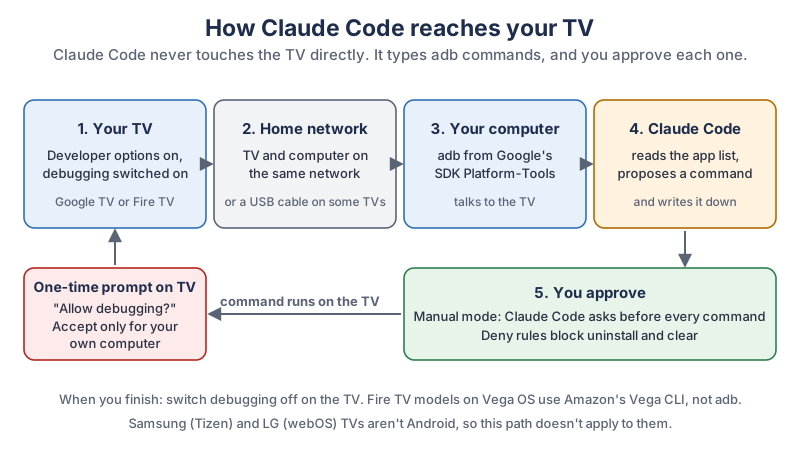
The same path in plain text:
- Your TV. Developer options are on and a debugging switch is on. This works on Android TV, Google TV and Fire TV models that run Fire OS.
- Your home network. The TV and the computer are on the same network, or joined by a USB cable on TVs that allow it.
- Your computer. It runs adb, which comes in Google’s free SDK Platform-Tools.
- Claude Code. It reads the app list, proposes a command and writes it down.
- You. In Manual mode, Claude Code asks before every command. The first time, the TV also asks you to allow debugging from that computer.
What does Claude Code actually do to a TV?
Claude Code types adb commands on your computer, and adb carries them to the TV. Google’s Android Debug Bridge (adb) page calls adb a versatile command-line tool that lets you communicate with a device
, with a shell that runs commands on the TV itself. Claude Code doesn’t install anything clever on the TV, and it can’t see the TV screen. What it brings is patience: it can read a long list of app names, explain what each one probably is, and keep a tidy record of what you changed.
In practice, Claude Code helps with four jobs:
- Listing every app on the TV and saving that list before anything changes.
- Explaining package names like
com.example.tvguidein plain words. - Disabling the apps you choose with Android’s package manager, one approved command at a time.
- Writing down the matching undo command for every change, in a file you keep.
Claude Code gives you no magic speed button. A TV with little memory and a tired processor stays a TV with little memory. Disabling apps you never open can still make a cluttered TV calmer, because those apps stop showing up and stop running.
Which smart TVs can Claude Code work with?
Claude Code can reach TVs that speak adb: Android TV, Google TV and Fire TV models that run Fire OS. Other TV systems need other tools, and this guide doesn’t cover them. We pulled this comparison together from each maker’s own pages.
| TV platform | Where developer mode is | How the computer connects | Works with this guide? |
|---|---|---|---|
| Android TV | Settings, Device row, About, then select Build several times, per Google’s TV guide | USB debugging under Developer options, then adb tcpip 5555 and adb connect | Yes |
| Google TV on Android 13 or later | Settings, System, About, per Google TV Help; select the build entry several times | Wireless debugging with a pairing code, then adb pair and adb connect, per the adb page | Yes |
| Fire TV on Fire OS | Settings, My Fire TV (or Device), Developer Options, per Amazon’s ADB guide; if it’s hidden, press the D-pad 7 times on About | ADB Debugging switch, then adb connect on a port from 5555 to 5585 | Yes |
| Fire TV on Vega OS | Settings, My Fire TV, About, press the center button 7 times, per Amazon’s Vega page | Amazon’s own Vega CLI, not adb | No |
| Samsung (Tizen) | Samsung’s own developer tools, per Samsung Developer | Not adb | No |
| LG (webOS) | LG’s own developer tools, per webOS TV Developer | Not adb | No |
Not sure which one you have? Amazon’s Vega developer mode page, updated October 29, 2026, names the Fire TV Stick HD, the Fire TV Stick 4K Select and the Fire TV Streaming Media Player as Vega OS devices. Amazon’s ADB guide covers Fire OS devices. If your model is on the Vega list, the adb steps in this guide won’t work on it.
What should you try before using Claude Code?
Try Google’s own fixes first, because they’re free, fast and can’t break anything. Google TV Help’s page on a slow or laggy device lists these steps, and they’re worth doing even if you plan to use Claude Code afterwards:
- Restart the TV. Settings, then System, then Restart, then Restart again to confirm.
- Close background apps. Settings, then Apps. Under Recently opened apps, pick an app, then Force stop, then OK. Repeat for each recent app.
- Update your apps. In Google Play on the TV, select your profile picture, then Manage apps & games, then Updates, then Update all.
- Update the TV itself. Settings, then System, then About, then System update.
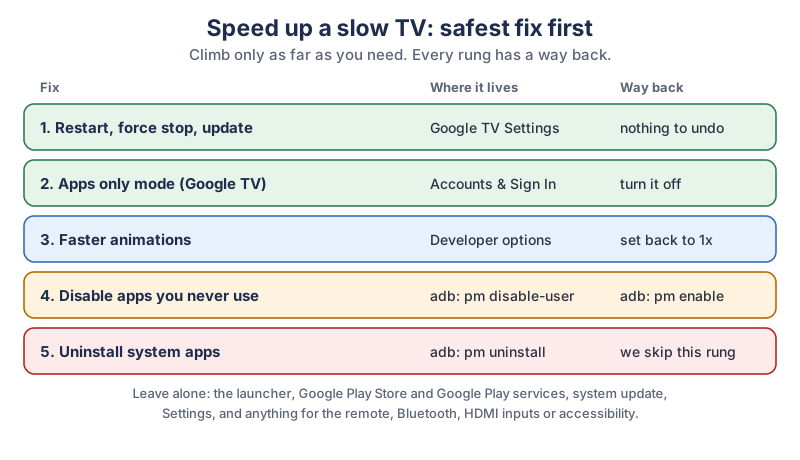
The same ladder in plain text:
| Fix | Where it lives | Way back |
|---|---|---|
| 1. Restart, force stop, update | Google TV Settings and Google Play | Nothing to undo |
| 2. Apps only mode (Google TV) | Settings, Accounts & Sign In | Turn it off in the same place |
| 3. Faster animations | Developer options | Set each scale back to 1x |
| 4. Disable apps you never use | adb: pm disable-user | adb: pm enable |
| 5. Uninstall system apps | adb: pm uninstall | We skip this rung |
How do you hide the recommendations on a Google TV home screen?
Turn on Apps only mode. Google TV Help gives the path: from the home screen, select Settings, then Accounts & Sign In, select your profile, then Apps only mode, then Turn on. Google says In Apps only mode, you don’t get personalized recommendations on your home screen.
Two honest trade-offs come with it: Google lists that You can’t use Search or the Google Assistant
, and you’ll still see some sponsored content and teasers for popular titles. To go back, take the same path and turn Apps only mode off.
How do you stop video previews on a Fire TV home screen?
Fire TV keeps its autoplay switches in its own settings, not in adb. Guides such as AFTVnews, from November 2023, describe turning home screen video off so the full-screen ads become still pictures. Many guides place the switches under Settings, then Preferences, then Featured Content, with one for video autoplay and one for audio. Amazon’s own help pages didn’t load when we checked on November 7, 2026, so go by the labels on your screen.
What do you need before you start?
You need Claude Code, Google’s free SDK Platform-Tools for adb, a computer on the same network as the TV, and an unhurried half hour. Your streaming accounts and passwords never come into it.
- Claude Code. Anthropic’s quickstart lists a Pro, Max, Ultra, Team or Enterprise subscription, a Claude Console account, or a supported cloud provider. None of the pages we read lists the Free plan.
- SDK Platform-Tools. This free download from Google holds adb. Google’s Platform-Tools page listed version 37.0.2 as the newest when we checked, with downloads for Windows, Mac and Linux. You don’t need Android Studio.
- The TV’s IP address. On Fire TV, Amazon says to look in Settings, then My Fire TV (or Device), then About, then Network, and adds:
You do not get the IP address from the Settings > Network screen.
Install Claude Code with the command for your system, then make a new folder for this job and start Claude Code inside it:
# macOS, Linux or WSL
curl -fsSL https://claude.ai/install.sh | bash

# Windows PowerShell
irm https://claude.ai/install.ps1 | iex

# then, in a new folder such as tv-cleanup
claude
How do you turn on developer options on a smart TV?
You turn on developer options by opening the TV’s About screen and pressing Select on the build entry about seven times, until the TV says you’re now a developer. The exact menu depends on the platform, so use the steps for yours below. Developer options don’t change anything on their own. They just reveal the debugging switch.
How do you turn on debugging on Android TV and Google TV?
Google’s TV developer guide gives these steps, written for the classic Android TV menus:
- On your TV, go to Settings. In the Device row, select About.
- Scroll to Build and select it several times, until you see
You are now a developer!
- Go back to Settings. In the Preferences row, select Developer options.
- Select Debugging, then USB debugging, and set it to On.
- Go back to the TV home screen.
Newer Google TV menus are laid out differently. Google TV Help puts About under Settings, then System, so look there for the build entry. If your TV runs Android 13 or later, you can use Wireless debugging instead of a cable. Google’s adb page says wireless debugging needs Android 13 (API level 33) or higher for TV.
How do you turn on ADB debugging on a Fire TV Stick?
Amazon’s Fire TV ADB guide gives these steps for Fire OS devices:
- From the Fire TV home screen, open Settings, then My Fire TV (or Device), then Developer Options.
- Turn on ADB Debugging. You can leave Apps from Unknown Sources off, since this job doesn’t install anything.
- If Developer Options isn’t there, go to Settings, then My Fire TV, then About, and press the D-pad on your TV’s name 7 times.
Amazon notes that Most Fire TV devices only allow network connections
, so plan on Wi-Fi rather than a cable.
How do you connect your computer to the TV with adb?
You connect by running adb connect with the TV’s IP address, or by pairing first on Android 13 and later, then accepting the prompt that appears on the TV. You can type these yourself or ask Claude Code to run them. Replace the example address with your TV’s own.
# Fire TV, or an older Android TV after adb tcpip 5555 over USB
adb connect 192.168.1.50:5555

# Android 13 or later with Wireless debugging:
# choose Pair using pairing code on the TV, then
adb pair 192.168.1.50:PAIRING_PORT
adb connect 192.168.1.50:CONNECT_PORT

# check that the TV shows up as "device"
adb devices
The first time, the TV asks whether to allow debugging from this computer. Google’s adb page explains why that prompt exists:
This security mechanism protects user devices because it ensures that USB debugging and other adb commands cannot be executed unless you’re able to unlock the device and acknowledge the dialog.
Accept it only for your own computer. Amazon adds that if you don’t allow it, Fire TV won’t authorize the ADB connection.
If the connection fails, Amazon suggests checking that both devices are on the same network, restarting the adb server with adb kill-server and adb start-server, and restarting the TV or router.
How do you keep Claude Code from changing too much?
You keep Claude Code careful with three layers: Manual mode, deny rules in a settings file, and house rules in a CLAUDE.md file. Here’s how Anthropic’s permission modes page describes Manual mode: Claude Code stops and asks you before most actions that edit files, run shell commands, or reach the network.
The same page says auto is the starting mode in the terminal on v2.1.283 or later, and that auto mode does not guarantee safety.
Press Shift+Tab until you reach Manual before you start.
Next, save this as .claude/settings.json inside your tv-cleanup folder. It makes every session start in Manual mode, asks before any package command, and blocks uninstalling and clearing app data outright:
{
  "permissions": {
    "defaultMode": "default",
    "ask": [
      "Bash(adb shell pm *)"
    ],
    "deny": [
      "Bash(adb shell pm uninstall *)",
      "Bash(adb uninstall *)",
      "Bash(adb shell pm clear *)",
      "Bash(adb shell cmd package uninstall *)"
    ]
  }
}
Anthropic’s permissions page says rules are checked deny, then ask, then allow
, so a deny rule always wins. Be clear on one honest limit, too: the same page says a Bash rule isn’t a security boundary around the program
, because it matches the command as Claude writes it, not every other way of running it. That’s why you still read each command before you say yes.
Last, put your house rules in a CLAUDE.md file in the same folder. Claude Code reads it at the start of every session, the same trick our Claude Code video editing guide uses to protect footage:
# TV cleanup rules
- This is my own TV. Only run adb commands on the device I connected.
- Never uninstall, clear data, factory reset or reboot without asking me.
- Disable apps only with: adb shell pm disable-user --user 0 PACKAGE
- Before each change, add the change and its undo command to changes.txt.
- Never disable the launcher, Google Play Store, Google Play services,
  system update, Settings, or anything for the remote, Bluetooth,
  HDMI inputs or accessibility.
- If you're not sure what a package does, say so and leave it alone.How do you see every app on your TV before changing anything?
You ask Claude Code to list the packages with pm list packages and save the list to a file before anything changes. Google’s adb page documents the options: -3 shows only third-party apps, -s only system apps, -d only disabled ones, and -u includes uninstalled packages. Start with a prompt like this:
I’ll admit it, there’s something deeply satisfying about a tidy little changes.txt file. It’s like a receipt for every brave thing you did to your TV, with the way back stapled to it.
Run adb devices and tell me what is connected.
Then save the full list of packages to before.txt with:
adb shell pm list packages
Save third-party apps to apps-3rd.txt with: adb shell pm list packages -3
Do not change anything yet.
Make me a table of the third-party apps: package, what it probably is,
and keep / maybe / never-used. Say "not sure" when you don't know.
Now do the part only you can do. Go through the table on the couch, with the remote in your hand, and mark the apps you really never open. Claude Code’s guesses about a package name are guesses, so anything marked “not sure” stays.
How do you disable apps on Android TV with Claude Code?
You disable an app with pm disable-user, one approved command at a time, and you write down its undo command first. Disabling hides the app and stops it from running while keeping it on the TV, so it comes back with one command. Ask Claude Code for a small batch:
From my never-used list, disable these three apps, one at a time:
[package names here]
For each one: first add the package and the undo command
(adb shell pm enable PACKAGE) to changes.txt, then run
adb shell pm disable-user --user 0 PACKAGE and show me the result.
The --user 0 part means the TV’s main user. Google’s adb page lists disable-user with a --user option, and pm list users prints every user on the TV if you want to check. After each small batch, use the TV for a day. If something you care about stops working, undo the last batch before you try anything else.
How do you turn a disabled app back on?
Run pm enable with the same package name, which Google’s adb page describes as Enable the given package or component
. Your changes.txt file already holds every line you need:
# undo one app
adb shell pm enable com.example.tvguide

# see everything that is disabled right now
adb shell pm list packages -d
You can also ask Claude Code: Read changes.txt and turn every app in it back on, one at a time. Then approve each line as it goes.
Which Android TV apps should you never disable?
Leave alone anything the TV needs to show a picture, take your input or keep itself updated. Our rule of thumb is to skip the home screen launcher, Google Play Store, Google Play services, the system update app, Settings, and anything for the remote, Bluetooth, HDMI inputs, voice or accessibility. On Fire TV, skip anything from Amazon that you can’t name. The menus, the remote and the inputs are what you’d need to fix a mistake, so they’re the last things to risk.
We also skip pm uninstall entirely. Google’s adb page says that by default it removes a package for all users on the device
, and Disable does the decluttering job with an easy way back. Before any of this, glance at your TV maker’s warranty terms, since they’re the final word on what they cover.
Do faster animations make a TV feel quicker?
Shorter animations can make menus feel snappier, though the TV’s real speed doesn’t change. Google’s developer options page describes Window animation scale and Transition animation scale, and says of each: A lower scale results in a faster speed.
Set them with the remote, not with Claude Code:
- Open Developer options on the TV.
- Find Window animation scale and pick 0.5x.
- Do the same for Transition animation scale.
- Don’t like it? Set both back to 1x.
Leave the other developer options at their defaults. Many of them exist to help developers test their apps, so they aren’t everyday settings.
What should you do when you’re finished?
Switch debugging off on the TV, disconnect, and keep your changes.txt file somewhere safe. On the computer, run adb disconnect. On the TV, open Developer options and turn off USB debugging, Wireless debugging or ADB Debugging, whichever you used. Your disabled apps stay disabled, and you can always switch debugging back on later to undo them.
A week later, ask yourself one question: did you miss anything? If an app you disabled turns out to matter, turn it back on. That’s the whole point of disabling instead of deleting.
What can you buy if the TV is too old to save?
A streaming stick or box plugged into the TV’s HDMI port replaces the slow built-in system, and the old screen keeps working as a screen. A few things to look for:
- A Google TV device. Browse Google TV streamers on Amazon. These run Android TV, so everything in this guide still applies.
- A Fire TV stick. Browse Fire TV sticks on Amazon. If you want to keep using adb, check which system a model runs first, because Amazon lists the Fire TV Stick HD, 4K Select and Streaming Media Player as Vega OS devices.
- A wired connection. A slow picture is sometimes a slow network. Many streaming boxes take an Ethernet cable, and some sticks take an Ethernet adapter. Check the listing says it fits your model.
What should you try first?
Start with Google’s four quick fixes tonight, then come back for Claude Code if the TV still drags. When you do, aim small: connect, save the app list, and disable just three apps you’re sure you never use. You’ll learn how the whole loop feels in ten minutes, and every change has its undo line waiting in changes.txt. We add new Claude tutorials regularly, and the newsletter box below is the easiest way to catch them.
Go give that tired TV a gentle spring clean, and enjoy the first menu that opens before you’ve finished blinking. Popcorn’s on you.
Sources and further reading
- Fix a slow or laggy Google TV device (Google TV Help) — restart, force stop, updates; checked Nov 7, 2026
- Apps only mode (Google TV Help) — what it hides and what stops working
- Android Debug Bridge (adb) (Android Developers) — wireless debugging, pm commands, the RSA prompt
- Get started with TV apps (Android Developers) — developer options and USB debugging on a TV
- Configure on-device developer options (Android Developers) — animation scales
- SDK Platform-Tools release notes (Android Developers) — version 37.0.2 listed
- Connect to Fire TV through ADB (Amazon Developer) — last updated Jun 28, 2022
- Developer mode on Vega OS (Amazon Developer) — updated Oct 29, 2026; Vega Fire TV devices
- Samsung Smart TV development (Samsung Developer) — Tizen TV tools
- webOS TV Developer (LG) — webOS TV tools
- Fire TVs now autoplay full-screen video ads when waking up (AFTVnews) — Elias Saba, Nov 22, 2023
- Claude Code quickstart (Anthropic) — install commands and accounts
- Claude Code permission modes (Anthropic) — Manual mode and defaultMode
- Configure permissions (Anthropic) — allow, ask and deny rules
- Claude Code data usage (Anthropic) — what is sent, and model training settings
Questions and answers
Can Claude Code control my TV?
Claude Code can send adb commands to an Android TV, Google TV or Fire OS TV once you turn on debugging and approve the connection on the TV. It can’t see the screen or change anything until you approve each command in Manual mode. Samsung, LG and Vega OS Fire TVs use other tools.
Is it safe to debloat an Android TV?
Disabling apps you never use is the gentle way to debloat, because pm enable turns each app back on. Write down the undo command before every change, and leave the launcher, Google Play services, system update, Settings, the remote and the inputs alone. We skip uninstalling system apps entirely.
How do I enable ADB on a Fire TV Stick?
Open Settings, then My Fire TV (or Device), then Developer Options, and turn on ADB Debugging, per Amazon’s Fire TV ADB guide. If Developer Options is hidden, press the D-pad 7 times on your TV’s name under About. Then run adb connect with the TV’s IP address.
Why is my Google TV so slow?
Common causes are apps running in the background, missing updates and a crowded home screen. Google TV Help suggests restarting, force stopping recently opened apps, updating apps in Google Play and checking for a system update. Apps only mode also hides personalized recommendations.
Can I use Claude Code on a Samsung or LG TV?
Not with the adb steps in this guide. Samsung TVs run Tizen and LG TVs run webOS, and each has its own developer tools. If an older Samsung or LG TV is slow, a streaming stick plugged into its HDMI port is the simpler fix.