
QuickBooks Receipt Categorization Automation: Match, Code, Review
Hello, and welcome to anyone who has clicked Find match on a gas station receipt more times than they’d like to count.
Picture month end with every client receipt already matched to its bank line and coded, waiting only for your nod.
In most small firms, that same job is a person clicking Find match, squinting at a photo, and choosing between Meals and Supplies four hundred times.
The client did send the receipts, to be fair, some by text, some by email, and one inside a photo of the car’s cup holder.
Short answer: QuickBooks receipt categorization automation checks each receipt photo, reads its vendor, total, tax and line items, matches it to the bank line already in QuickBooks Online, and applies your bank rules first, the client’s past coding second, and an AI suggestion third. A person approves the flagged receipts before anything posts.
What is QuickBooks receipt categorization automation?
QuickBooks receipt categorization automation is a workflow that turns a client’s receipt into a matched, coded and attached entry in QuickBooks Online, with a person reviewing only the uncertain ones.
It joins three jobs that usually happen by hand. Reading the receipt. Finding the bank or card transaction it belongs to. Choosing the right account from the client’s chart of accounts.
QuickBooks Online does parts of each job itself. A custom layer adds what it leaves out: collecting receipts from clients who never log in, rejecting bad photos at once, splitting mixed receipts, and sending tax-sensitive items to a person.
Does QuickBooks Online categorize receipts automatically?
QuickBooks Online reads uploaded receipts and suggests categories and matches, but Intuit keeps a person in charge of approving them. Here is what each built-in feature does, from Intuit’s own pages.
| Feature | What it does | Limits Intuit states |
|---|---|---|
| Receipts (For review tab) | Extracts info from an uploaded or emailed receipt and creates a transaction for review; shows suggested matches | PDF, JPEG, JPG, GIF or PNG; one receipt per file; HEIC photos may need converting |
| Receipt forwarding email | Lets approved users email receipts straight into Receipts | An administrator sets it up; users must send from their QuickBooks sign-in address |
| Bank rules | Set the transaction type, category, payee and tags for matching bank lines | Up to 5 conditions per rule (Description, Bank text, Amount); up to 2,000 rules; one rule applies per transaction |
| Auto-post rules | Confirm matching bank lines with no review, marked with an AUTO badge | Run when you sign in, upload a file, or create or change an auto-post rule |
| AI category suggestions | Suggest a category based on past coding and explain why it was picked | Suggestions can be turned off |
| Accounting Agent | Suggests categories, matches transactions and flags anomalies | Suggestions need approval before posting; anomaly detection is listed for Plus and Advanced |
Intuit’s Accounting Agent page is clear about the guardrail: All category and matching suggestions must be approved by you or your Advisor before any transaction can be posted.
So QuickBooks Online already does a lot of the work. What it doesn’t do is chase the client, judge a meal against entertainment, or split one receipt across two accounts for you.
How much time does categorizing receipts by hand cost a firm?
Categorizing receipts by hand costs roughly a minute and a quarter per receipt, which for thirty monthly clients adds up to about 25 staff hours a month.
| Case | Receipts | By hand | With automation | Hours saved |
|---|---|---|---|---|
| One monthly client | 40 | 50 minutes ($29) | 13 minutes ($8) | 0.6 |
| Thirty monthly clients | 1,200 | 25.0 hours ($875) | 6.7 hours ($233) | 18.3 |
| Machine reading cost for 1,200 receipts | 1,200 pages | none | about $12 | none |
Assumptions, compiled by Accounting Firm Automation on November 27, 2026: 75 seconds per receipt by hand covers opening the image, finding the bank line, attaching and coding it. Staff cost is $35 an hour loaded.
With automation, we assume 80% of receipts land on the quick approval list at 10 seconds each, and 20% need a 60-second look. Swap in your own numbers.
The reading cost uses Amazon’s Textract pricing page, which lists the Analyze Expense API at $0.01 a page for the first million pages in US West (Oregon). The 80% share is the number to measure in your own trial, because it depends on how repetitive each client’s spending is.
How does automated receipt categorization work, step by step?
Automated receipt categorization works in five steps, and the matching step is what keeps a receipt from becoming a second, duplicate expense.
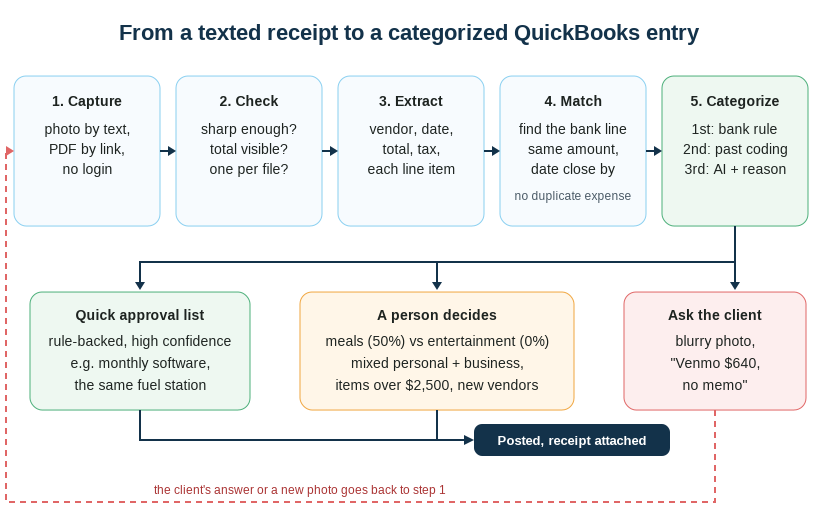
- Capture. The client texts a photo or uploads a PDF through a link. No QuickBooks login, no app to install.
- Check. Software confirms the photo is sharp, the total and date are visible, and there is one receipt per image.
- Extract. An expense model reads the vendor, date, subtotal, tax, total and each line item, with a confidence score per field.
- Match. The workflow looks for the bank or card line in QuickBooks Online with the same amount and a nearby date, and attaches the receipt to it.
- Categorize. The client’s bank rule decides first; if there is none, the client’s past coding for that vendor; if neither, an AI suggestion with a one-line reason.
Then each receipt lands in one of three places. Rule-backed, confident items go to a quick approval list. Tax-sensitive or low-confidence items go to a person. Unreadable or unexplained ones go back to the client with one short question.
How do clients send receipts without logging in to QuickBooks?
Clients send receipts without logging in by texting a photo to a firm number or uploading through a personal link, and the workflow files the image under the right client.
The built-in route is narrower. Intuit’s receipt upload help article says an administrator sets up the forwarding email, and each user must send from the email address they use to sign into QuickBooks
.
That suits a client who works inside QuickBooks every day. It doesn’t suit the contractor who has never seen the login page and sends everything from a phone.
The check step earns its keep here. A photo rejected within a minute (the total is cut off, could you snap it again?
) gets fixed while the receipt is still in the client’s hand, not three weeks later.
- Sharpness: the smallest printed digits are readable.
- Whole receipt: vendor, date and total all in frame.
- One receipt per image: Intuit asks for one receipt per file.
- File type: PDF, JPEG, JPG, GIF or PNG; iPhone HEIC photos converted first.
- Card numbers: Intuit asks users to remove sensitive data such as credit card numbers and government identifiers.
Why does the receipt need to match the bank line before it gets a category?
A receipt needs to match its bank line first because a receipt coded on its own becomes a new expense, and the bank feed then adds the same purchase a second time.
Honestly, the photo check is the kindest part. A client asked to retake a blurry picture within a minute still has the receipt in hand, and nobody has to send an awkward email in March.
This is the most common receipt complaint on the QuickBooks Community. In a long thread about receipts that won’t match, users describe duplicates when an expense was created from the receipt before the bank line arrived.
Intuit’s community manager answered in August 2026 that the cause is timing. Both items need to be in For review to match, and a receipt already turned into an expense should be undone and matched again.
The same answer gives a search window of 90 days before to 20 days after the bank transaction date. It adds that a one-day difference between receipt and bank dates is normal.
An automated workflow follows that order every time. It holds the receipt until the bank or card line is there, matches on amount and date, and only then codes it. A receipt with no bank line after a set number of days goes to a person, because it may be cash or a personal card.
When should a bank rule decide the category, and when should AI only suggest?
A bank rule should decide the category for repeat, unambiguous spending, and AI should only suggest for everything else, with a person approving.
Intuit’s bank rules article recommends starting auto-post with simple, consistent transactions such as rent or gas. Rules can be exported from one company and imported into another, so a firm can reuse a starter set across similar clients.
Auto-post is the strong setting. It confirms the line with no review, so keep it for charges that never change meaning, like the client’s monthly software subscription.
AI suggestions fit the long tail. Intuit’s categorization article says QuickBooks suggests categories from how similar transactions were coded before and explains its pick. A custom layer can add what QuickBooks can’t see: the receipt’s line items and the client’s industry.
Here’s the catch: a suggestion built on last year’s coding repeats last year’s mistakes. If a client’s coffee shop visits were wrongly coded as Office Supplies, the AI will happily keep doing it until a person corrects the pattern.
How do you categorize one receipt that holds two kinds of purchases?
You categorize a mixed receipt by its line items, not its total, so one bank line becomes a split transaction across two or more accounts.
A contractor’s Home Depot receipt might hold $180 of lumber for a job and a $229 drill. The lumber is job materials; the drill is tools or equipment. A bank rule only sees “HOME DEPOT $409” and can’t tell them apart.
Line-item extraction can. The workflow proposes the split, shows the receipt image beside it, and asks a person to confirm. The same logic catches a warehouse club run where the client bought office paper and groceries in one trip.
Which receipt categories still need a person’s judgment?
Receipts that change the client’s tax result still need a person: meals, anything personal, large equipment, and anything the client can’t explain.
The meals line is the classic. IRS Publication 463 says business meals are generally 50% deductible, while entertainment expenses paid after 2017 are generally not deductible at all. A restaurant receipt doesn’t say which one it was.
Large purchases are the other. The IRS tangible property page says a taxpayer may use the de minimis safe harbor to deduct amounts up to $2,500 ($500 prior to Jan. 1, 2016) per invoice or item
when no applicable financial statement applies. Above that, it’s an accountant’s call.
- Restaurant and bar receipts: meal, entertainment, or travel?
- Mixed personal and business purchases on one receipt.
- Items or invoices over the $2,500 de minimis line.
- New vendors with no rule and no past coding.
- Payment apps with no memo, such as “Venmo, $640”.
- Receipts with no matching bank or card line after the waiting period.
Do Dext or Hubdoc categorize receipts better than QuickBooks alone?
Dext adds supplier-level rules and learned categorization on top of QuickBooks Online, while Hubdoc is built mainly around Xero; neither collects receipts from clients by text for you.
Dext’s rules and automation guide says its auto-categorisation needs time to learn from your coding behaviour before it starts applying categories automatically
. Supplier rules can set a default category, tax rate and payment method per supplier.
Dext’s supplier rules article adds two limits worth knowing. Auto-publish rules apply only to documents uploaded after the rule exists, and items in an approval workflow don’t auto-publish.
For firms on Xero, the guide to extracting data from scanned receipts and bank statements compares Dext, Hubdoc and the cloud document models side by side.
Does a receipt photo attached in QuickBooks count as a record?
A receipt photo can serve as the record, because the IRS applies the same recordkeeping rules to electronic records as to paper ones.
The IRS page What kind of records should I keep says: All requirements that apply to hard copy books and records also apply to electronic records.
That makes the attachment step part of the job, not a nice extra. A workflow that always attaches the original image to the matched line gives the client an audit trail one click deep.
Where should a firm start with receipt categorization automation?
Start with five monthly clients for one month, measure the share of receipts that land on the quick approval list, and compare the review time with the table above.
- Pick five clients with steady, repetitive spending and an existing chart of accounts.
- Export their best bank rules and tidy any that code meals or personal items automatically.
- Give each client one text number or upload link, and turn on the photo check.
- Hold every receipt until its bank or card line is in QuickBooks Online, then match.
- Send meals, mixed purchases and items over $2,500 to a person every time.
- Time the review, and count how many receipts needed a client question.
If the trial clients reach the 80% mark, the other twenty-five clients follow the same playbook.
Done well, your team stops clicking Find match all afternoon and spends that time on the receipts that need an accountant.
Try it with five clients for one month, keep the judgment calls with your team, and see how much of month end comes back.
Sources and further reading
- Intuit: Upload your receipts to QuickBooks (file types, forwarding email, For review)
- Intuit: Set up bank rules to categorize online banking transactions in QuickBooks Online
- Intuit: Categorize online bank transactions in QuickBooks Online (AI suggestions)
- Intuit: QuickBooks Accounting Agent product update
- QuickBooks Community: why a snapped or emailed receipt won’t match a bank transaction
- Accounting Today: Intuit debuts AI agents for QuickBooks (June 26, 2025)
- Dext Help Centre: rules and automation in Dext
- Dext Help Centre: how to use supplier and customer rules
- Amazon Textract: analyzing invoices and receipts
- Amazon Textract pricing (Analyze Expense API per page)
- IRS Publication 463: Travel, Gift, and Car Expenses (meals 50% limit, entertainment)
- IRS: Tangible property final regulations (de minimis safe harbor)
- IRS: What kind of records should I keep
Questions and answers
Can I use AI to categorize receipts in QuickBooks automatically?
Yes, with a person approving. QuickBooks Online already suggests categories and matches with AI, and a custom workflow can add photo checks, line-item splits and client questions. Intuit says all category and matching suggestions from its Accounting Agent must be approved before posting, and meals or large items deserve a person’s look anyway.
Does QuickBooks Online categorize receipts automatically?
Partly. QuickBooks Online extracts info from an uploaded or emailed receipt, creates a transaction in the Receipts For review tab and shows suggested matches. Bank rules and AI suggestions help with the category, but you still review, then create or match the expense.
Why won’t QuickBooks match my receipt to a bank transaction?
Usually timing. Intuit’s community manager says a receipt and a bank line can only match while both are in For review, so a receipt already turned into an expense must be undone first. Different amounts, the wrong bank account or a line already matched also block it.
Should I use auto-post bank rules for client receipts?
Only for simple, consistent charges. Intuit recommends starting auto-post with transactions like rent or gas, because auto-post confirms the line with no review. Keep restaurants, payment apps and mixed stores such as hardware or warehouse clubs on suggest-and-review rules.
What file types can I upload as receipts to QuickBooks Online?
Intuit lists PDF, JPEG, JPG, GIF and PNG, with one receipt per file. Newer iPhones save photos as HEIC, which may need converting first. Several receipts can go in one forwarding email, as long as each is a separate image.