
How to Fill In a PDF Form (Even One That Isn’t Fillable)
Disclosure: this page contains Amazon affiliate links. As an Amazon Associate we earn from qualifying purchases, at no extra cost to you.
Hi there, form-filling champion.
Staring at a PDF form whose blank lines just won’t take a single letter is a special kind of puzzle, isn’t it?
A PDF form is easy to fill in on a computer or phone, even when it has no boxes to click: the free Adobe Acrobat Reader, Preview on a Mac and the Files app on an iPhone can all type your answers right onto the page.
If your forms still arrive on paper, a portable document scanner on Amazon turns them into clean PDFs you can fill in the same way.
Here’s how, for both kinds of form.
Short answer: To fill in a PDF form, open it in the free Adobe Acrobat Reader and click into each field. If the form isn’t fillable, choose Fill & Sign, then Add text, and click wherever an answer goes. On a Mac, use Preview’s Text Box Tool; on an iPhone, the Files app’s AutoFill or Add Text Form Box.
- Two kinds of PDF form: a fillable (interactive) form has real fields that light up when you hover over them; a flat form is just lines and boxes printed on the page, so you add a text box on top.
- Apple’s own fix for flat forms:
If a PDF won’t allow you to type directly into the form, you can add a text box instead.
- Free tools are enough: Acrobat Reader, Preview, the iPhone Files app, Google Drive on Android and Microsoft Edge all fill in fillable PDF forms at no cost.
- “Please wait…” instead of a form means a dynamic XFA form, which only desktop Acrobat and Acrobat Reader open properly.
- Save it the right way: use the app’s own Save or Save As, then reopen the copy to check your answers are still there.
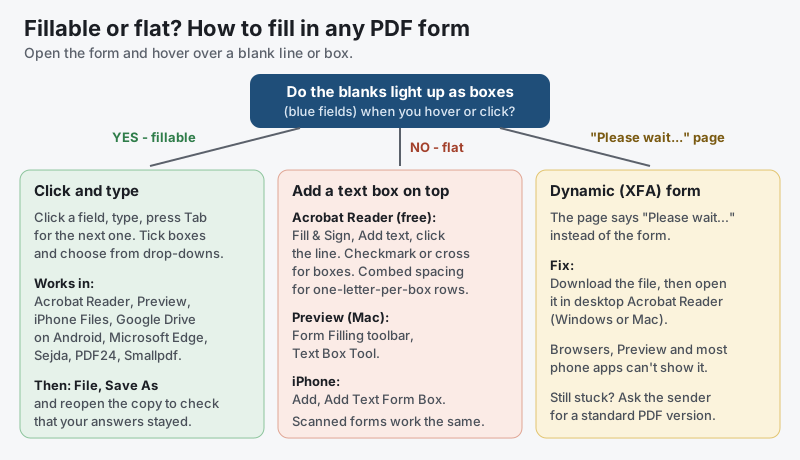
What the diagram shows, in text:
- Blanks light up as blue fields (fillable form): click a field, type, press Tab for the next one, tick the boxes and pick from the drop-downs. Works in Acrobat Reader, Preview, iPhone Files, Google Drive on Android, Microsoft Edge, Sejda, PDF24 and Smallpdf. Then Save As and reopen the copy to check.
- Nothing lights up (flat or scanned form): add a text box on top. Acrobat Reader: Fill & Sign, Add text, plus checkmark or cross for boxes and combed spacing for one-letter-per-box rows. Preview: Form Filling toolbar, Text Box Tool. iPhone: Add, Add Text Form Box.
- The page says
Please wait…
(dynamic XFA form): download the file and open it in desktop Acrobat Reader on Windows or Mac. Browsers, Preview and most phone apps can’t show it; if you’re still stuck, ask the sender for a standard PDF.
How can you tell if a PDF form is fillable?
A PDF form is fillable when its blanks light up as boxes, usually blue, when you hover over them or click them. If nothing highlights and your cursor can’t land in a blank, the form is flat: lines and boxes drawn on the page, with no fields behind them.
Adobe’s help page on forms that won’t fill in Acrobat gives the same test: look for blue highlighting on the form fields as you hover. If the fields aren’t highlighted, Adobe says the form may not be interactive and points you to the Fill & Sign tools.
There’s a third kind that catches people out. A PDF form that opens to a page saying “Please wait…” is a dynamic XFA form, made with Adobe’s form designer, and most browsers and phone apps only show that placeholder page.
- Fillable (interactive) PDF form
- Real fields for text, check boxes, radio buttons and drop-downs. Click and type in almost any PDF app.
- Flat PDF form
- A form printed to PDF, or a scan of a paper form. You type on top of it with a text box tool.
- Dynamic (XFA) PDF form
- Shows “Please wait…” outside Adobe’s apps. Open it in desktop Acrobat or Acrobat Reader.
How do you fill in a PDF form with Adobe Acrobat Reader?
To fill in a fillable PDF form with the free Adobe Acrobat Reader, open the form, click the first field and type, then press Tab to jump to the next field. Click check boxes and radio buttons to select them, and choose from the drop-down lists.
When you’re done, choose File, then Save As, and give the filled form a new name so the blank original stays clean for next time.
Acrobat Reader is the safest choice for official forms. It opens dynamic XFA forms, which browsers, Preview and most phone apps can’t show, and the IRS tells taxpayers to use Adobe Reader for its fill-in forms (more on that in the saving section below).
How do you type on a PDF that isn’t fillable in Acrobat?
To type on a flat PDF form in Acrobat Reader, choose All tools, then Fill & Sign (in some versions, E-Sign), select Add text, click on the line where the answer goes and type. Drag the text box to line it up, and use the font size buttons to make it fit.
Acrobat Reader’s Fill & Sign tools follow Adobe’s Fill & Sign help page:
- Check boxes on a flat form: select Add a checkmark or Add a crossmark, then click inside each box.
- One letter per box (a ZIP code, an account number): type into a text box, open its options menu and choose Character spacing, so each character lands in its own box.
- Circles and strike-outs: Adobe’s Fill & Sign also has circle, line and dot marks for “circle one” questions.
- Scanned paper forms work the same way, because Fill & Sign types on top of the page and doesn’t need real text underneath.
Here’s the catch: on a form that already has real fields, Fill & Sign may show only the signature tools. That’s normal. Click into the form’s own fields instead, and if the form’s author left a field out, only an Acrobat plan that edits forms can add one (see the last section).
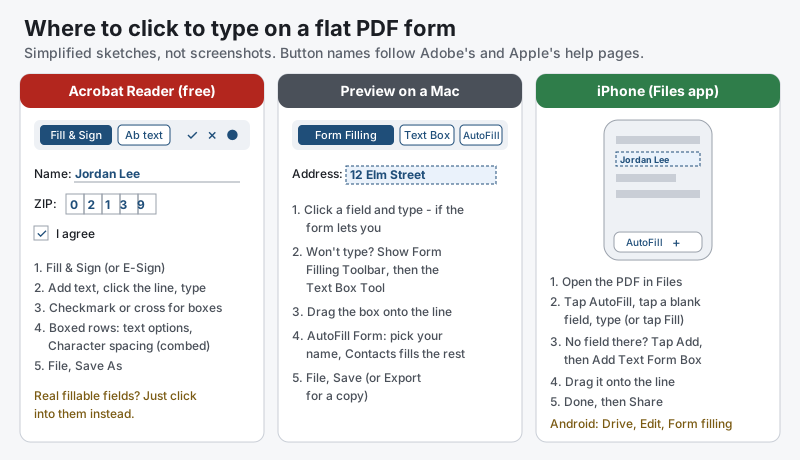
What the sketch shows, in text:
- Acrobat Reader (free): (1) Fill & Sign or E-Sign; (2) Add text, click the line and type; (3) checkmark or cross for printed boxes; (4) for one-letter-per-box rows, the text box’s options menu, then Character spacing (combed); (5) File, then Save As. On a form with real fields, just click into the fields.
- Preview on a Mac: (1) click a field and type, if the form allows it; (2) otherwise Show Form Filling Toolbar, then the Text Box Tool; (3) drag the box onto the line; (4) AutoFill Form fills your details from Contacts; (5) File, then Save, or Export for a copy.
- iPhone (Files app): (1) open the PDF in Files; (2) tap AutoFill, tap a blank field and type, or tap Fill; (3) no field there? Tap Add, then Add Text Form Box; (4) drag it onto the line; (5) Done, then Share. On Android: Google Drive, Edit, then Form filling.
Can you fill in a PDF form online with Adobe for free?
Yes, Adobe’s free online PDF form filler fills in both fillable and flat PDF forms in a web browser. Upload the form to Adobe’s online PDF filler, sign in with a free Adobe account, then type into the fields or use the text and checkmark tools.
Click Next to download the filled form or get a link to share it. Adobe says the file is deleted from its servers unless you sign in to save it.
Which tools can fill in a PDF form, and how?
Almost every PDF app can fill in a fillable PDF form, but fewer can type on a flat one, add check marks, or fill in your name and address for you. This table compares 11 tools side by side.
| Tool | Fillable fields | Flat form | Check marks on flat forms | Fills in your details | What you need |
|---|---|---|---|---|---|
| Adobe Acrobat Reader (desktop) | Yes, including XFA forms | Yes, Fill & Sign, Add text | Yes, checkmark, cross, dot | Auto-complete | Free |
| Adobe Acrobat online form filler | Yes | Yes, text tools | Yes | - | Free Adobe account |
| Apple Preview (Mac) | Yes | Yes, Text Box Tool | - | Yes, AutoFill from Contacts | Built into macOS |
| iPhone and iPad (Files) | Yes | Yes, Add Text Form Box | - | Yes, AutoFill from Contacts | Built in |
| Acrobat Reader app (Android) | Yes, Fill & Sign mode | Yes, Fill & Sign | - | - | Free app |
| Google Drive app (Android) | Yes, Edit, Form filling | Freehand pen only | - | - | Free |
| Microsoft Edge | Yes, Edit, then type | - | - | - | Built into Windows 10 and 11 |
| Sejda online | Yes | Yes, Text tool | Yes, Forms tool | - | Free: 3 tasks per hour, 200 pages or 50 MB |
| PDF24 Tools | Yes | By adding fields (Make PDF fillable) | - | - | Free, no registration |
| Smallpdf | Yes | Yes, text boxes | Yes | - | Free with limits, no account; Pro for unlimited |
| Microsoft Word or Google Docs | Converts a copy | Converts a copy; layout may shift | - | - | Word, or a free Google account |
Our count from the table: 10 of 11 tools fill in real form fields directly, 8 of 11 can type on a flat form without converting it, 4 of 11 add check marks to a flat form’s printed boxes, and 2 of 11 (both Apple’s) fill in your name and address from your contacts.
For most people the answer is simple: Acrobat Reader on a computer, and the app already on your phone.
How do you fill out a PDF form on a Mac?
To fill out a PDF form on a Mac, open it in Preview, click a field and type. If the form won’t let you type, click Show Form Filling Toolbar, then the Text Box Tool, and place a text box on each line.
Preview is built into macOS, so it’s free and works offline.
Apple’s Preview User Guide on filling out and signing PDF forms puts the flat-form fix plainly: If a PDF won’t allow you to type directly into the form, you can add a text box instead.
Preview can also fill in your details for you. Click the AutoFill Form button above the PDF, click your name in the pop-up menu, and Preview fills in matching information from the Contacts app. Apple notes that not all PDFs support it, and you can choose Choose Other to use another person’s contact card.
Save with File, then Save. To keep the blank form untouched, choose File, then Export, and save the filled copy under a new name.
How do you fill out a PDF form on a phone?
To fill out a PDF form on a phone, open it in the iPhone Files app or, on Android, in the Google Drive app or the free Acrobat Reader app, tap a field and type. For flat forms, add a text box on top: Add Text Form Box on an iPhone, or Fill & Sign in Acrobat Reader.
The little secret of flat forms: nothing is broken. The lines are simply drawn on the page, so you lay a text box over each one and type, and the free tools you already have do that just fine.
How do you fill out a PDF form on an iPhone or iPad?
To fill out a PDF form on an iPhone, open it in the Files app, tap the AutoFill button, tap a blank field and type with the onscreen keyboard. If no field exists where you need one, tap the Add button, then Add Text Form Box, and drag the box onto the line.
Apple’s iPhone User Guide on filling out forms adds a time-saver: when a prompt appears, review the suggested information from Contacts, change anything that’s wrong, then tap Fill to complete several related fields at once.
Tap Choose Other to fill in a parent’s, partner’s or child’s details instead of your own. When you’re finished, tap Done, or use the Share button to send the filled PDF straight back.
How do you fill out a PDF form on an Android phone?
To fill out a fillable PDF form on Android, open it in the Google Drive app, tap Edit at the bottom right, choose Form filling, enter your answers and tap Save. Google’s Drive Help page on filling out PDF forms says to use More, then Save as, to keep a separate copy.
If the Form filling option doesn’t appear, Google says you may not be able to fill out this PDF
, which usually means a flat form.
For a flat form on Android, use the free Acrobat Reader app: Adobe’s Android guide to filling forms opens a PDF in Fill & Sign mode from the edit button, where you can type text anywhere on the page.
Can you fill out a PDF form in a browser or online for free?
Yes. Microsoft Edge fills in fillable PDF forms with nothing to install, and free online tools like Sejda, PDF24 and Smallpdf fill in both fillable and flat forms in any browser.
- Microsoft Edge: open the PDF in Edge, select Edit in the toolbar, select the blank fields and type, then select Save and choose where the filled PDF goes. Edge is the default PDF reader on Windows 10 and Windows 11.
- Sejda PDF Editor:
Click any form field in the PDF and start typing.
For flat forms, the Text tool types anywhere and the Forms tool adds check marks and radio bullets. Free use covers 3 tasks per hour and documents up to 200 pages or 50 MB, and Sejda deletes files after 2 hours. - PDF24 Fill out PDF: free, no registration, and PDF24 says files are deleted from its server after one hour. Its separate Make PDF fillable tool adds form fields to a flat PDF.
- Smallpdf PDF Form Filler: type text, add check marks and dates even on a form that wasn’t made fillable, with no account needed. Free use has limits; Smallpdf Pro removes them.
Is it safe to fill out a PDF form online?
Filling out a PDF form with a free online tool means uploading the form, and every answer on it, to someone else’s server. Sejda deletes files after 2 hours, and PDF24 and Smallpdf after one hour.
Forms often hold a Social Security number, a date of birth or bank details. For those, fill the form on your own device with Acrobat Reader, Preview or your phone, so your answers never leave it.
Can you fill in a PDF form in Word or Google Docs?
You can, but Microsoft Word and Google Docs don’t fill in the PDF itself: they convert it into an editable document, so the form’s fields and layout often don’t survive. Use them only for a simple, mostly-text form when no PDF app is at hand.
Microsoft says Word’s PDF conversion works best with PDFs that are mostly text
(Microsoft Support, Edit a PDF). Type your answers, then choose File, then Export, then Create PDF/XPS Document.
Google Docs opens a PDF through Google Drive with Open with, then Google Docs. Google’s Drive Help page on converting PDFs says tables and columns are not likely to be detected, and forms are mostly tables and columns. Check the result against the original before you send it.
How do you save a filled PDF form so your answers stay?
To keep your answers in a filled PDF form, save it with the PDF app’s own Save or Save As command, not the browser’s download or print button, then close the file and reopen the saved copy to check every answer is still there.
The IRS spells this out for its fill-in tax forms, such as the Form W-9 and the 1099 series, on its page on saving, filling in and printing PDF files:
When saving or printing a file, be sure to use the functionality of Adobe Reader rather than your web browser.
The IRS adds that there is no computation, validation or verification
of what you type into its forms, so double-check the numbers yourself.
- Acrobat Reader and Preview: File, then Save As (Preview: File, then Export) to keep the blank form for next time.
- Microsoft Edge: select Save in the top toolbar before closing the tab.
- Google Drive on Android: tap Save, or More, then Save as, for a separate copy.
- Locking the answers in: printing to PDF (File, then Print, then Save as PDF) flattens the form into a plain page, so nobody can change the fields. Keep the fillable copy too, in case you need to fix something later.
Why won’t my PDF form let me type?
A PDF form won’t let you type when it’s flat (no fields), when it’s a dynamic XFA form opened outside Adobe’s apps, or when its security settings block form filling. Each one has a different fix.
- It’s a flat form
- Nothing highlights when you hover. Add text boxes on top with Acrobat Reader’s Fill & Sign, Preview’s Text Box Tool or the iPhone’s Add Text Form Box.
- It says
Please wait…
- It’s a dynamic XFA form. Download the file, then open it in desktop Acrobat Reader or Acrobat on Windows or Mac, not in a browser, Preview or a phone app. If that fails, ask the sender for a standard PDF version.
- Form filling isn’t allowed
- In Acrobat, check File, then Properties, then Security. Adobe says Filling of form fields should be set to Allowed; if it isn’t, ask whoever sent the form.
- The field you need is missing
- Fill & Sign may hide its text tools on a form that already has fields. Add the missing answer as a text box in Preview or on an iPhone, or ask the form’s author to add the field.
How do you turn a flat PDF into a fillable form?
To turn a flat PDF into a fillable form, open it in Adobe Acrobat (a paid plan), choose All tools, then Prepare a form, keep auto-detect on and select Create form. Adobe says Acrobat will automatically analyze your document and add form fields.
Check the fields Acrobat found, add any it missed, and save. Anyone can then fill in that form in the free Acrobat Reader. Adobe’s guide to making a PDF fillable shows the steps.
Free options: PDF24’s Make PDF fillable tool and the Forms menu in Sejda’s editor both add fields by hand. That’s worth doing for a form you’ll send out many times, not for one you’re filling in once.
Fill it in, Save As a fresh copy, reopen it once to see your answers sitting there, and send it off with a happy little sigh.
Sources and further reading
- Adobe Help: Unable to fill forms in Acrobat — blue highlight on hover = interactive; Fill & Sign text and checkmark tools for flat forms; Security: Filling of form fields = Allowed
- Adobe Help: Fill and sign PDF forms in Acrobat — Add a checkmark or crossmark; Character spacing for combed boxes
- Adobe Help: Fill in forms in Acrobat Reader — interactive and flat forms, auto-complete, Fill & Sign tools, saving
- Adobe: free online PDF form filler — sign in to complete; text, checkmarks on fillable and non-fillable PDFs; deleted unless you sign in to save
- Adobe: How to make a PDF fillable — Prepare Form; "Acrobat will automatically analyze your document and add form fields."
- Adobe: Fill and sign forms (Acrobat Reader for Android) — Fill & Sign mode from the edit button
- Apple Preview User Guide: fill out and sign PDF forms — "If a PDF won’t allow you to type directly into the form, you can add a text box instead."; Text Box Tool; AutoFill Form from Contacts
- Apple iPhone User Guide: fill out forms, sign documents and create signatures — AutoFill button, Fill, Choose other, Add Text Form Box
- Microsoft: How to use the Microsoft Edge PDF reader — Edit, type in the blank fields, Save; default PDF reader on Windows 10 and 11
- Microsoft Support: Edit a PDF — Word converts a copy; "works best with PDFs that are mostly text"
- Google Drive Help: fill out PDF forms on Android — Edit, Form filling, Save or Save as; "you may not be able to fill out this PDF"
- Google Drive Help: convert PDF and photo files to text — Open with Google Docs; tables and columns not likely to be detected
- IRS: Saving, filling in and printing PDF files — use Adobe Reader rather than the web browser to save or print; no computation, validation or verification
- Sejda: PDF Editor — "Click any form field in the PDF and start typing."; Text and Forms tools; free 3 tasks per hour, 200 pages or 50 MB; deleted after 2 hours
- PDF24 Tools: Fill out PDF — free, no registration; files deleted after one hour; Make PDF fillable
- Smallpdf: PDF Form Filler — fill forms not designed as fillable; text, checkmarks, dates; no account; Pro for unlimited
Questions and answers
How do I fill in a PDF form that is not fillable?
Open the PDF in the free Adobe Acrobat Reader, choose Fill & Sign, select Add text and click wherever an answer goes; use the checkmark or cross for boxes. On a Mac, use Preview’s Text Box Tool from the Form Filling toolbar, and on an iPhone tap Add, then Add Text Form Box.
How can I type on a PDF for free?
Acrobat Reader’s Fill & Sign tool types anywhere on a PDF for free, and so do Preview on a Mac and the iPhone Files app. In a browser, Sejda, PDF24 and Smallpdf have free plans; Sejda’s covers 3 tasks per hour.
Why can’t I save my filled PDF form?
Usually the form was filled in a web browser and downloaded without the answers, or it’s a form that expects Adobe Reader. Download the PDF first, fill it in Acrobat Reader and use File, then Save As; the IRS gives the same advice for its forms. Then reopen the copy to check.
Why does my PDF form say Please wait?
The “Please wait…” page means the PDF is a dynamic XFA form, which most browsers, Preview and phone apps can’t display. Download the file and open it in desktop Adobe Acrobat Reader on Windows or Mac; if it still won’t work, ask the sender for a standard PDF version.
How do I fill out a PDF form on my phone?
On an iPhone, open the PDF in the Files app, tap AutoFill, tap a field and type, or tap Add, then Add Text Form Box for a flat form. On Android, open it in Google Drive, tap Edit, then Form filling, and Save; for flat forms, use the free Acrobat Reader app’s Fill & Sign.