How Do You Clean Up a Slow Google TV With ChatGPT and Codex?
Disclosure: this page contains Amazon affiliate links. As an Amazon Associate we earn from qualifying purchases, at no extra cost to you.
Okay, couch-side speed hero, this one’s for every movie night that started with a spinning loading circle! Say your TV takes ages to open an app, the home screen stutters every time you scroll, and you get a “storage full” message right before movie night. ChatGPT can’t reach into your TV by itself, but it can walk you through Google’s own cleanup settings and write the exact commands for the trickier part, so you approve every step. And if your old streamer is simply out of room, a newer one like the Google TV Streamer (Amazon search) has four times the storage.
Short answer: To clean up a slow Google TV with ChatGPT, start with Google’s own settings: restart, clear cached data, uninstall apps you don’t use and turn on Apps only mode. If it’s still slow, ChatGPT or Codex can write adb commands that disable unused apps one at a time, and each has a one-line undo.
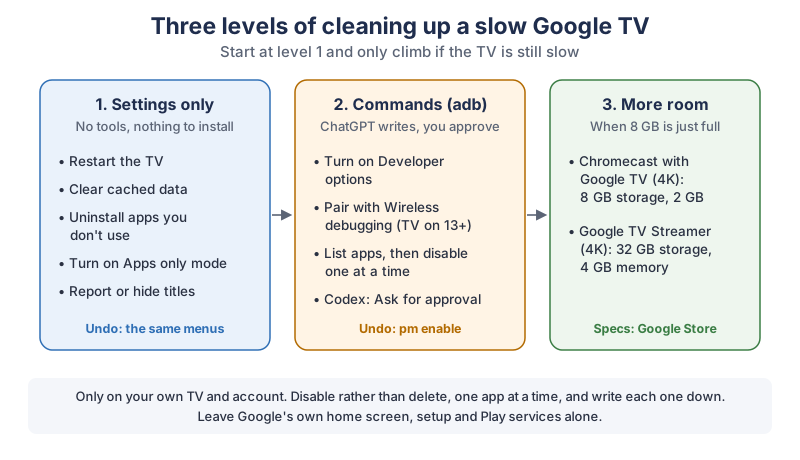
The same three levels in plain text:
- Settings only. Restart the TV, clear cached data, uninstall apps you don’t use, turn on Apps only mode, and report or hide titles you never want to see. You undo these in the same menus.
- Commands (adb). Turn on Developer options, pair your computer with Wireless debugging (Android’s docs say a TV needs Android 13 or higher for this), list the apps, then disable unused ones one at a time. ChatGPT writes the commands, you approve each one, and
pm enableundoes it. - More room. A Chromecast with Google TV (4K) has 8 GB of storage and 2 GB of memory, and a Google TV Streamer (4K) has 32 GB and 4 GB, according to the Google Store.
Can ChatGPT actually speed up a Google TV?
ChatGPT can’t touch your Google TV from a normal chat, but it can tell you which settings to change and write the commands for the deeper cleanup. You stay the one who presses the buttons, which is exactly how it should be with a device the whole family uses.
Most of the slowness people complain about comes from three things you can see for yourself: a storage space that’s full, too many apps fighting for a small amount of memory, and a home screen loaded with rows of recommendations. Google’s own settings handle the first and third. The middle one is where ChatGPT and a free Android tool called adb come in.
Should you use a ChatGPT chat or Codex?
A plain ChatGPT chat is enough for most people, because it writes each command and explains it, and then you run it yourself. Codex is OpenAI’s coding agent, and its Codex CLI page says it can run the tools already installed on your machine.
That means Codex can type the adb commands for you in a terminal on your computer, after you approve them.
- ChatGPT chat: works on any plan, including Free. You copy each command into your own terminal.
- Codex CLI: the openai/codex README says to run
codexand choose Sign in with ChatGPT, and recommends it as part of a Plus, Pro, Business, Edu or Enterprise plan.
Either way, the commands are the same, and so is the rule: read what a command does before it runs.
Can you remove ads from Google TV?
You can’t remove every ad from Google TV with Google’s settings, but you can make the home screen much calmer. Google’s page on hiding personalized recommendations says that in Apps only mode you still get a list of your apps, and adds: You’ll also find sponsored content and teasers for popular movies and shows.
You can also report single titles and hide the big featured banner, both covered below.
Some videos show people switching off Google’s own home screen app with commands to get rid of every ad. We don’t cover that here. The home screen is part of how Google TV works, and turning it off can leave the Home button doing nothing, which is a rough way to end a movie night.
Which Google TV settings should you change first?
Start with Google’s own settings, because they need no computer, no commands and no risk. A restart, a cache clear and a few uninstalls fix a surprising amount of everyday lag on a streamer with limited storage.
How do you restart a Google TV properly?
Restart it from the menu rather than just turning the TV off. Google’s reboot page gives the path as Settings > System > Restart > Restart on a Chromecast with Google TV, and All settings > System > Restart on a Google TV Streamer (4K). You can also unplug the power cable, wait one minute and plug it back in. Google points out that pulling a Chromecast with Google TV out of the HDMI port doesn’t reboot it.
How do you clear the cache on Google TV?
Clearing the cache frees storage space without signing you out of anything. Google’s Free up storage page gives these steps:
- Select your profile icon, then Settings.
- Select System > Storage > Internal shared storage > Cached data.
- Select OK to clear cached data for all apps.
Google says: Clearing your app cache only removes temporary data. You’ll remain signed in to your apps, and media will load faster.
How do you uninstall apps on Google TV?
Uninstalling apps you never open is the easiest way to win back storage. Google’s Free up storage page gives the path as profile icon > Settings > Apps > See all apps, then choose an app and select Uninstall > OK. Google’s How Google TV and Android TV work page adds a shortcut from the home screen: in the Apps tab, under Your apps, hold Select until a menu appears, then choose View details > Uninstall.
Not sure what an app is? Ask ChatGPT: What is the app called [name] on Google TV, and will anything stop working if I uninstall it?
Then check the answer against the app’s own store page.
What does Apps only mode do on Google TV?
Apps only mode swaps the busy home screen of personalized suggestions for a simple list of your installed apps. Google’s recommendations page gives the path as Settings > Accounts & Sign In, select your profile, then Apps only mode > Turn on. On some TVs the menu is called Accounts & Profiles. You turn it off in the same place.
Know the trade-off before you switch it on. Google says that in Apps only mode You can’t use Search or the Google Assistant,
and you can’t like or dislike titles, add to your Watchlist or mark videos as watched. Apps like YouTube still show their own recommendations inside the app.
How do you hide a show or banner from the Google TV home screen?
You can remove single titles and the big featured banner without turning on Apps only mode. Google’s recommendations page says to highlight a title, press and hold Select, choose Report and confirm, which removes it across your device’s recommendation rows. To hide the featured banner at the top, highlight it, press and hold Select and choose Hide. Google says a hidden banner stays away from the top for at least 18 months.
Changed your mind? Settings > Reported Items brings titles back.
How much room does an older Google TV streamer have?
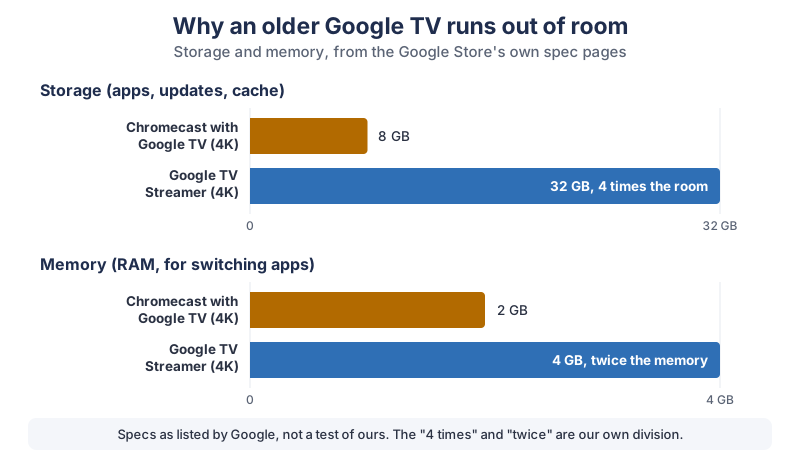
An older streamer often feels slow because it simply has little room. The Google Store lists the Chromecast with Google TV (4K) at 8 GB of storage and 2 GB of memory, and the Google TV Streamer (4K) at 32 GB and 4 GB.
| Device | Storage | Memory (RAM) | Wi-Fi and wired | Compared with the Chromecast (4K) |
|---|---|---|---|---|
| Chromecast with Google TV (4K) | 8 GB | 2 GB | 802.11ac Wi-Fi (2.4 GHz/5 GHz); Ethernet through an Ethernet power adapter, sold separately | 1 times (the baseline) |
| Google TV Streamer (4K) | 32 GB | 4 GB | Wi-Fi 802.11ac (2.4 GHz/5 GHz); Ethernet port, RJ45 1 Gbps | 4 times the storage, 2 times the memory |
Our calculation is simply each Streamer figure divided by the Chromecast figure. Google’s specifications page lists the Streamer’s memory and storage, and the Google Store’s Chromecast with Google TV page compares the two side by side. These are Google’s listed specs, not a test of ours. On 8 GB, the system and updates take their share before your apps do, which is why clearing cache and uninstalling matter so much on the older stick.
How do you turn on Developer options on Google TV?
You turn on Developer options by selecting the build number line in Settings over and over until the TV says you’re a developer. Android’s Developer options page says to tap the build number seven times until you see the message You are now a developer!
On Google TV, that line sits under Settings > System > About and is labelled Android TV OS build. Highlight it and press the center button on your remote seven times in a row. Developer options then shows up in the System menu. Older Android TV menus put it under Device > About > Build, as Android’s TV setup page describes.
How do you connect adb to a Google TV over Wi-Fi?
You connect with Wireless debugging, which pairs your computer with the TV using a code on the screen. Android’s adb documentation says the computer and TV must be on the same wireless network, and that a TV needs Android 13 (API level 33) or higher for Wireless debugging. You can see your version under Settings > System > About.
- Download Google’s free SDK Platform-Tools for Windows, Mac or Linux from the Platform-Tools page. It contains
adb. - On the TV, open Developer options, select Wireless debugging and allow it on your network.
- Select Pair using pairing code and note the IP address, port number and code on the screen.
- On your computer, run
adb pairfollowed by that IP address and port, and type the code when asked. - Run
adb devicesto see that the TV is listed.
Android’s docs say you only need to pair once. To unpair, go back to Wireless debugging on the TV, select your computer under Paired devices and select Forget. If your TV runs an Android version older than 13 and shows no Wireless debugging option, stay with the settings in level 1. We’re not covering workarounds.
What should you ask ChatGPT for a slow Google TV?
The best prompt tells ChatGPT your exact TV, asks for one safe step at a time, and asks for the undo before every command. Paste the app list from your TV, not a guess, so ChatGPT works from what’s really there.
Honestly, there’s something funny about a TV built for relaxing turning into a puzzle you solve from your laptop. Grab a snack. It’s a very cozy kind of tinkering.
My Google TV is slow. Device: [brand and model, or Chromecast
with Google TV 4K / Google TV Streamer]. Android TV OS version:
[from Settings > System > About]. Storage free: [from Settings >
System > Storage].
I've already restarted, cleared cached data and uninstalled apps
I don't use.

I have adb from Google's Platform-Tools, paired over Wireless
debugging. Here's the output of:
adb shell pm list packages -3
[paste the list]

Please:
- Tell me what each app on the list is, in plain words.
- Suggest which ones I could disable if I never use them, one at
  a time, and never Google's home screen, setup, Play services,
  Play Store, system updates or the remote and Bluetooth apps.
- For every command, explain each part and give me the exact
  command that undoes it.
- Use pm disable-user, never pm uninstall.
- Ask me questions if anything is unclear.
The -3 option keeps the list to apps that were installed on top of the system, which Android’s adb page describes as third-party packages. That’s the friendliest place to start.
Is it safe to disable apps on Google TV with adb?
Disabling an app you installed yourself, or one you clearly never use, is low-risk because one command brings it back. Deleting system apps is a different story, so this guide only disables. The commands come from the package manager table on Android’s adb page.
| Command | What Android’s docs say it does | How to undo it | Our advice |
|---|---|---|---|
adb shell pm list packages -3 | Lists packages, filtered to third-party ones | Nothing to undo, it only reads | Start here |
adb shell pm list packages -s | Lists packages, filtered to system ones | Nothing to undo | Read it, but leave most of it alone |
adb shell pm list packages -d | Lists only disabled packages | Nothing to undo | Your record of what you turned off |
adb shell pm disable-user --user 0 [package] | Disables a package for one user | adb shell pm enable [package] | One app at a time, then test the TV |
adb shell pm uninstall | Removes a package; for all users unless you name one | Not a simple one-liner | Skip it |
Disable one app, then use the TV for a day. Open your streaming apps, press Home, try the voice button, and check the remote still works. If everything’s fine, move to the next one. Keep a note of every package name you disable, because that list is your undo button.
Which Google TV apps should you never disable?
Leave anything alone that the TV needs to start, update or take input. This is our own caution list, not Google’s:
- the Google TV home screen (launcher) and the setup apps;
- Google Play services and the Google Play Store, which other apps and updates rely on;
- system update, settings, Bluetooth and remote control services;
- anything with “launcher”, “setup”, “gms”, “update” or “bluetooth” in its package name, unless you’re certain what it does.
If ChatGPT suggests one of these, or the TV refuses a command, take the hint and leave it.
How do you let Codex run the commands for you?
Codex can run the same adb commands in your computer’s terminal, and it asks first. OpenAI’s Permissions page says For most work, start with Ask for approval,
and its approvals and security page says By default, the agent runs with network access turned off.
Since adb talks to your TV over your home network, expect Codex to stop and ask before it reaches the TV. That pause is your chance to read the command.
- Install the Codex CLI the way the openai/codex README shows for your system, run
codexand choose Sign in with ChatGPT. - Type
/permissionsand keep Ask for approval. Don’t pick Full access, which OpenAI describes asUnrestricted access to the internet and any file on your computer.
- Give Codex the same prompt as above, and ask it to list packages and suggest, not disable, until you say yes to each one.
- Approve one command at a time, and only after it tells you the undo command.
How do you undo changes on a Google TV?
Every change in this guide has an undo. Settings changes reverse in the same menu, a disabled app comes back with adb shell pm enable [package], and adb shell pm list packages -d shows everything you’ve turned off.
If the TV still misbehaves, a factory reset is the last resort. Google’s factory reset page gives the path as your profile > All settings > System > About > Factory Reset on a Google TV Streamer (4K) or Chromecast with Google TV, and warns: Your data will be cleared and can’t be recovered.
You’ll sign in to every app again afterward, so make sure you know your streaming passwords first.
What gear helps a slow Google TV?
If your streamer is an older 8 GB model that fills up again right after every cleanup, more room helps more than any setting. These are the pieces worth a look:
- A Google TV Streamer (4K). 32 GB of storage and 4 GB of memory, according to Google’s specifications page. Browse Google TV Streamers on Amazon.
- An HDMI 2.1 cable. The Google Store’s FAQ says an HDMI 2.1 cable is required for the Google TV Streamer (4K) and isn’t in the box. Browse HDMI 2.1 cables on Amazon.
- A wired connection for the older Chromecast. Google’s specifications page says Ethernet on the Chromecast with Google TV comes through an Ethernet power adapter, sold separately. Browse Ethernet adapters for Chromecast with Google TV on Amazon.
What should you try first?
Give your TV one easy evening with the settings in level 1: restart, clear cached data, uninstall what you don’t use, and try Apps only mode for a week. If it’s still sluggish, pair your computer and let ChatGPT explain your app list before you disable a single thing. Got an old computer that feels just as slow? Our guide to speeding up an old PC with ChatGPT uses the same idea: ChatGPT plans, you click. We add new ChatGPT tutorials regularly, and the newsletter box below is the easiest way to catch them.
Go give your TV one calm evening of cleanup. With luck, the next time someone says let’s watch something
, the app opens before anyone has time to reach for their phone, and you get to take a small, quiet bow.
Sources and further reading
- Free up storage on Chromecast with Google TV or Google TV Streamer (Google) — cached data and uninstall paths, checked Nov 7, 2026
- Reboot your Chromecast or Google TV Streamer (Google) — restart paths
- How to factory reset your Chromecast or Google TV Streamer (Google) — factory reset path and data warning
- Hide personalized recommendations on Google TV (Google TV Help) — Apps only mode, Report, Hide banner
- How Google TV and Android TV work (Google TV Help) — uninstall from the Apps tab
- Chromecast and Google TV Streamer specifications (Google) — Streamer memory, storage, Wi-Fi and Ethernet
- Chromecast with Google TV tech specs (Google Store) — comparison FAQ: 8 GB storage and 2 GB memory vs 32 GB and 4 GB; HDMI 2.1 cable
- Google TV Streamer (4K) tech specs (Google Store) — 4 GB memory, 32 GB storage
- Android Debug Bridge (adb) (Android Developers) — Wireless debugging, Android 13 or higher for TV, pm commands
- Configure on-device developer options (Android Developers) — build number seven times
- Create and run a TV app (Android Developers) — Developer options on an Android TV device
- SDK Platform-Tools release notes and downloads (Android Developers) — the standalone adb
- Codex CLI (OpenAI) — runs the tools installed on your machine
- Permissions (OpenAI) — Ask for approval, Full access
- Sandbox (OpenAI) — how Codex limits commands
- Agent approvals and security (OpenAI) — network access off by default
- openai/codex README (GitHub) — install and Sign in with ChatGPT
- Data controls FAQ (OpenAI Help) — model training setting, read as a search excerpt in an earlier check
Questions and answers
Can ChatGPT remove ads from Google TV?
No setting removes every ad from Google TV, with or without ChatGPT. Google’s help page says Apps only mode hides personalized recommendations but still shows sponsored content and teasers for popular movies and shows. You can also report single titles and hide the featured banner by holding Select on the remote.
How do I make my Google TV faster?
Restart it from Settings > System > Restart, clear cached data under System > Storage > Internal shared storage, and uninstall apps you don’t use from Settings > Apps > See all apps. Those steps come from Google’s own help pages. If it’s still slow, an older 8 GB Chromecast with Google TV may simply be short on room.
How do I clear the cache on Google TV?
Select your profile icon, then Settings > System > Storage > Internal shared storage > Cached data, and select OK. Google says this only removes temporary data, so you stay signed in to your apps. It clears the cache for all apps at once.
Is it safe to disable apps on Google TV with ADB?
Disabling an app you never use is low-risk because adb shell pm enable brings it back. Disable one app at a time, test the TV, and keep a list of what you changed. Leave the home screen, setup, Google Play services, the Play Store, updates and remote or Bluetooth services alone.
How do I turn on developer mode on Google TV?
Go to Settings > System > About, highlight Android TV OS build and press the center button seven times until the TV says you are now a developer. Developer options then appears in the System menu. Only do this on your own TV, and turn Wireless debugging off when you finish.