
What Is ChatGPT Dots, and How Do You Use It?
Disclosure: this page contains Amazon affiliate links. As an Amazon Associate we earn from qualifying purchases, at no extra cost to you.
Ooh, busy-brain juggler, this one’s for everybody whose to-do list follows them into the shower! Picture the to-do list that lives in your head: the trip that needs booking, the replies you keep meaning to send, the thing you promised to check on Friday. ChatGPT Dots is OpenAI’s answer to that list, a helper that keeps track of a job between your chats and only taps you on the shoulder when it needs a decision. You can even call it and talk things through, which is much nicer with a comfortable headset with a microphone on Amazon.
Short answer: ChatGPT Dots is an always-on agent in ChatGPT that keeps track of an ongoing job, works on its own cloud computer, and messages you when a decision needs you. It’s rolling out to Pro, Business Premium and eligible Enterprise, Edu and Healthcare accounts. You create your dot in the ChatGPT app, give it one responsibility, and approve what matters.
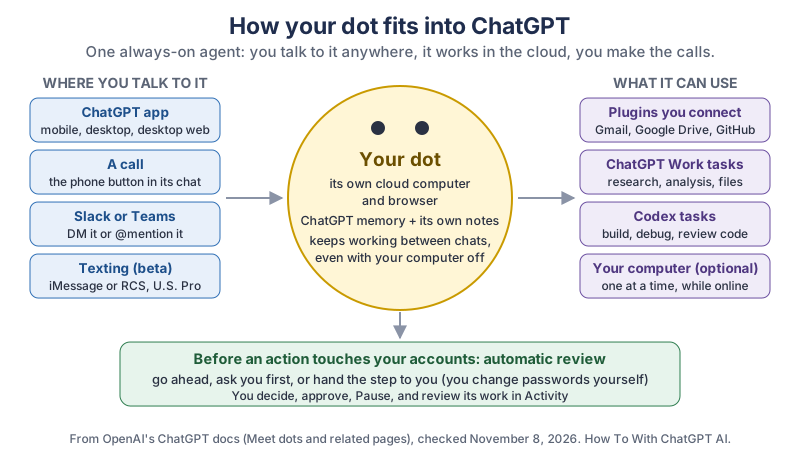
The same picture in plain text:
- Where you talk to it: the ChatGPT mobile app, the desktop app or a desktop browser; a voice call from the phone button in its chat; Slack or Microsoft Teams; and texting (iMessage or RCS), in beta for Pro users in the U.S.
- Your dot: its own computer and browser in the cloud, ChatGPT memory plus its own notes, and it keeps working between chats, even with your computer off.
- What it can use: plugins you connect (OpenAI’s examples are Gmail, Google Drive and GitHub), ChatGPT Work tasks, Codex tasks, and your own computer if you connect it (one at a time, online, with the ChatGPT app open).
- The review step: before an action affects your accounts or shares information, an automatic review lets it go ahead, asks you first, or hands the step to you. You can Pause it and check its work in Activity.
What is ChatGPT Dots?
ChatGPT Dots is an always-on AI agent you keep inside ChatGPT that takes care of an ongoing responsibility instead of answering one question at a time. OpenAI writes the name in lowercase, “dots”, and calls each one “your dot”. OpenAI’s Meet dots page puts it simply: Your dot is an always-on agent that keeps work moving across your tools and projects.
The same page says your dot lives in the cloud and has its own computer and browser,
so it can keep working while your laptop is closed. It can research, analyze data, prepare documents and build software, and it reaches out when it has results or needs your call. OpenAI’s DevDay 2026 notes sum up the idea as Give your dot a goal and define what it can do on its own.
How is a dot different from a normal chat, ChatGPT Work or Codex?
A dot is for a job that keeps going, while a chat, ChatGPT Work and Codex are for a single question or task. OpenAI’s Meet dots page compares them like this:
- Chat
- When you want an answer, an explanation, ideas, or help drafting something in conversation.
- ChatGPT Work
- When you have a task to hand off, such as research, analysis or creating a file, now or on a schedule.
- Codex
- When you want to build, debug, test or review software.
- Your dot
- When you want an agent to keep track of an ongoing responsibility, work out next steps as things change, and follow up between conversations. A dot can hand pieces of the job to ChatGPT Work or Codex itself.
Which AI model runs a dot?
OpenAI’s announcement says dots are powered by GPT-6 Astra, and OpenAI has since added GPT-6.1 Terra to the models a dot can draw on. The Meet dots page says Your dot can draw on different models for different parts of its work,
and that GPT-6.1 Terra uses safeguards developed for GPT-6 Astra.
You don’t pick the model for a dot the way you do in a normal chat; the Models page lists what each model is for.
Who can use ChatGPT Dots?
ChatGPT Dots is for Pro and Business Premium accounts and eligible Enterprise, Edu and Healthcare workspaces, and it’s rolling out gradually, so not everyone on those plans has it yet. OpenAI’s Access section says access depends on your plan, region, and workspace settings.
Here’s everything OpenAI lists, in one place:
| Plan | Dots? | Who and where | Extra notes |
|---|---|---|---|
| Pro (Pro 100, Pro 200 and Pro 500) | Yes, rolling out gradually | Users 18 and older, outside the EEA, the United Kingdom and Switzerland | Texting your dot is in beta for Pro users in the U.S. |
| Business Premium | Yes, rolling out gradually | Supported ChatGPT regions, if the workspace is eligible | Chats with your dot don’t count toward ChatGPT usage limits, as on Pro |
| Enterprise, Edu and Healthcare | Yes, in eligible workspaces | Your admin can turn it on for your role during the admin preview; from it’s on by default unless the workspace opts out | Workspaces with UAE data or inference residency are not eligible |
| Free, Go, Plus and Business | Not listed | OpenAI’s Access section doesn’t name these plans | Check the Access section again later; rollouts change |
So if you’re on Plus and wondering where Dots is, the answer on the day we checked is that OpenAI hasn’t listed Plus at all. If you’re on Pro in the U.S. and still don’t see it, the rollout simply may not have reached your account yet.
Does talking to your dot use up your ChatGPT limits?
No, for Pro and Business Premium the chat with your dot itself doesn’t count, but the work it starts does. OpenAI’s Meet dots page says conversations with your dot don’t count toward your ChatGPT usage limits,
while Tasks your dot starts or manages in Work or Codex count toward those products’ usage limits as usual.
The same page says your plan includes an allowance for deeper work, with extended limits for the first month after launch. Enterprise has its own preview and billing rules, set by your admin.
Where can you set up and talk to your dot?
You create your dot in the ChatGPT mobile app, the desktop app or a desktop web browser, and then you can reach the same dot from any of them. OpenAI is clear that Mobile web is not supported,
so opening chatgpt.com in your phone’s browser won’t work; use the app.
| Where | Create your dot? | Talk to it? | Only here |
|---|---|---|---|
| ChatGPT mobile app (latest version) | Yes | Messages and calls | Share a photo to your dot from the iOS share sheet; the Your dot widget and Apple Shortcuts action, rolling out with ChatGPT for iOS 1.2026.279 |
| ChatGPT desktop app | Yes | Messages and calls (Call in its profile) | Connect your own computer; review tasks in Activity |
| Desktop web browser | Yes | Messages and calls | Nothing extra; it’s the same dot as in the apps |
| Phone web browser | No | No | Not supported |
| Slack and Microsoft Teams | No | Messages | DM your dot or mention it in a channel you’ve added it to |
| Texting (iMessage or RCS) | No | Text, photos and voice messages | Beta, Pro users in the U.S., one-to-one only |
How do you set up your dot?
Open dots in the ChatGPT app, follow the short introduction, name your dot and connect the apps it needs, which takes three steps in OpenAI’s Get started with your dot guide. You can skip anything optional and add it later.
- Open dots and follow the introduction. Use the ChatGPT mobile app, the desktop app or a desktop browser. On a phone, update the app first.
- Name it and pick its look. OpenAI says you can choose its
shape, color, eyes, glasses, and accessories,
and change them anytime. Your dot starts with a handle like @yourname-dot, and naming it updates the handle; OpenAI’s example is @tibo-alfred for a dot named Alfred. - Connect plugins, or skip. Plugins let your dot use apps such as email, calendar and files. Only connect what the job needs; you can add more later from Plugins.
Your dot then introduces itself and suggests where it could help, using your ChatGPT memory and whatever you’ve connected. You can start talking right away while it gets to know your work. OpenAI’s announcement says dots can reach more than 4,000 apps through plugins, but each one has to be connected and allowed before your dot can use it.
Should you connect your own computer to your dot?
Only if the job needs files or apps that live on your computer; a dot works fine on its own cloud computer without it. OpenAI’s computers and apps page gives the steps:
- Open your dot’s profile in the ChatGPT desktop app on that computer.
- Under Computers, find Your computer and select Allow access.
- Read the confirmation and select Allow access again to connect it.
The same page says You can connect only one personal computer at a time,
and the computer must be online with the ChatGPT app open for your dot to use it. Connecting your computer doesn’t give your dot every conversation in every app, but it does open your files and signed-in browser to its work, so connect a computer you’d be comfortable sharing that way.
How do you talk to your dot in Slack, Teams or by text?
Open your dot’s profile and select Add to see the contact methods available to you, then connect the one you want. OpenAI’s Message your dot page says it’s the same dot everywhere: changing channels doesn’t reset its memory.
- Calls: open your dot’s conversation and select the phone button. Ending a call ends the talk, not the work; jobs you’ve assigned can keep going.
- Slack and Teams: DM your dot, or add it to a channel and mention it. By default it replies only to you. Adding it to a channel doesn’t make it watch that channel; tell it which channels to check and what to look for.
- Texting: in your dot’s profile select Texting, enter and verify your phone number, then save the contact card it sends. OpenAI says
Setting up texting doesn’t give your dot or OpenAI access to your other text conversations.
- iPhone extras: the Your dot Home Screen widget and an Open your dot action in Apple’s Shortcuts app, with Messaging, Dictation or Call mode. On an iPhone with an Action button, you can set it to that shortcut under Settings > Action Button.
What’s the first useful thing to ask your dot?
Give your dot one ongoing job you already check on every few days, share the sources it needs, and ask it to draft, not send. OpenAI’s own advice is to Start with work you regularly need to check or update,
then review the first result before you hand over more. Its example is a team offsite; here’s the same idea for a family trip over the holidays, written by us from OpenAI’s example:
Help me keep our family holiday trip on track. Read the itinerary
and the booking emails I've shared, and make a list of:
- decisions we still have to make
- deadlines (payments, cancellations, check-in times)
- anything we're waiting on from someone else

Focus on what costs money or needs an answer this week.
Draft suggested replies for my review, but don't send them.
Ask me before you change any booking.
Read what comes back, fix anything it missed (the hotel is the second email, not the first
), and only then add more. OpenAI’s Control your dot page backs up that last line of the prompt: Asking your dot to draft replies doesn’t give it permission to send them.
How do you get updates from your dot at a set time?
Ask for a fixed schedule in plain words, with a time zone and an end date, and ask your dot to confirm it. Your dot can also decide on its own when to follow up, so a schedule is only for when the timing matters to you. For the trip above:
Check my booking emails each weekday at 9 AM Eastern until
December 20. Update the trip list when something changes.
Message me in ChatGPT if a deadline is coming up or you need
a decision. Keep routine updates in the list. Confirm the schedule.
You’ll find recurring jobs under Scheduled, where you can check their instructions, timing and where updates go, and turn them off later.
How do you stay in charge of what your dot does?
Your dot checks every action that could affect your accounts or share information before it acts, and you can add custom rules for the actions you care most about. OpenAI’s Control your dot page says an automatic review decides whether an action can proceed, needs your approval, or includes a step you must do yourself,
and gives the example that you must change a password yourself.
Honestly, I love that one of the setup steps is choosing your helper’s glasses. I like to imagine a very serious meeting somewhere about tiny AI eyewear, and I’m glad it went the way it did.
To add a rule on the desktop app or the web, open Settings > Personalization and select Custom rules under Permissions. On iOS and Android, open the sidebar and select Customize > Custom rules. Select Add, describe the action, pick one of four choices, and select Add rule.
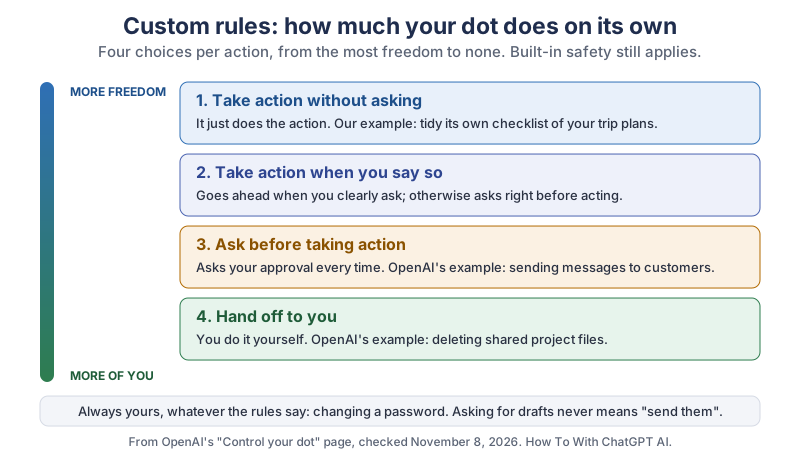
- Take action without asking: your dot just does the action.
- Take action when you say so: it goes ahead when you clearly ask; otherwise it asks right before acting.
- Ask before taking action: it asks for your approval every time. OpenAI’s example: sending messages to customers.
- Hand off to you: you do it yourself. OpenAI’s example: deleting shared project files.
For most people, Ask before taking action
on anything that sends, buys, books or deletes is a calm place to start. OpenAI notes that rules are instructions your dot tries to follow, and it can make mistakes,
so they help, but they don’t replace looking at its work. Plugin permissions are separate: select Open Plugins to review them.
How do you pause or stop your dot?
Use Pause to stop your dot’s main task, but know that pausing doesn’t stop everything. OpenAI’s Control your dot page splits stopping into separate buttons:
| You want to | Use | What it doesn’t do |
|---|---|---|
| Stop the current main job | Pause, then Resume to continue | Doesn’t stop delegated tasks or cancel scheduled runs |
| Stop one task it handed off | Open the task in Activity (desktop app) and stop it | Doesn’t stop your dot’s other work |
| End a recurring check-in | Disable or delete it in Scheduled | Doesn’t pause your dot |
| Hang up a voice call | End the call | Assigned work can carry on |
| Remove your dot | Delete | Can’t be undone; doesn’t undo changes in connected apps or recall messages already sent |
The line to remember, in OpenAI’s words: Stopping work doesn’t undo completed actions.
That’s why “ask before” rules are worth setting up front.
How do you delete your dot?
Use Delete, read the confirmation, and save any results you want to keep first, because OpenAI says the action cannot be undone. The confirmation explains what happens to your dot’s conversations, memories and scheduled tasks. Deleting your dot doesn’t undo changes it already made in connected apps or pull back messages it already delivered to other people.
What should you keep private from your dot?
Keep passwords, bank details and other people’s private information out of your chats with your dot, and connect only the apps a job needs. Your dot remembers across conversations: OpenAI’s Tasks and memory page says it keeps its own notes about your preferences, decisions and ongoing work, separate from ChatGPT’s saved memory, and that Changing a ChatGPT saved-memory setting doesn’t necessarily change the notes your dot has already made.
- Sharing with others: OpenAI says
Before sharing information from a private conversation with other people, your dot checks that you’ve allowed it.
In Slack, it can message you privately first to ask what you’re comfortable sharing. - Hidden instructions: OpenAI’s dots security page says the models behind dots are trained to resist instructions hidden in emails, files or web pages, and gives this example:
an email asking a dot to forward a private file does not authorize the dot to send it.
- Your data settings: the Control your dot page says your ChatGPT data controls also apply to eligible conversations with your dot, and that OpenAI doesn’t train models directly on your dot’s background research or its private notes.
How does your dot sign in to websites?
Your dot sends you a sign-in request with a private form, and your login goes straight to its cloud browser, not into the chat. OpenAI’s Meet dots page says Your credentials go to the browser outside the conversation.
You can also select Take over to sign in, type it yourself on the website, and select Done.
Your dot’s cloud browser has its own sessions, so being signed in on your own browser doesn’t sign your dot in. Save to Passwords is optional, and using a saved login for a new sign-in always needs your confirmation. Some websites block cloud browsers; your dot may then ask to use your connected computer instead.
What gear makes talking to your dot easier?
A good headset helps most, because calling your dot and talking a decision through is one of the nicest parts of Dots. None of this is required; your dot works from the phone or computer you already have.
- A headset or earbuds with a clear microphone. Clear speech helps on calls and with dictated messages. Browse wireless headsets with a microphone on Amazon.
- A USB microphone at your desk. If you’d rather talk than type all day, a desk mic is comfortable for long calls. Browse USB microphones on Amazon.
- A second screen. Handy for keeping your dot’s Activity open while you work. Browse portable monitors on Amazon.
What should you try first with your dot?
Pick one ongoing job you already check on, like a trip, a project or a bill that’s due, and give your dot just that, with “draft, don’t send” and ask before you change anything
in your first message. Check its first list, correct it, and add one scheduled check-in. After a week you’ll know exactly what you’re happy to let it handle. If you make videos, OpenAI’s own Dots examples include drafting show notes and clip ideas from each new interview, and our guide to editing videos with ChatGPT covers the rest of that job. We add new ChatGPT tutorials regularly, and the newsletter box below is the easiest way to catch them.
Go give your dot one small, real job this week, the kind you keep half-remembering at the worst moment. If it hands you a tidy list of what’s due and you get to just say yes, send it
, that’s a little bit of your brain handed back to you.
Sources and further reading
- Meet dots (OpenAI) — what a dot is, access by plan and region, usage limits, sign-in, comparison with Work and Codex, checked Nov 8, 2026
- Get started with your dot (OpenAI) — three setup steps, first conversation, scheduled check-ins
- Message your dot (OpenAI) — calls, Slack and Teams, texting beta, iOS widget and Shortcuts
- Tasks and memory (OpenAI) — the dot’s own notes vs ChatGPT memory
- Connect computers and apps to your dot (OpenAI) — Allow access, one computer at a time, private sign-in, Save to Passwords
- Control your dot (OpenAI) — action review, custom rules, Pause, Activity, Scheduled, Delete, data settings
- Safety and security in dots (OpenAI) — prompt injection example
- DevDay 2026 (OpenAI) — launch date, September 29, 2026
- Models (OpenAI) — GPT-6 Astra, GPT-6.1 Terra
- Plugins (OpenAI) — connecting apps
- Introducing dots (OpenAI) — more than 4,000 apps through plugins; read through search excerpts
- Shortcuts User Guide (Apple) — making a shortcut on iPhone
Questions and answers
What is ChatGPT dots?
Dots is an always-on AI agent in ChatGPT that OpenAI launched at DevDay 2026 on September 29, 2026. Your dot keeps track of an ongoing job, works on its own cloud computer and browser, and messages you with results or decisions. You can reach it in the ChatGPT apps, by voice call, in Slack or Teams, and by text in a U.S. beta.
Is ChatGPT dots free?
OpenAI’s Access section lists Pro, Business Premium and eligible Enterprise, Edu and Healthcare workspaces, not the Free plan, as of November 8, 2026. On Pro and Business Premium, chatting with your dot doesn’t count toward your ChatGPT usage limits, but tasks it starts in ChatGPT Work or Codex do.
Why don’t I have dots in ChatGPT?
Dots is rolling out gradually, and access depends on your plan, region and workspace settings. Pro users must be 18 or older and outside the EEA, the UK and Switzerland, and Enterprise users may need their admin to turn it on. Update the ChatGPT app, because the phone web browser isn’t supported.
Can ChatGPT dots use my computer?
Only if you connect it. In the desktop app, open your dot’s profile, find Your computer under Computers and select Allow access. You can connect one personal computer at a time, and it must be online with the ChatGPT app open. Without it, your dot uses its own cloud computer.
How do I stop or delete my dot?
Select Pause to stop its main task, stop handed-off tasks in Activity, and turn off recurring jobs in Scheduled. Use Delete to remove your dot; OpenAI says this can’t be undone. Neither stopping nor deleting undoes actions your dot already completed.