How Do You Edit Videos With ChatGPT?
Disclosure: this page contains Amazon affiliate links. As an Amazon Associate we earn from qualifying purchases, at no extra cost to you.
Ooh, timeline tamer, this one’s for every video that’s been sitting on your drive waiting for “the edit”! Say you’ve got a 20-minute recording on your drive, and the thought of scrubbing through it for the good bits makes you want to go lie down. ChatGPT won’t drag clips around a timeline for you in a normal chat, but it can find the cuts in a transcript, write your captions, write the commands that trim the file, and, in the desktop app, click through your editing app while you watch. Clean sound makes every one of those steps easier, so if you’re upgrading one thing, look at USB microphones for YouTube on Amazon.
Short answer: ChatGPT can’t edit a video on its own timeline, but it can help you edit faster: plan cuts from a transcript, write SRT caption files, write FFmpeg commands that trim and convert, suggest thumbnails from your own frames, and, with Computer Use in the desktop app, operate your editing app on macOS or Windows after you approve it.
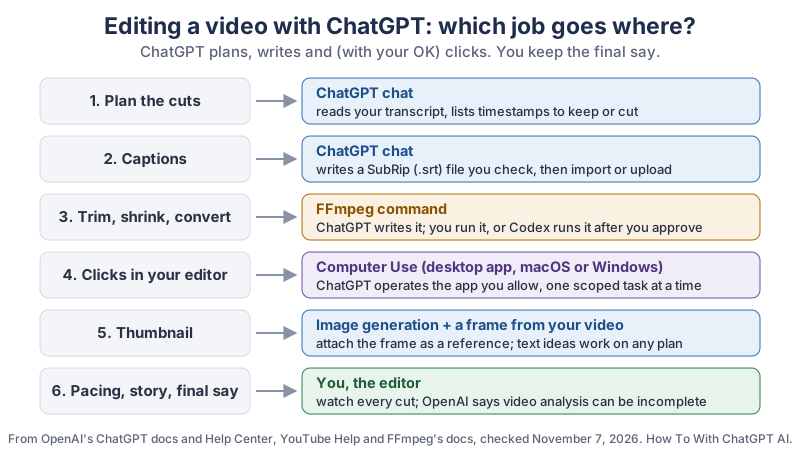
The same six jobs in plain text:
- Plan the cuts. A ChatGPT chat reads your transcript and lists the timestamps to keep or cut.
- Captions. A ChatGPT chat writes a SubRip (.srt) caption file, which you check against the audio, then import into your editor or upload to YouTube.
- Trim, shrink, convert. ChatGPT writes an FFmpeg command; you run it, or Codex runs it after you approve it.
- Clicks in your editor. Computer Use in the ChatGPT desktop app operates an app you allow, on macOS or Windows, one scoped task at a time.
- Thumbnail. Image generation, with a frame from your own video attached as the reference. Text ideas for the thumbnail work on any plan.
- Pacing, story, final say. You. OpenAI itself says ChatGPT’s video analysis can be incomplete.
Can ChatGPT edit videos by itself?
No, ChatGPT doesn’t have its own video timeline, but it can do most of the thinking and typing around an edit. You can attach a video to a chat, ask about it, and get back cut lists, captions, commands and thumbnail ideas. The actual cutting happens in your editing app or in a free command-line tool called FFmpeg.
OpenAI’s Image Inputs FAQ (in its Help Center) says ChatGPT can accept video files as attachments through supported upload methods, including on Free plans.
The same FAQ is honest about the limits: ChatGPT may use tools to analyze an uploaded video, but it may not analyze the entire video or accurately interpret its audio.
We also searched OpenAI’s full documentation export at learn.chatgpt.com on November 7, 2026, and it has no page on editing video. That’s why this guide leans on transcripts and on tools that do one job well.
Does GPT-6 Astra edit videos?
GPT-6 Astra doesn’t have a video timeline either, but it’s the model OpenAI suggests when ChatGPT has to operate an app by looking at the screen. OpenAI’s Computer Use page says: For difficult tasks that depend on screenshots or visual judgment, choose GPT-6 Astra when it is available in your model selector.
Videos about Astra editing a video
are showing this: the model clicking through an ordinary editing app.
OpenAI’s Models page doesn’t list video as an input or output for any model on the day we checked. Which plans include Astra has changed since launch, so check the model picker in your own account.
How big a video can you upload to ChatGPT?
OpenAI’s File Uploads FAQ sets a limit of 512 MB per file and up to 80 files every 3 hours, and the Image Inputs FAQ says Video attachments count toward your plan’s file-upload limits.
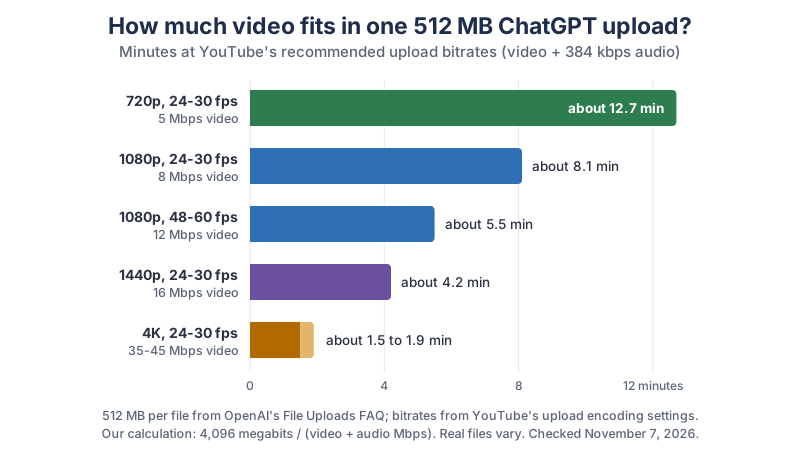
OpenAI doesn’t publish a maximum video length, so length depends on how big the file is. Here’s how many minutes fit into 512 MB at YouTube’s own recommended upload bitrates:
| Resolution and frame rate | YouTube’s recommended video bitrate | Video + audio | Fits in 512 MB (our calculation) |
|---|---|---|---|
| 720p, 24-30 fps | 5 Mbps | 5.384 Mbps | about 12 min 41 s |
| 1080p, 24-30 fps | 8 Mbps | 8.384 Mbps | about 8 min 9 s |
| 1080p, 48-60 fps | 12 Mbps | 12.384 Mbps | about 5 min 31 s |
| 1440p, 24-30 fps | 16 Mbps | 16.384 Mbps | about 4 min 10 s |
| 4K (2160p), 24-30 fps | 35-45 Mbps | 35.384-45.384 Mbps | about 1 min 30 s to 1 min 56 s |
| 4K (2160p), 48-60 fps | 53-68 Mbps | 53.384-68.384 Mbps | about 1 min to 1 min 17 s |
So a 4K file runs out of room in under two minutes, while a 720p copy of the same video fits more than 12. For a long video, export a small 720p copy just for ChatGPT to look at, or skip the video entirely and work from the transcript, which is a tiny text file.
How do you make a first cut with ChatGPT?
Give ChatGPT a transcript with timestamps and ask for a cut list: what to keep, what to cut and why, with exact times. You then make those cuts in your editor, or with an FFmpeg command. A rough cut that took an afternoon of scrubbing becomes a list you can check over a cup of tea.
Here's the timestamped transcript of my [length]-minute YouTube video
about [topic]. My audience is [who watches]. The finished video
should be about [target length] minutes.

Please give me a cut list as a table:
- start time, end time, keep or cut, and a one-line reason
- mark every "um", false start, repeated take and long pause
- flag the strongest 30 seconds for the opening hook
- suggest where a B-roll shot or on-screen text would help

Don't invent anything I didn't say. If a timestamp is unclear,
tell me instead of guessing.
Then ask follow-ups: Make it two minutes shorter,
Which cut would a viewer miss most?
, Turn the keep list into chapter titles.
Watch every cut before you publish: the cut list is a draft, and your ears are the final check.
Why work from a transcript instead of the video?
A transcript is small, exact and easy for ChatGPT to read in full, while a video file is big and, in OpenAI’s own words, may not be analyzed in full. Text also lets you search, copy and check every word yourself.
Your editing app may make a transcript for you; look for “transcribe” in its help pages. You can also attach a short clip and ask ChatGPT for a timestamped transcript, but OpenAI’s FAQ warns it may not interpret the audio accurately, so read it through carefully. Whichever route you take, fix names and odd words in the transcript before you paste it, because ChatGPT can only plan from what’s written.
How do you trim a video with an FFmpeg command from ChatGPT?
Ask ChatGPT for an FFmpeg command with your exact file name and times, ask it to explain each part, and run it on a copy of your file. FFmpeg is a free, open-source tool for macOS, Windows and Linux that cuts, joins and converts video from the command line. A typical trim looks like this:
ffmpeg -ss 00:00:12 -to 00:03:40 -i input.mp4 -c copy trimmed.mp4The FFmpeg documentation explains the pieces. -c copy is the special value copy
, which tells FFmpeg the stream is not to be re-encoded,
so the trim is fast and keeps the original quality. The catch: with -ss before the input, the docs say FFmpeg will seek to the closest seek point before position,
and in stream copy that extra bit is kept, so your clip may start a moment early. If you need a frame-exact cut, ask ChatGPT for a version that re-encodes instead.
- Work on a copy. Keep the original file somewhere safe and never let a command write over it.
- Ask for the why.
Explain every flag in this command before I run it.
- Let Codex run it, if you like. OpenAI’s Codex CLI page says Codex can
inspect files, make edits, and run the tools already installed on your machine,
and its Permissions page saysFor most work, start with Ask for approval.
That’s handy for a batch of clips, with each command approved by you.
How do you make captions with ChatGPT?
Paste your corrected transcript into ChatGPT and ask for a SubRip (.srt) file with short lines and timestamps, then check it against the audio before you use it. YouTube’s supported subtitle files page lists SubRip (.srt) as a basic format and WebVTT (.vtt) as an advanced one, and shows the SubRip timecode style: 00:00:00,599 --> 00:00:04,160, hours, minutes, seconds and milliseconds after a comma.
Turn this timestamped transcript into a SubRip (.srt) caption file.
- Number every caption, use the 00:00:00,000 --> 00:00:00,000 format.
- At most 2 lines per caption and about 40 characters per line.
- Keep my exact words; only fix obvious spelling.
- Never let two captions overlap in time.
Give me the file as plain text I can save as captions.srt.
Save the result as a plain-text file ending in .srt, then upload it in YouTube Studio or import it into your editor’s captions track. Play the video with captions on and fix any line that drifts from the speech. Captions help viewers who are deaf or hard of hearing and anyone watching with the sound off, so they’re worth the extra ten minutes.
Can ChatGPT put captions on the video itself?
ChatGPT can write the FFmpeg command that “burns” captions into the picture, which is handy for Shorts and social clips where viewers can’t turn captions on. The FFmpeg filters documentation describes the subtitles filter, which can Draw subtitles on top of input video using the libass library,
with subtitles=sub.srt as its simplest form. The filter needs an FFmpeg build that includes libass, and burning in captions re-encodes the video, so ask ChatGPT for sensible quality settings and keep your original.
How do you get thumbnail ideas from ChatGPT?
Pull a strong frame from your own video, attach it to a chat and ask ChatGPT for thumbnail ideas, or for an edited version if image generation is available to you. OpenAI’s Image generation page says to Attach a reference image to the composer when you want ChatGPT to edit it or use it as visual guidance,
and that image availability and usage limits in ChatGPT on the web depend on your plan and workspace settings.
ChatGPT can write the FFmpeg command for the frame grab too, something like ffmpeg -ss 00:01:23 -i input.mp4 -frames:v 1 frame.png. Use your own face and footage, and never put a real person’s face in a thumbnail without their consent. YouTube’s thumbnail page sets the target size:
- Resolution
- 3840 × 2160 pixels for videos (2160 × 3840 for Shorts), with a minimum width of 640 pixels for videos.
- Shape
- A 16:9 aspect ratio for videos, 9:16 for Shorts.
- File
- An image format such as JPG or PNG, up to 2 MB when you upload from a phone or 50 MB from a computer.
- Who can upload one
- Accounts that are verified; Shorts thumbnails can only be added in YouTube Studio on a computer.
Can ChatGPT click through your video editor for you?
Yes, with Computer Use in the ChatGPT desktop app, ChatGPT can operate a desktop editing app on macOS or Windows after you give it permission. OpenAI’s Computer Use page says With Computer Use, ChatGPT can see and operate graphical user interfaces on macOS or Windows,
and that it’s available in the desktop app with ChatGPT Work and Codex, in supported regions. OpenAI’s docs don’t name any particular video editor, so think of it as ChatGPT working the same buttons you would.
Honestly, captions are the quiet heroes of this whole thing. They’re the least glamorous job on the list, and they’re the one that helps the most people actually follow your video.
- Turn it on. In the desktop app, switch to Work or select Codex, then open Settings > Computer use and find Any App under Control. On a Mac, grant Screen Recording and Accessibility permissions when asked.
- Back up first. Duplicate your editing project before ChatGPT touches it.
- Name the app and the job. OpenAI says to mention
@Computeror@AppNameand describe the exact app, window or flow. Keep it small:Open my editing app, go to the project Vlog 12, and add a marker at each of these timestamps. Don’t delete, render or export anything.
- Watch and approve. ChatGPT asks for permission before it uses an app. OpenAI says to
use it for scoped tasks and review permission prompts before continuing.
On Windows, the page notes that Computer Use takes over the active desktop while it works.
Can ChatGPT review your finished YouTube video?
Yes, ChatGPT can read a published YouTube video’s captions and answer questions about it, which makes a handy second opinion on your pacing and structure. OpenAI’s browser extension page says that in a supported side chat, When captions are available, ChatGPT can use the video’s timestamped transcript to explain, summarize, or answer questions about the content.
Side chat works in Chrome, Edge, Brave and Vivaldi, per the same page.
Where would a first-time viewer get bored? Give me timestamps.
Does my opening promise match what the video delivers?
Write chapter titles from the transcript, under 40 characters each.
Remember what it’s reading: words, not pictures. The transcript can’t tell ChatGPT that a shot is blurry or a cut is jarring, so treat its notes as a script review, not a full edit review.
Where does a human editor still win?
A human editor still wins on pacing, feeling and story, the things you notice by watching rather than reading. ChatGPT is quick with lists, captions and commands, but OpenAI’s own FAQ says its video analysis may not cover the whole video or catch the audio accurately. Timing a joke, holding a shot for one more beat, or choosing music that matches the mood is still your job, or a human editor’s.
A good split: let ChatGPT do the first pass and the typing, then sit down and watch the whole thing once, start to finish, as a viewer would. Every change you make on that pass is the part that makes the video yours.
Do you have to label a video ChatGPT helped edit?
Usually not, because YouTube’s disclosure rule is about realistic content that was made or changed with AI, not about AI help with the edit. YouTube’s page on disclosing GenAI content says: We require creators to disclose AI-generated or altered content that seems realistic.
- Needs disclosure
- Making a real person appear to say or do something they didn’t do, altering footage of a real event or place, or generating a realistic scene that didn’t actually occur.
- No disclosure needed
- YouTube’s examples include using AI for a video outline or script, caption creation, idea generation, and color adjustment or lighting filters.
- Where to set it
- The “AI use” setting in YouTube Studio when you upload, on a computer or mobile device.
What gear helps when you edit your own videos?
Good audio and a fast drive help most, because clean speech gives you better transcripts and captions, and video files fill a laptop quickly. These are the pieces worth a look:
- A USB or wireless microphone. Clear speech makes transcripts and captions more accurate, whoever writes them. Browse USB microphones on Amazon or wireless lavalier microphones on Amazon.
- A portable SSD. At YouTube’s recommended 4K bitrates of 35-45 Mbps, footage adds up fast, and an external solid-state drive keeps your projects and backups off your main drive. Browse portable SSDs on Amazon.
- A computer that can play your footage smoothly. If yours stutters on 4K, our guide to speeding up an old PC with ChatGPT shows how to tell whether it needs an SSD, more memory or a replacement.
What should you try first?
Pick one short video you’ve already filmed, get its transcript, and ask ChatGPT for a cut list and an .srt caption file. Make the cuts yourself, add the captions, and compare it with the uncut version. That’s one real, finished edit, and you’ll know exactly where ChatGPT saves you time. Curious what else Computer Use and Codex can build? Our guide to making a video game with ChatGPT uses the same approve-every-step idea. We add new ChatGPT tutorials regularly, and the newsletter box below is the easiest way to catch them.
Go edit one short video this week with ChatGPT as your helper. It doesn’t need to be your masterpiece. The first time you finish an edit before the coffee goes cold, you’ll wonder why you ever scrubbed through footage one second at a time.
Sources and further reading
- Computer Use (OpenAI) — macOS and Windows, ChatGPT Work and Codex, Settings > Computer use, GPT-6 Astra for visual tasks, checked Nov 7, 2026
- Browser extension (OpenAI) — side chat, YouTube video’s timestamped transcript
- Image generation (OpenAI) — reference images, availability depends on plan
- Models (OpenAI) — Astra, GPT-6.1 Sol, Terra, Luna
- Codex CLI (OpenAI) — run the tools already installed on your machine
- Permissions (OpenAI) — Ask for approval
- ChatGPT Image Inputs FAQ (OpenAI Help Center) — video attachments, incomplete analysis; read through search excerpts
- File Uploads FAQ (OpenAI Help Center) — 512 MB per file, 80 files every 3 hours; read through search excerpts
- Recommended upload encoding settings (YouTube Help) — SDR bitrates, 384 kbps stereo audio, MP4, H.264
- Add custom thumbnails on YouTube (YouTube Help) — 3840 x 2160, 16:9, JPG or PNG, 2 MB mobile / 50 MB desktop
- Supported subtitle and closed caption files (YouTube Help) — SubRip .srt, WebVTT .vtt, timecode format
- Disclosing use of GenAI content (YouTube Help) — what needs the AI use label
- ffmpeg Documentation (FFmpeg) — -ss, -to, -c copy
- FFmpeg Filters Documentation (FFmpeg) — subtitles filter, libass
- Download FFmpeg (FFmpeg) — free builds for macOS, Windows and Linux
Questions and answers
Can ChatGPT edit videos?
ChatGPT can’t cut a video on its own timeline, but it can plan cuts from a transcript, write SRT captions and FFmpeg commands, and suggest thumbnails. With Computer Use in the desktop app, it can operate your editing app on macOS or Windows after you approve it. You still watch and approve the final edit.
Can I upload a video to ChatGPT?
Yes. OpenAI’s Image Inputs FAQ says ChatGPT can accept video files as attachments, including on Free plans, though availability varies by platform and upload method. OpenAI also warns it may not analyze the entire video or its audio accurately. Files are limited to 512 MB each, per OpenAI’s File Uploads FAQ.
Can ChatGPT make subtitles for a video?
Yes. Give ChatGPT a timestamped transcript and ask for a SubRip (.srt) file, a format YouTube accepts. Check every caption against the audio before you upload it, because a caption file is only as accurate as the transcript it came from.
Is ChatGPT video editing free?
Attaching a video and getting cut lists, captions and commands works on the Free plan, according to OpenAI’s Image Inputs FAQ, within the plan’s upload limits. FFmpeg is free and open source. Computer Use and image generation depend on your plan, region and settings, so check your own account.
Can ChatGPT edit videos in CapCut?
OpenAI’s docs don’t name CapCut or any other video editor. Computer Use in the ChatGPT desktop app can operate desktop apps you allow on macOS and Windows, so it can work the buttons of an editor on your computer. Keep tasks small, back up the project first, and approve each step.