Jobber Automated Invoice Reminders: How to Set Them Up (and What They Miss)
Good evening to every office still sending just checking in on that invoice
texts after the trucks are parked.
Picture a Friday afternoon, five finished jobs still unpaid, and a tech who swears the paper invoice is somewhere in the van.
Most of those customers aren’t avoiding you.
They meant to pay, got busy, and nobody has reminded them since the day the invoice went out.
Short answer: Jobber’s automated invoice reminders are called invoice follow-ups: on the Connect plan and up, Jobber emails or texts up to two reminders for past-due invoices, a set number of days after the due date (up to 90). Turn them on under Settings, then Automations. Grow and Plus add custom automations for more reminders.
- Feature name in Jobber
- Invoice follow-ups (client-facing); “invoice reminders” are a different, internal prompt
- How many
- 2 built-in follow-ups per past-due invoice
- Timing
- A number of days after the due date, 90 days at most, sent shortly after 8 a.m. local time
- Channel
- The same as the invoice: email, text, or both
- Plans
- Connect, Grow and Plus; not Core
What are Jobber’s automated invoice reminders?
Jobber has two features with almost the same name: invoice follow-ups remind your client to pay, and invoice reminders remind your office to send the bill.
The client-facing one lives in Jobber’s Automations help article. It says there are two invoice follow-up automations available
, and they cover invoices in “past due” status.
The internal one is described in Jobber’s Invoice reminders article: When a reminder becomes due, the associated job moves into “Requires Invoicing” status.
Nothing is sent to the customer.
| Feature | Who sees it | What triggers it | What it does |
|---|---|---|---|
| Invoice reminders | Your office | The job’s invoicing schedule: per visit, monthly, at job close, custom, or as needed | Moves the job to Requires Invoicing and puts a reminder on the calendar |
| Invoice follow-ups | Your client | An invoice reaching Past Due, then the number of days you set | Sends up to two email or text reminders with your message |
Both matter for cash. A job that never gets invoiced can’t go past due, so the follow-ups never fire. Jobber’s invoice reminders are the first link in the chain.
Jobber’s Invoice reminders article adds that you can assign every invoice reminder to one user, such as whoever handles billing, in Work Settings under the Invoice section.
How do you turn on invoice follow-ups in Jobber?
An admin turns them on under the Gear icon, Settings, Automations, by opening the follow-up cards under the invoices heading.
- Open the Gear icon, then Settings, then Automations. Jobber says this page is for admin users only.
- Select the first follow-up card under Invoices to open Edit Automation.
- Set the timing as a number of days after the invoice’s due date, up to 90.
- Write the message in your own words, then select Save Automation.
- Repeat for the second card with a later day, such as 3 days after due for the first and 14 for the second.
- Check that clients have overdue invoice follow-ups enabled in the communication settings on their client or contact profile.
Jobber’s help article says that if you don’t see Automations in your settings menu, you can set up invoice follow-ups from your Emails and Text Messages settings instead.
A follow-up goes out by the same method as the invoice. Jobber’s example: if an invoice was sent by text, the follow-up is sent by text too. So send invoices the way each customer actually reads messages.
Which Jobber plan includes automated invoice reminders?
Invoice follow-ups come with Connect, Grow and Plus; Core has none, and only Grow and Plus get the Custom Automation Builder for extra reminders.
| Plan | Listed price, billed monthly | Built-in invoice follow-ups | Custom Automation Builder | Two-way text |
|---|---|---|---|---|
| Core | $49 a month, 1 user | No | No | No |
| Connect | $139 a month, 1 user | Yes, 2 | No | No |
| Grow | $199 a month, 1 user | Yes, 2 | Yes | Yes |
| Plus | $499 a month, 5 users | Yes, 2 | Yes | Yes |
Jobber’s pricing page also lists lower annual rates and larger team sizes, and extra users at $29 a month each. Prices change, so check that page on the day you decide.
For a shop already on Connect, the two follow-ups cost nothing extra. They are the cheapest cash-flow fix in the whole program, and they take about five minutes to switch on.
When should Jobber send overdue invoice reminders?
Jobber’s own Academy guide suggests seven reminder dates, from the day before the due date to six weeks after, while the built-in follow-ups send two.
The guide, 7 Payment Reminder Email Templates for Overdue Invoices (last updated January 28, 2026), says: Your last email should be sent about six weeks after a payment due date and serve as a final reminder.
That is where Jobber’s help pages and Jobber’s blog disagree, and none of the guides we read line them up. Here is what each plan can cover of that seven-date schedule.
| Reminder date (Jobber’s guide) | Connect (2 built-in) | Grow or Plus (built-in + custom) | Custom build |
|---|---|---|---|
| Day before the due date | By hand | By hand (custom triggers start on the due date) | Automatic |
| On the due date | By hand (not past due yet) | Automatic: the morning when invoices are due | Automatic |
| 1 day after due | Follow-up 1 | Follow-up 1 | Automatic |
| 1 week after due | Follow-up 2 | Follow-up 2 | Automatic |
| 2 weeks after due | By hand | Custom: 14 days after due | Automatic |
| 1 month after due | By hand | Custom: 30 days after due | Automatic |
| 6 weeks after due (final) | By hand | Custom: 42 days after due | Automatic, or a person |
On Connect, you pick which two of those seven dates matter most. One workable pair is 3 days and 14 days after due, with the rest handed to a person.
How much chasing is left for the office after Jobber’s follow-ups?
For a shop with 30 past-due invoices a month, Connect’s two follow-ups cut the hand-sent reminders from 210 to 150, and Grow can cut them to 30.
| Setup | Sent automatically | Left by hand, per invoice | Hand touches a month | Office time |
|---|---|---|---|---|
| Core, or follow-ups switched off | 0 | 7 | 210 | 14 hours |
| Connect, 2 follow-ups | 2 | 5 | 150 | 10 hours |
| Grow or Plus, 2 follow-ups + 4 custom | 6 | 1 | 30 | 2 hours |
| Custom build on Jobber’s API | 7 | 0 | 0 | 0, plus the calls you choose to make |
Assumptions: every invoice waits until the last touch, which is the worst case; in real life many customers pay after the first nudge, so the true hours are lower. Four minutes covers finding the invoice, writing the message and noting it. It is an example, not a measured average.
The point isn’t the exact hours. It’s that every hand-sent reminder depends on someone remembering it at 8 p.m., after a full day of service calls.
Can Jobber send more than two invoice reminders?
Yes, on Grow and Plus: Jobber’s Custom Automation Builder can send extra client reminders on dates you choose after the due date.
The Custom Automation Builder help article lists invoice triggers such as X days after invoices are paid or due
and the morning/the evening when invoices are paid or due.
Morning runs at 8 a.m. local time and evening at 7 p.m.
- Trigger: X days after invoices are due (90 days at most), or the morning an invoice is due.
- Condition: invoice status (due or paid), client tag, or line items; up to six conditions per automation.
- Action: notify the client by email or text (the same method as the invoice), or add a client tag.
Jobber’s own examples include a VIP follow-up with a gentler message, and a tag that marks clients 30 days past due. That tag is useful: your office can pull a list of tagged clients before booking them again.
One limit to plan around: Jobber says custom automations will not apply to any past items retroactively.
Invoices already overdue when you switch them on need a hand-sent reminder.
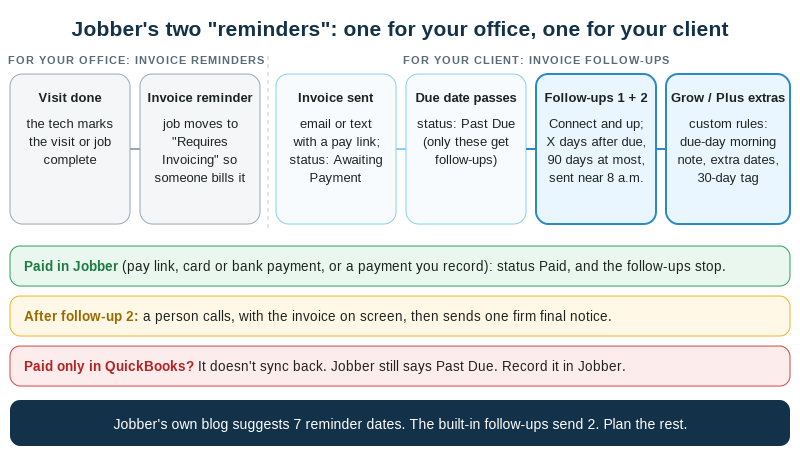
The diagram’s data, in text: for your office, the visit is marked complete and a Jobber invoice reminder moves the job to Requires Invoicing. For your client, the invoice is sent with a pay link (Awaiting Payment), the due date passes (Past Due), follow-ups 1 and 2 go out on Connect and up, and Grow or Plus add custom automations.
The strips below: a payment recorded in Jobber marks the invoice Paid and stops the follow-ups; after follow-up 2 a person calls; a payment recorded only in QuickBooks doesn’t sync back, so Jobber still shows Past Due.
Why did Jobber send a payment reminder to a customer who already paid?
Usually because the payment was recorded somewhere other than Jobber, most often in QuickBooks, so the invoice still shows Past Due in Jobber.
Jobber’s article on the new QuickBooks Online integration (updated November 27, 2026) says the sync is now one way, from Jobber to QuickBooks, and that “Paid” status no longer syncs from QuickBooks to Jobber.
Here’s the catch for contractors. A commercial customer mails a check, your bookkeeper deposits it and applies it in QuickBooks, and Jobber keeps sending that customer’s accounts payable desk your invoice is past due.
The fix is a habit, not a setting: record every payment in Jobber, including checks and bank transfers, and let it flow to QuickBooks. Jobber’s help center recommends recording payments only in Jobber, to avoid entering the same information twice.
The other common cause is a phone payment nobody logged. If a customer pays the tech on site and the invoice stays open, follow-up 1 still goes out the next morning.
What should a Jobber invoice reminder say?
A good reminder is short and friendly, names the job and the amount, and puts the pay link right there.
Here’s the kind truth about a late payer: most of them aren’t dodging you, the invoice just slid under a busy week. A friendly reminder with the pay link right there is often all it takes.
Example wording, with made-up names to swap for yours:
- Due-date morning (Grow, custom):
Hi Dana, it’s Riverside Mechanical. Your invoice for Tuesday’s furnace repair ($1,850) is due today. You can pay here in a minute: [link].
- Follow-up 1, 3 days after due:
Hi Dana, just a friendly reminder that the furnace repair invoice is still open. Pay by card or bank here: [link]. Questions? Reply and we’ll call.
- Follow-up 2, 14 days after due:
Hi Dana, our records show the $1,850 invoice from November 18 is two weeks past due. If something on it looks wrong, tell us and we’ll fix it.
- Final notice, 42 days after due (a person sends it):
Hi Dana, this is our final reminder about invoice 2041. Please pay by December 15, or call Maria in our office to set up a plan.
The if something looks wrong
line in follow-up 2 matters. A customer who hasn’t paid because of a billing question will tell you, and you hear about a dispute in week two instead of month three.
What does it cost when a customer pays from Jobber’s reminder link?
A card payment through Jobber Payments costs 2.9% plus 30 cents online, and a US bank payment (ACH) costs 1%, on every Jobber plan.
| Invoice | Online card (2.9% + 30¢) | Bank payment, ACH (1%) | Difference |
|---|---|---|---|
| $450 service call | $13.35 | $4.50 | $8.85 |
| $1,850 repair | $53.95 | $18.50 | $35.45 |
| $12,000 commercial job | $348.30 | $120.00 | $228.30 |
For big commercial invoices, mention the bank option in the reminder. Jobber’s help center notes that ACH payments have per-transaction, daily and 30-day limits, and your Payments settings page shows yours.
For maintenance agreements, Jobber’s Automatic payments can remove the reminder entirely. It charges a saved card or bank account on recurring jobs only, on Connect and up, and it is off by default.
One detail to watch: Jobber says that if an automatic payment doesn’t go through, Jobber won’t try to charge the client again.
Admins get an email, and that invoice needs a person to retry it.
How should commercial contractors chase invoices differently?
A commercial invoice is paid by an accounts payable desk on a schedule, so the reminder has to reach the right inbox with the details that desk needs.
- Send the invoice to the billing contact, not only the facility manager. Jobber sends follow-ups to the clients and contacts who received the original invoice.
- Put the purchase order or work order number, the site address and the date of service on the invoice.
- Match the due date to the customer’s terms, such as net 30, so follow-up 1 doesn’t arrive while they are still on time.
- Use email for commercial reminders, and save texts for homeowners and small business owners.
- Call after the second follow-up and ask one question: is the invoice approved, and when is the next check run?
Electricians in the 60 & 90 Day Deadbeats
thread on the Mike Holt forums (January 2024) describe the commercial reality: warranty companies, facility services and property managers often pay net 60 or 90. One reply sums it up: If they say 90 days then price for it.
Another contractor there describes lost hours on collection calls that usually ended with a card payment by phone. A reminder schedule that starts on time is the cheaper way to get there.
Mechanic’s lien and notice deadlines are set by each state, and some are short. Ask your attorney for your state’s dates, and set a Jobber custom tag or a calendar task well before the first one.
Can Jobber add late fees to overdue invoices automatically?
No built-in feature in Jobber’s help center adds a late fee by itself; a late fee is added by hand as a line item.
Jobber’s Invoice basics article lists the invoice statuses (Draft, Awaiting Payment, Past Due, Paid and Bad Debt) and says nothing about late fees. Jobber’s Academy suggests stating your late-fee policy in an invoice disclaimer that applies to every invoice.
The kinder order is reminder first, fee second. Most late payers are simply busy, and a fee on the first reminder turns a forgetful customer into an annoyed one.
How can AI and a custom build fill the gaps in Jobber’s invoice reminders?
A small custom service can read Jobber’s invoices through its API, send any reminder schedule by text and email, and hand replies to a person or an AI helper.
- Read: Jobber’s GraphQL API gives the service each invoice, its due date, balance and client contacts.
- Listen: Jobber webhooks send an INVOICE_UPDATE event when an invoice changes. Jobber notes that a payment can fire it twice, about a second apart, so the service must handle repeats.
- Send: the service sends the day-before and due-date reminders Jobber can’t, by Twilio SMS at about $0.0083 a segment plus carrier fees.
- Sort replies: an AI model reads
I mailed a check Monday
orthe tech never fixed the drain
and routes it: a payment promise becomes a note and a pause, a dispute goes to a person. - Log: each reminder is written back to Jobber as a note, so the office sees the whole history in one place.
Texts from a local 10-digit number need A2P 10DLC registration first. Twilio says anyone sending to US numbers that way must register for A2P 10DLC
(Twilio’s A2P 10DLC guide).
The same number and service can also chase estimates; our guide to automating HVAC estimate follow-up shows that schedule, which stops on a yes the way these stop on a payment.
What should you check before switching on Jobber invoice reminders?
Check six things first, so the first reminder goes to the right person, on the right day, about money that is really still owed.
- [ ] Every job gets invoiced. Each job has an invoicing schedule, so Jobber’s invoice reminders flag it in Requires Invoicing.
- [ ] Payments live in Jobber. Checks and transfers are recorded in Jobber, not only in QuickBooks.
- [ ] Due dates match terms. Default terms are set in Work Settings, and commercial accounts carry their own.
- [ ] Client settings are on. “Overdue invoice follow-ups” is enabled on each client and billing contact profile.
- [ ] Old invoices get a hand reminder. Anything already overdue when you switch on custom automations is sent by hand.
- [ ] A person owns follow-up 3. Someone has the call list for invoices still open after the second follow-up.
Start with Connect’s two follow-ups this week, read every reply for a few days, and add the Grow dates or a custom service once the habit sticks.
The goal is simple: every customer hears from you kindly and on time, and nobody in your shop has to chase money from the truck at night.
How we researched this
- Read Jobber’s help center articles on Automations, Invoice reminders, Invoice basics, Custom Automation Builder, Automatic payments and the new QuickBooks Online integration sync, on November 27, 2026 (each page’s own updated date is in the text).
- Read Jobber’s pricing page for plan prices, plan features and Jobber Payments rates, and its customer communications page and Academy reminder guide, the same day.
- Compared Jobber’s suggested seven reminder dates with what each plan can send, and calculated office time and payment fees from the stated assumptions.
- Read Jobber’s developer docs on the GraphQL API and webhooks, and Twilio’s SMS pricing and A2P 10DLC pages.
- Read the Mike Holt forums thread on 60- and 90-day payers (checked again November 27, 2026); Reddit and the Jobber Community forum were not readable by our tools, so no posts from them are quoted.
- We did not install or test these settings in a live Jobber account.
Switch on the two follow-ups tonight, record every check in Jobber, and let next week’s past-due list get a little shorter on its own.
Sources and further reading
- Jobber Help: Automations (invoice and quote follow-ups)
- Jobber Help: Invoice reminders
- Jobber Help: Invoice basics (statuses, terms, bad debt)
- Jobber Help: Custom Automation Builder
- Jobber Help: Automatic payments
- Jobber Help: How items sync between Jobber and QuickBooks Online (new integration)
- Jobber: pricing (plans and Jobber Payments rates)
- Jobber: automated client communication (invoice follow-ups)
- Jobber Academy: 7 Payment Reminder Email Templates for Overdue Invoices (updated January 28, 2026)
- Jobber Developer Center (GraphQL API)
- Jobber Developer Center: Setting up webhooks
- Twilio: US SMS pricing
- Twilio Docs: A2P 10DLC registration
- Mike Holt forums: 60 & 90 Day Deadbeats (contractor thread)
Questions and answers
Can I use AI to send automated invoice reminders from Jobber?
Yes. Jobber’s built-in follow-ups send two reminders by themselves, and an AI-assisted service on Jobber’s API can add the rest of the schedule, write each message from the invoice, and sort replies such as ‘I mailed a check’. Keep disputes, payment plans and anything about liens with a person.
How many invoice reminders can Jobber send automatically?
Jobber’s built-in invoice follow-ups send up to two reminders for each past-due invoice, at a number of days after the due date you choose, up to 90. On the Grow and Plus plans, the Custom Automation Builder can send more on other dates, such as the morning an invoice is due.
Which Jobber plan has automatic invoice follow-ups?
Invoice follow-ups are included on Jobber’s Connect, Grow and Plus plans, not on Core. Jobber’s pricing page lists Connect at $139 a month for one user, billed monthly. The Custom Automation Builder, for extra reminders, is on Grow and Plus.
What is the difference between invoice reminders and invoice follow-ups in Jobber?
Invoice reminders are internal: they tell your office a job needs invoicing and move it to Requires Invoicing status. Invoice follow-ups go to your client: they are emails or texts asking them to pay an invoice that is past due.
Why did Jobber send a reminder to a customer who already paid?
Usually the payment was recorded outside Jobber. With Jobber’s new QuickBooks Online integration, the sync runs one way and Paid status no longer comes back from QuickBooks, so the invoice still shows Past Due. Record every payment, including checks, in Jobber.