
How to Change a Name in a PDF (Every Copy, Even the Hidden Ones)
Disclosure: this page contains Amazon affiliate links. As an Amazon Associate we earn from qualifying purchases, at no extra cost to you.
Hi there, name-change navigator.
The wrong name staring back from a finished PDF, maybe on every single page, is a special kind of itch, isn’t it?
Picture your new name, or your client’s correctly spelled one, sitting in every spot of a PDF where the old name used to be.
Adobe Acrobat Standard or Pro swaps it in place (you can find Adobe Acrobat Pro subscriptions on Amazon), and Sejda’s free online editor, Microsoft Word and Google Docs can replace every copy at once.
Here’s which tool fits, where to click, and the hidden spots where an old name stays behind.
Short answer: To change a name in a PDF, open it in Adobe Acrobat Standard or Pro, press Ctrl+F (Command+F on a Mac), choose Replace text from the ellipsis menu, type the new name and select Replace, then Replace next for each copy. For free, Sejda’s online Find & Replace or Word’s Replace All changes every copy at once.
- Acrobat has no Replace All: after the first swap, Adobe says the Replace button turns into Replace next, so each copy of the name is its own click.
- Replace lives in one place: Adobe’s guide to searching a PDF notes that
the ability to replace text is only available when using the Find toolbar
, not in the bigger Search window. - Free Replace all: Sejda’s editor promises to
Easily find and replace all occurrences of words in a PDF
, on documents up to 200 pages or 50 MB, 3 tasks per hour. - The free viewers can’t do it: Acrobat Reader and Preview can search for a name, but neither can change the existing words.
- The page isn’t the whole story: a name can also sit in the file name, the Title and Author properties, comments and bookmarks.
How do you change a name everywhere in a PDF with Adobe Acrobat?
To change a name everywhere in a PDF with Adobe Acrobat Standard or Pro, open the Find toolbar with Ctrl+F (Windows) or Command+F (Mac), type the old name, select the ellipsis, then Replace text.
Type the new name, select Replace, and keep selecting Replace next until Acrobat says it has searched the whole document.
These steps follow Adobe’s help page on searching PDFs:
- Save a copy first with File, then Save As, so the original PDF stays as it was.
- Open the Find toolbar with Ctrl+F on Windows or Command+F on a Mac, and type the old name.
- Select the ellipsis (the three dots) on the Find toolbar, then select Replace text.
- Type the new name in the replace box and select Replace. Acrobat changes the first copy it finds.
- Select Replace next for each further copy of the name. There is no Replace All button, so a name used 30 times takes 30 clicks.
- Save when Acrobat reports that it has reached the end of the document.
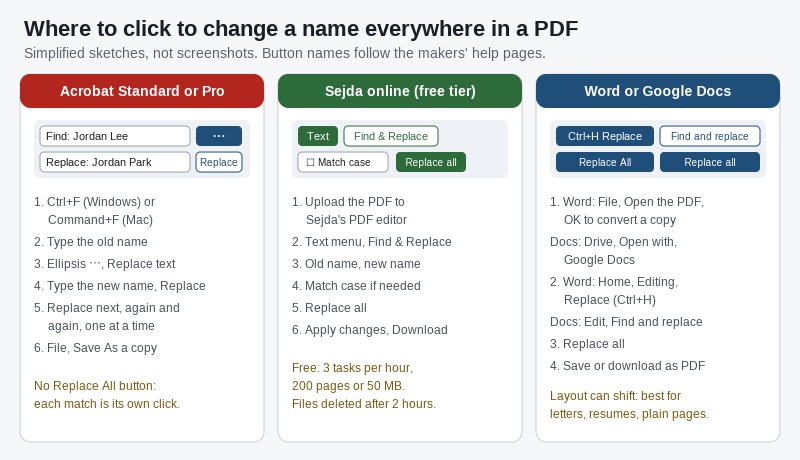
What the sketch shows, in text:
- Acrobat Standard or Pro: Ctrl+F or Command+F, type the old name, ellipsis, Replace text, type the new name, Replace, then Replace next one copy at a time; File, Save As.
- Sejda online: upload the PDF, Text menu, Find & Replace, old and new name, Match case if needed, Replace all, Apply changes, Download. Free tier: 3 tasks per hour, 200 pages or 50 MB, files deleted after 2 hours.
- Word or Google Docs: open the PDF as a converted copy, then Home, Editing, Replace (Ctrl+H) in Word or Edit, Find and replace in Docs, Replace all, and save or download as a PDF.
Why does the new name look different from the rest of the PDF?
A replaced name in a PDF looks different when the PDF’s original font isn’t installed on your computer.
Adobe’s help page on editing text in Acrobat explains that a font that is only embedded in the file lets you change the text’s color or size, but not type new words in that font.
To see which fonts a PDF uses, open its Document properties and the Fonts tab, which works in the free Acrobat Reader too.
Install the same font family, or the closest one you have, and match the size in Acrobat’s Format Text options, so the new name blends in. Our guide to editing text in a PDF covers the Edit tool in more detail.
What if the new name is longer than the old one?
A new name that’s longer than the old one can push words onto the next line or past the edge of its text box in a PDF, so look at every page after you replace it.
In Acrobat, select Edit, click the line that looks wrong, and fix it with the Format Text options: a slightly smaller size or tighter character spacing usually brings a longer name back into place.
On a designed page like a certificate template or a brochure, a short name swap is safer in Acrobat or Sejda than in Word, because a converted copy can shift the layout of the whole page.
Which tools can replace a name in a PDF?
Five of the 11 common PDF tools we compared can change a name that’s already printed in a PDF, and only three of them (Sejda, Word and Google Docs) replace every copy in one click.
Acrobat Standard and Pro change the name in place but one copy at a time. The free viewers can only add a new name on top.
| Tool | Change the existing name? | Replace every copy at once? | What you need |
|---|---|---|---|
| Adobe Acrobat Standard or Pro | Yes, in place | No, Replace next for each copy | Paid subscription (Pro has a 7-day free trial) |
| Adobe Acrobat Reader | No, search only | No | Free |
| Adobe Acrobat online editor | No, text boxes on top | No | Free Adobe account to download |
| Sejda online PDF editor | Yes (not inside scans) | Yes, Find & Replace, Replace all | Free: 3 tasks per hour, 200 pages or 50 MB |
| PDF24 Tools | Not directly, PDF24 suggests converting to Word | No | Free, no registration |
| Smallpdf | Pro plan only | Not listed on its editor page | Pro subscription (7-day free trial) |
| Microsoft Word | Yes, on a converted copy | Yes, Replace All (Ctrl+H) | Word for Microsoft 365, 2024, 2021, 2019 or 2016 |
| Google Docs (through Google Drive) | Yes, on a converted copy | Yes, Edit, Find and replace, Replace all | Free Google account; 2 MB or smaller suggested |
| Apple Preview (Mac) | No, search and text boxes only | No | Built into macOS |
| iPhone and iPad (Files, Markup) | No, Add Text on top | No | Built in |
| Android (Google Drive app) | No, only form fields | No | Free |
Our count from the table: 5 of 11 tools change the existing name, 3 of 11 replace every copy at once, and only 2 of 11 (Sejda and Google Docs) do that for free. The surprise for most people is that the paid Acrobat is the slow one for a name that appears 30 times.
How do you replace a name in a PDF for free online?
To replace a name in a PDF for free online, upload it to Sejda’s online PDF editor, open the Text menu, choose Find & Replace, type the old and new name, and select Replace all.
Sejda’s free tier covers documents up to 200 pages or 50 MB, 3 tasks per hour.
- Upload the PDF to Sejda’s PDF editor in your browser.
- Open the Text menu and choose Find & Replace.
- Type the old name and the new name. Tick Match case if the name could also appear inside other words.
- Select Replace all, or Find and Replace one copy at a time if you want to check each spot.
- Apply changes, then Download the new PDF and read every page once before you send it.
Other free online editors stop short of this. PDF24’s Edit PDF tool adds text, shapes and images on top and suggests converting to Word to change existing words.
Smallpdf’s editor says direct text editing needs its Pro subscription.
Is it safe to change a name in a PDF online?
Changing a name in an everyday PDF online is fine for most people, but it means uploading the file to another company’s server. Sejda says uploaded files are automatically deleted after 2 hours, and PDF24 says its server deletes them after one hour.
For a contract, a medical form or anything with an address and a date of birth, an editor on your own computer (Acrobat, Word, or Sejda’s desktop app) keeps the PDF off the internet.
How do you change a name in a PDF with Word or Google Docs?
To change a name in a PDF with Microsoft Word, open the PDF in Word so it converts a copy, press Ctrl+H, type the old and new name, select Replace All, then save the document as a PDF again.
Google Docs does the same for free: open the PDF with Google Docs from Google Drive, choose Edit, then Find and replace, and select Replace all.
- Word: File, then Open, choose the PDF and select OK when Word says it will convert a copy. The original PDF isn’t changed (Microsoft’s “Edit a PDF” page).
- Replace in Word: go to Home, then Editing, then Replace, or press Ctrl+H. Select More, then Match case, for a name that’s also part of other words (Microsoft’s find and replace help).
- Google Docs: upload the PDF to Google Drive, right-click it, choose Open with, then Google Docs.
- Replace in Docs: Edit, then Find and replace. Google’s Docs Editors Help puts it simply:
To replace the word every time it’s used, click Replace all.
- Save it as a PDF: in Word, File, then Export, then Create PDF/XPS Document; in Docs, File, then Download, then PDF Document.
Here’s the catch: Word and Google Docs rebuild the page instead of editing it.
Microsoft says Word’s conversion works best with PDFs that are mostly text
, and Google’s Drive Help on converting PDFs says lists, tables and columns are not likely to be detected. A letter or a resume usually comes through well; a designed page often doesn’t.
Can you change a name in a PDF with Preview on a Mac?
No, Preview on a Mac can’t change a name that’s already in a PDF, but it can find every copy of it and lay a new name on top.
Here’s the funny twist: the expensive Acrobat makes you click Replace next for every single copy, while the free Sejda and Google Docs swap them all at once. Price and patience don’t always go together.
Apple’s Preview User Guide says you can’t edit the text of a PDF in Preview
.
To find every copy, type the name in Preview’s toolbar search field; Apple’s guide to finding text in Preview shows how to step through the results and sort them by Page Order.
For one or two copies, a cover-up works: in the Markup toolbar, draw a white rectangle with no border over the old name, then add a text box with the new name on top. File, then Print, then Save as PDF flattens it so the boxes can’t be moved.
How do you change a name in a PDF on an iPhone or Android phone?
The built-in PDF tools on an iPhone or Android phone can add a new name to a PDF but can’t change the name already printed in it.
To replace every copy of a name from a phone, open Sejda in the phone’s browser, or use the Acrobat app with an Acrobat subscription.
- iPhone and iPad: open the PDF in the Files app, tap Markup, then the Add button, and choose Add Text or Add Shape for the white-box cover-up (Apple’s iPhone User Guide on Markup).
- Android: the Google Drive app can type into a PDF form’s fields (tap Edit, then Form filling), so a name inside a form box changes easily, but the page’s own words don’t.
- Acrobat on a phone: Adobe’s Acrobat Reader FAQ says an Acrobat subscription lets you edit PDFs in the Acrobat Reader app on a phone or tablet.
Where else does a name hide in a PDF?
A name can hide in seven places in one PDF, and Find & Replace only reaches the first one: the words on the page.
The other six are a form field, a scanned page, a signature, the file name, the Title and Author properties, and the author of comments or a bookmark label.
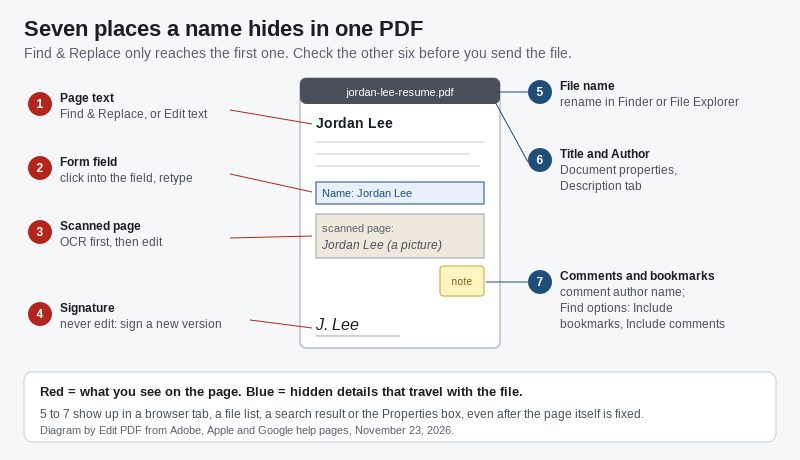
What the diagram shows, in text:
- Page text: Find & Replace in Acrobat or Sejda, or the Edit text tool.
- Form field: click into the field and retype it, in any free form filler.
- Scanned page: the name is a picture; recognize the text with OCR (optical character recognition) first, then edit.
- Signature: never edit it; sign a new version.
- File name: rename the file in Finder or File Explorer.
- Title and Author: Document properties, Description tab.
- Comments and bookmarks: the comment author name, and Acrobat’s Find options Include bookmarks and Include comments.
Numbers 5 to 7 travel with the file. They show up in a browser tab, a file list or the Properties box, even after every page looks right.
How do you change the author name in a PDF’s properties?
To change the author name in a PDF’s properties, open the PDF in Acrobat Standard or Pro, choose Document properties (Menu on Windows, File on a Mac), and edit the Author and Title boxes on the Description tab, then save.
Adobe’s help page on editing document metadata shows the dialog.
The Title box matters more than most people think: when a PDF is set to show its document title, the title is what appears in a browser tab instead of the file name. In Acrobat you set that on the Initial View tab of the same dialog, under Show, Document Title.
A comment keeps the author name it was made with. In Acrobat, right-click the comment, choose Properties, and change the Author on the General tab; Adobe’s page on the comment author name covers new comments too.
What if the name is in a form field, a scan or a signature?
A name in a PDF form field changes by clicking into the field, a name on a scanned page needs OCR before any editor can change it, and a name in a signature should never be edited at all.
- A form field
- If the name highlights in a box when you hover over it, click into the field and retype it. The free Acrobat Reader, Preview, the iPhone Files app and the Android Drive app all do it; our guide to filling in a PDF form has the steps.
- A scanned page
- If dragging across the name selects nothing, the page is a picture. Run Acrobat Pro’s Scan and OCR tool, or open the PDF with Google Docs from Google Drive, then replace the name and check it, because OCR can misread letters. A document scanner gives cleaner text to recognize than a phone photo.
- A signature
- A signature belongs to the person who signed. Any edit to a digitally signed PDF makes Acrobat warn that the document has been modified after signing; see our guide to signing a PDF to sign a fresh copy instead.
Before you send the file, search the new PDF for the old name once more, in both the page text and Document properties. If the search comes back empty, the name change is done.
Swap the name, peek at the file name and the Properties box, search once more for the old name, and send that PDF off with a proud little grin.
Sources and further reading
- Adobe Help: Searching PDFs in Acrobat — Find toolbar (Ctrl+F / Command+F), ellipsis, Replace text, Replace, Replace next; Whole words, Case sensitive, Include bookmarks, Include comments
- Adobe: How to search a PDF document — "the ability to replace text is only available when using the Find toolbar"
- Adobe Help: Edit text in PDFs in Acrobat — Edit, Text under Add Content, Format Text options; installed-font rule
- Adobe Help: Edit document metadata in PDFs — Document properties, Description tab: Title, Author
- Adobe Help: Change comment author name in Acrobat — comment Properties, General tab, Author
- Adobe: Acrobat Reader — text editing needs Acrobat Standard or Pro
- Adobe Help: Acrobat Reader FAQ — editing on a phone or tablet with an Acrobat subscription
- Sejda: online PDF editor — Text menu, Find & Replace, Match case, Replace all; "Easily find and replace all occurrences of words in a PDF"; free 3 tasks per hour, 200 pages or 50 MB; deleted after 2 hours
- PDF24 Tools: Edit PDF — free, no registration; files deleted after one hour; suggests converting to Word to change text
- Smallpdf: Edit PDF — direct text editing with a Pro subscription; 7-day free trial
- Microsoft Support: Find and replace text — Home, Editing, Replace; Ctrl+H; Replace All; More, Match case
- Microsoft Support: Edit a PDF — Word converts a copy; "works best with PDFs that are mostly text"
- Google Docs Editors Help: Find and replace — Edit, Find and replace; Match case; "To replace the word every time it’s used, click Replace all."
- Google Drive Help: convert PDF and photo files to text — Open with Google Docs; lists, tables and columns not likely detected; 2 MB or smaller
- Google Drive Help: fill out PDF forms on Android — Edit, then Form filling
- Apple Preview User Guide: find text in PDFs — toolbar search field, Next/Previous, Search Rank or Page Order
- Apple Preview User Guide: annotate a PDF — "can’t edit the text of a PDF in Preview"; Text tool, shapes
- Apple iPhone User Guide: add text, shapes and more with Markup — Add, then Add Text / Add Shape
Questions and answers
How do I change a name on a PDF for free?
Upload the PDF to Sejda’s free online editor, choose Text, then Find & Replace, type the old and new name and select Replace all (free for documents up to 200 pages or 50 MB, 3 tasks per hour). Or open the PDF in Word or Google Docs, use Replace all and save it as a PDF again.
Is there a find and replace in Adobe Acrobat?
Yes, in Acrobat Standard and Pro: press Ctrl+F or Command+F, select the ellipsis on the Find toolbar, then Replace text. Type the new word and select Replace, then Replace next for each further copy; there is no Replace All button. The free Acrobat Reader can search but not replace.
How do I change the author name on a PDF?
Open the PDF in Acrobat Standard or Pro, choose Document properties and edit the Author box on the Description tab, then save. The Title box on the same tab is what can show in a browser tab, so check it too.
Can you change a name on a scanned PDF?
Yes, after the text is recognized: a scanned name is a picture until OCR turns it into text. Run Acrobat Pro’s Scan and OCR tool, or open the PDF with Google Docs from Google Drive, then replace the name and check the spelling, because OCR can misread letters.
Is it legal to change the name on a PDF?
Changing a name in your own document, such as your resume, letter or invoice, is fine. Changing the name on a document someone else issued, such as a certificate, ID or bank statement, to pass it off as yours can be fraud. For a signed agreement, make a new version that everyone signs again. This isn’t legal advice.