How to Change a Date in a PDF (Page Text, Form Fields and the Hidden Dates)
Disclosure: this page contains Amazon affiliate links. As an Amazon Associate we earn from qualifying purchases, at no extra cost to you.
Every PDF date question starts the same way: one date is wrong, you fix it in one place, and the old date is still sitting somewhere else.
I spent Sunday afternoon, November 29, 2026, with the PDF specification itself, Sejda’s and Apple’s guides and the Adobe Community threads, instead of the blogs that quote each other.
You probably won’t find this on Reddit, but section 7.9.4 of the PDF 32000-1:2008 specification (page 87 of Adobe’s public copy) says every date inside a PDF is stored as a text string like D:20261129, year first.
Its own worked example is 7:52 PM on December 23, 1998, Pacific time.
Then I counted: 132 of the 365 days in 2026 can be read two ways when written as numbers with slashes.
Three things stood out: Acrobat has no feature to change a PDF’s Created and Modified dates, Sejda can’t touch dates inside scans, and the free Acrobat Reader can fill a date box but not change a date printed on the page.
Adobe Acrobat Standard or Pro changes a typed date in place (you can find Adobe Acrobat Pro subscriptions on Amazon), and free tools cover most other cases.
Here’s which tool fits a typed date, a form box or a scan, and where the hidden dates sit.
Short answer: To change a date in a PDF, open it in Adobe Acrobat Standard or Pro, choose Edit, click the date, retype it and save a copy. For free, upload it to Sejda’s online editor, click the date and retype it. If the date is in a form box, just click into the box and type.
- Four tools change a printed date: in our check of eight common tools, Acrobat Standard or Pro, Sejda, Word and Google Docs can; Acrobat Reader, Preview and the iPhone and Android apps can only add a new date on top.
- Sejda can’t edit scans: its editor page says
Changing existing text within scanned documents is not supported.
- Acrobat can’t edit the Created date: an Adobe Community reply says
Acrobat has no feature to change these dates
, and adds that they can’t be relied on for anything legally binding. - Slashes are ambiguous: we counted 132 of the 365 days in 2026 that read two ways as numbers (04/03/2026 is April 3 or March 4); a written month or 2026-04-03 reads one way.
Which kind of date are you trying to change?
A date in a PDF is one of four kinds: typed on the page, a form field, a scan, or part of a signature, and the kind decides which tool works.
Click the date once and try to drag across it. If it highlights as text, it’s typed. If a blue box appears around it, it’s a form field. If nothing highlights, it’s a picture of a date.
- Typed on the page
- Real text. Acrobat’s Edit tool, Sejda or a converted copy in Word or Google Docs can change it.
- A form field
- A box built to hold a date. Click in and retype; Acrobat Reader, Preview and the phone apps all do it. Our guide to filling in a PDF form has the steps.
- A scan
- A picture of a date. It needs OCR (optical character recognition) before any editor can change it; see editing text in a PDF.
- A signature’s date
- Part of what the signer agreed to. Leave it alone and sign a new version (see below).
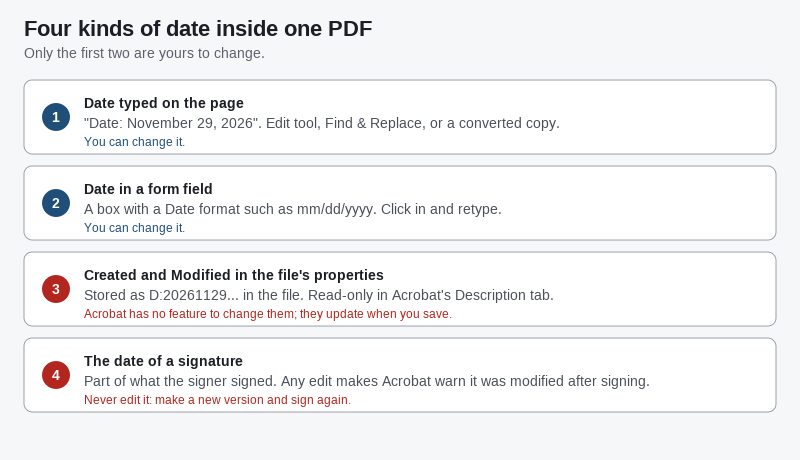
What the diagram shows, in text:
- Date typed on the page: you can change it with Edit, Find & Replace or a converted copy.
- Date in a form field: you can change it by clicking into the box and retyping.
- Created and Modified in the file’s properties: stored as a text string such as D:20261129; read-only in Acrobat’s Description tab; they update when you save.
- The date of a signature: never edit it; make a new version and sign again.
How do you change a date in a PDF with Adobe Acrobat?
To change a typed date in Adobe Acrobat Standard or Pro, save a copy, select Edit, click the date, retype it and save.
The free Acrobat Reader can’t do this: Adobe’s Community experts note that You cannot create forms or edit form field properties in the free Adobe Reader
, and editing printed text needs Standard or Pro.
- Save a copy first with File, then Save As, so the original date stays safe.
- Select Edit (the Edit PDF tool), then click the date. Acrobat puts a box around the line.
- Retype the date. Keep the same format as the other dates on the page, so the page reads consistently.
- Look at the line in case the new date is wider and wraps; our guide to changing a name in a PDF covers matching the font and fixing longer text.
- Save and open the copy once to read the page.
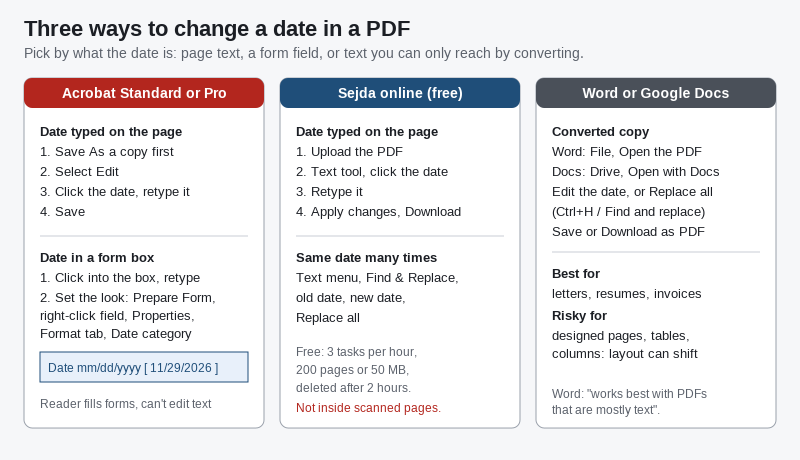
What the sketch shows, in text:
- Acrobat Standard or Pro: typed date: Save As, Edit, click the date, retype, Save. Form box: click in and retype; to set its look, Prepare Form, right-click the field, Properties, Format tab, Date category.
- Sejda online: upload, Text tool, click the date, retype, Apply changes, Download. For the same date many times: Text menu, Find & Replace, Replace all. Free tier: 3 tasks per hour, 200 pages or 50 MB, files deleted after 2 hours; not inside scanned pages.
- Word or Google Docs: open a converted copy, edit the date or use Replace (Ctrl+H) or Find and replace, then save or download as a PDF. Best for mostly-text pages.
How does a Date format in a PDF form field work?
A form box set to the Date category in Acrobat converts a date you type into its chosen look, such as mm/dd/yyyy, and shows an error if it can’t read what you typed.
The W3C’s PDF22 technique describes the steps: open the field’s Properties, choose the Date category on the Format tab and pick a format such as mm/dd/yyyy. Recognized dates are converted automatically; unrecognized ones trigger an error alert.
So if you type 3/5/26 into a box formatted mm/dd/yyyy, it becomes 03/05/2026, which is March 5. If the form’s maker chose dd/mm/yyyy, the same typing means May 3. Check what the box shows, not what you typed.
How do you make a PDF form fill in today’s date?
To make a PDF form fill in today’s date, Acrobat Standard or Pro needs a small script on the field; a form’s fill-in box can’t do it alone.
An accepted answer in an Adobe Community thread sets a text field named Today with var f = this.getField("Today"); f.value = util.printd("mm/dd/yyyy", new Date());, and suggests running it as a Document Will Print action so the date updates before printing.
It’s the form maker’s job, not the filler’s. If you just fill a form, type the date once and don’t worry about scripts.
Which tools can change a date in a PDF?
Four of the eight common PDF tools we compared can change a date that’s already printed on a PDF page, and six of eight can type into a date form box.
Acrobat Standard or Pro, Sejda, Word and Google Docs change printed text. Acrobat Reader, Preview, an iPhone and an Android phone add a date on top or fill a box.
| Tool | Change the printed date? | Type into a date form box? | What you need |
|---|---|---|---|
| Adobe Acrobat Standard or Pro | Yes, Edit tool | Yes, and can set the Date format | Paid subscription |
| Adobe Acrobat Reader | No, Fill & Sign adds text on top | Yes, if the form is fillable | Free |
| Sejda online PDF editor | Yes (not inside scans), plus Replace all | Yes, click the field and type | Free: 3 tasks per hour, 200 pages or 50 MB |
| Microsoft Word | Yes, on a converted copy, Replace All | No, becomes ordinary text | Word for Microsoft 365, 2024, 2021, 2019 or 2016 |
| Google Docs (through Google Drive) | Yes, on a converted copy, Replace all | No, becomes ordinary text | Free Google account |
| Apple Preview (Mac) | No, text box on top | Yes | Built into macOS |
| iPhone and iPad (Files, Markup) | No, Add Text on top | Yes | Built in |
| Android (Google Drive app) | No, only form fields | Yes, Form filling | Free |
Our count: 4 of 8 tools change a printed date, 3 of 8 (Sejda, Word, Google Docs) swap every copy at once, and 2 of 8 (Sejda and Google Docs) do it free. 6 of 8 can fill a form box, so a date inside a box is the easiest kind to change.
How do you change a date in a PDF for free online?
To change a date in a PDF for free online, upload it to Sejda’s online PDF editor, choose the Text tool, click the date and retype it.
Sejda’s page says to Click any existing text to start editing
and promises you can find and replace all occurrences of words in a PDF.
- Upload the PDF and open the Text tool.
- Click the date and type the new one in the same format.
- For a date that appears several times, use the Text menu, Find & Replace, and type the old and new date. Use Replace all, or step through each copy.
- Apply changes, Download and read every page.
The free limits on Sejda’s page are 3 tasks per hour and documents up to 200 pages or 50 MB, and it says files are Automatically deleted after 2 hours
.
For a contract or a form with an address and a date of birth, an editor on your own computer keeps the file off the internet.
How do you change a date in a PDF with Word or Google Docs?
To change a date in a PDF with Microsoft Word or Google Docs, open the PDF so it converts to a copy, edit or replace the date, then save it as a PDF again.
In Word, File, then Open converts a copy, and Replace (Ctrl+H) swaps every copy of the date. In Google Docs, upload the PDF to Drive, choose Open with, then Google Docs, and use Edit, then Find and replace.
Microsoft says the conversion works best with PDFs that are mostly text
, and the steps match those in our guide to changing a name in a PDF.
Use this for a letter, a resume or an invoice. For a designed page with tables and columns, Acrobat or Sejda is safer because a converted copy can shift the layout.
Can you change a date in a PDF with Preview or on a phone?
No, Apple’s Preview and the built-in phone tools can’t change a date that’s already printed in a PDF; they can only lay a new date on top or fill a form box.
Here’s the funny part: the PDF itself stores every date year first, so the one place you can’t edit is also the one place nobody ever misreads.
Apple’s Preview User Guide says you can’t edit the text of a PDF in Preview
. Its Text tool still adds a date box: click Text, type the date, then drag the box where you want it. Apple’s page doesn’t describe a date-specific feature, so you type it yourself.
On an iPhone, the Files app’s Markup adds text on top, and on Android the Google Drive app fills a form’s boxes. Sejda in the phone’s browser changes a printed date, and an Acrobat subscription does it in the Acrobat app.
Which date format should you type in a PDF?
Type the date the way the rest of the document does it, and for anything read across borders use a written month (November 29, 2026) or year first (2026-11-29), because slashed numbers can be read two ways.
The W3C’s note on Date and Time Formats defines a profile of ISO 8601 and lists the complete date as YYYY-MM-DD (eg 1997-07-16)
.
| Written as | Example for November 29, 2026 | Can be misread? |
|---|---|---|
| mm/dd/yyyy (US style) | 11/29/2026 | Only when day is 12 or less: 04/03/2026 is April 3 |
| dd/mm/yyyy (day first) | 29/11/2026 | Only when day is 12 or less: 04/03/2026 is March 4 |
| yyyy-mm-dd (ISO 8601) | 2026-11-29 | No, the year leads |
| Month written out | November 29, 2026 or 29 Nov 2026 | No |
We counted the clash for 2026: a numeric date is ambiguous when both the day and the month are 12 or less, which gives 12 times 12 = 144 pairs, minus the 12 days where they match (like 03/03). That leaves 132 of the 365 days in 2026, or 36.2 percent, that read two ways.
Can you change the Created and Modified dates of a PDF?
In Acrobat you can’t: the Created and Modified dates on the Description tab of Document properties are read-only, and an Adobe Community reply says Acrobat has no feature to change these dates
.
The same Adobe Community thread adds You cannot rely on these dates for anything legally binding
, and says digital signatures are the tool for that.
Here’s where the PDF’s own rulebook helps. Section 7.9.4 of the PDF 32000-1:2008 specification says a date in a PDF is a text string of the form D:YYYYMMDDHHmmSSOHH’mm. Only the year must be present, and the month and day both default to 01 when left out, so D:2026 alone means January 1, 2026.
A saved copy gets new dates: Save As makes a new file, so its Created date is the day you saved it. That is normal and nothing to fix.
Where do the sources disagree about PDF dates?
Two places: whether Acrobat Pro can edit a PDF’s Created date, and whether a PDF date field shows a calendar.
| Question | One side says | The other side says | What we do |
|---|---|---|---|
| Can Acrobat Pro change Created and Modified? | A SwifDoo blog post says Acrobat Pro can modify metadata such as creation and modification dates | An Adobe Community reply says Acrobat has no feature to change them | Follow Adobe’s community reply; we couldn’t confirm the blog’s claim on an Adobe page |
| Does a Date field show a calendar? | One how-to page says the Date format shows a calendar dropdown | Another says Acrobat’s date fields are text-based with no calendar pop-up | The W3C technique describes only a format that converts typed dates; we state that and don’t promise a calendar |
What none of the pages we read said: a form’s Date format decides how what you type is read. The same keystrokes mean March 5 in one form and May 3 in another.
What if the date is in a scan or next to a signature?
A date in a scan needs OCR before any editor can change it, and a date next to a signature should never be edited.
Sejda says Changing existing text within scanned documents is not supported
, so run Acrobat Pro’s Scan and OCR tool, or open the PDF with Google Docs from Drive, then correct the date and check it, because OCR can misread digits. A document scanner gives cleaner digits to recognize than a phone photo.
Any edit to a digitally signed PDF makes Acrobat warn that it was modified after signing; see how to sign a PDF to sign a fresh copy.
One last thought from the numbers: a PDF’s own dates always run year first, so the file itself never has the 04/03 confusion, while 132 of 365 days of the year do.
The spec’s own worked example is 7:52 PM Pacific on December 23, 1998. Anyone typing a date into a PDF that strangers will read is safest copying the file: year first or month spelled out.
How we researched this
- What we read, November 29, 2026: the PDF 32000-1:2008 specification on Adobe’s open-source site (section 7.9.4, Dates, pages 87 to 88); the W3C’s Date and Time Formats note; the W3C PDF22 technique; Sejda’s online PDF editor page; Apple’s Preview User Guide page on annotating a PDF; and three Adobe Community threads (populating a form with the current date, changing the Created date, and date field properties).
- What we reused from earlier checks on this site: the Acrobat, Word, Google Docs and phone steps verified for our guides to editing text, filling forms and changing a name (November 16 to 23, 2026).
- What we compared: eight tools on three questions (change a printed date, type into a date box, what you need), in the matrix above, and four ways of writing one date.
- What we counted ourselves: 132 ambiguous days out of 365 in 2026, by arithmetic (12 x 12 minus 12). That is a count, not a survey.
- What we could not do: Adobe’s own help pages refused our automated reader, so the Acrobat Format-tab and Edit steps come from the W3C technique and Adobe Community answers. We did not confirm the SwifDoo and calendar claims on an Adobe page.
- What we did not do: test any tool ourselves.
Retype the date, check the old one is gone with a search, and send the PDF off knowing nobody can read it two ways.
Sources and further reading
- PDF 32000-1:2008 (ISO 32000-1), Document management, Portable document format — section 7.9.4 Dates: D:YYYYMMDDHHmmSSOHH’mm, only the year required, MM and DD default to 01, example December 23, 1998 7:52 PM Pacific
- W3C: Date and Time Formats — profile of ISO 8601; YYYY-MM-DD (eg 1997-07-16)
- W3C WCAG technique PDF22 — Acrobat field Properties, Format tab, Date category, mm/dd/yyyy; unrecognized dates trigger an alert
- Adobe Community: how do I populate a form with current date? — util.printd script; Document Will Print; free Reader can’t edit form fields
- Adobe Community: changing document create date and time in properties — "Acrobat has no feature to change these dates"; not reliable for legal use
- Sejda: online PDF editor — click existing text to edit; find and replace; not inside scans; 3 tasks per hour, 200 pages or 50 MB; deleted after 2 hours
- Apple Preview User Guide: annotate a PDF — "can’t edit the text of a PDF in Preview"; Text tool
- Apple iPhone User Guide: Markup — Add Text on top
- Microsoft Support: Edit a PDF — Word converts a copy; "works best with PDFs that are mostly text"
- Google Docs Editors Help: Find and replace — Edit, Find and replace, Replace all
- Google Drive Help: convert PDF and photo files to text — Open with Google Docs
Questions and answers
How do I change a date on a PDF for free?
Upload the PDF to Sejda’s free online editor, use the Text tool, click the date and retype it (free for documents up to 200 pages or 50 MB, 3 tasks per hour). Or open the PDF in Google Docs through Google Drive, use Find and replace, and download it as a PDF.
Can I change the date a PDF was created?
Not in Acrobat: the Created and Modified dates on the Description tab are read-only, and an Adobe Community reply says Acrobat has no feature to change them. They update when you save a copy. Don’t change them to backdate a document someone else will rely on.
What date format should I use on a PDF?
Match the document’s existing format. For anything read in several countries, write the month out (November 29, 2026) or use year first (2026-11-29), because 04/03/2026 reads as April 3 or March 4 depending on the country.
How do I change a date on a scanned PDF?
Turn the scan into text first with OCR, in Acrobat Pro’s Scan and OCR tool or by opening the PDF with Google Docs from Google Drive. Then correct the date and check every digit, because OCR can misread numbers. Sejda doesn’t edit text inside scans.
Is it okay to change the date on a PDF?
Changing a date in your own document, such as a letter, invoice or resume, is fine. Changing the date on a record someone else issued, or backdating a signed agreement, can be fraud. For a signed agreement, make a new version that everyone signs again. This isn’t legal advice.