
Best TV and Console Settings for GTA 6 (HDR, Performance Mode and 120 Hz)
Disclosure: this page contains Amazon affiliate links. As an Amazon Associate we earn from qualifying purchases, at no extra cost to you.
Brightness sliders at the ready, sunset-chasing screen tweaker — let’s get Leonida looking its very best! GTA 6 comes out on , and the best time to sort out your TV and console settings is now, before launch night, while there’s nothing to rush back to. It’s mostly free switches: the right HDMI port, the TV’s game mode, HDR calibration, 120 Hz and VRR — plus, if the cable behind your TV is an old one, an Ultra High Speed HDMI cable (see options on Amazon).
Short answer: Before November 19, plug the console into an HDMI 2.1 port, set the TV to its game mode (or let ALLM switch it), turn on HDR and run the console’s HDR calibration, and switch on 120 Hz output and VRR. Performance or quality modes can’t be picked yet: Rockstar hasn’t announced any for GTA 6.
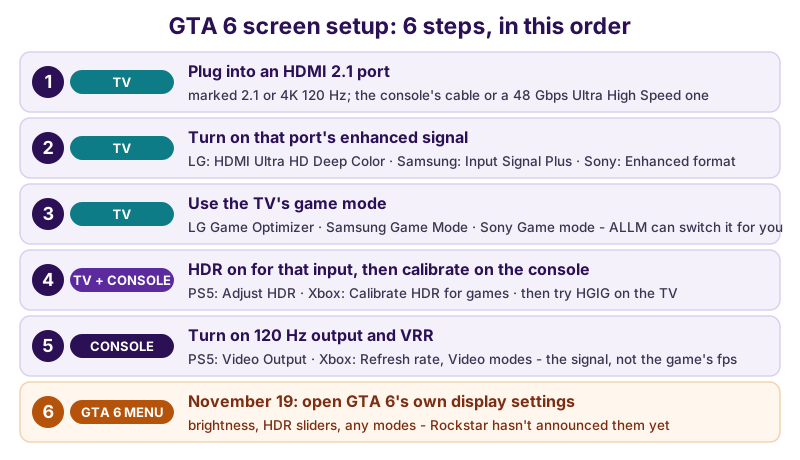
The checklist, as text: 1. TV: plug the console into an HDMI 2.1 port (marked 2.1 or 4K 120 Hz), using the console’s own cable or a 48 Gbps Ultra High Speed HDMI cable. 2. TV: turn on that port’s enhanced signal — LG calls it HDMI Ultra HD Deep Color, Samsung Input Signal Plus, Sony Enhanced format. 3. TV: use the TV’s game mode (LG Game Optimizer, Samsung Game Mode, Sony’s Game mode); ALLM can switch it on for you. 4. TV and console: turn HDR on for that input, then calibrate on the console — PS5: Adjust HDR, Xbox: Calibrate HDR for games — and then try HGIG tone mapping on the TV. 5. Console: turn on 120 Hz output and VRR (PS5: Video Output; Xbox: Refresh rate and Video modes); this sets the signal, not GTA 6’s frame rate. 6. GTA 6 menu, from November 19: check the game’s own brightness, HDR and mode settings, which Rockstar hasn’t announced yet.
What has Rockstar said about GTA 6’s graphics settings?
Nothing yet: as of , Rockstar Games hasn’t announced graphics modes, HDR options, a resolution or a frame rate for GTA 6 on any console. The official store pages stick to the basics.
PlayStation’s Grand Theft Auto VI page labels the PS5 version “PS5 Pro Enhanced” and lists haptic feedback, adaptive triggers, Tempest 3D audio and fast loading — but no HDR, 4K or frame-rate label. The Xbox Store listing tags GTA 6 Optimized for Xbox Series X|S
. The only frame-rate report so far is a secondhand one: Video Games Chronicle reported on August 28, 2026 that the consoles were running GTA 6 at 30 frames per second during development, with a 60 FPS option still undecided. Our PS5 vs PS5 Pro guide has the full story.
Did GTA V have performance and quality modes on PS5 and Xbox?
Yes. When GTA V came to PS5 and Xbox Series X|S in March 2022, Rockstar gave it three graphics modes, as Video Games Chronicle’s Tom Ivan reported on March 4, 2022:
- Fidelity Mode: targets 30 FPS, with native 4K and ray tracing on PS5 and Xbox Series X, and upscaled 4K on Xbox Series S.
- Performance Mode: targets 60 FPS, at upscaled 4K on PS5 and Xbox Series X and 1080p on Xbox Series S.
- Performance RT: a 60 FPS hybrid with ray tracing, on PS5 and Xbox Series X only.
That’s Rockstar’s track record with GTA V, announced on its Newswire ahead of the March 15, 2022 release — not a promise about GTA 6’s modes.
Should you set the PS5’s Performance or Resolution preset now?
You can, and it does no harm, but the PS5’s game preset only matters if GTA 6 ends up offering modes. The setting is at Settings > Saved Data and Game/App Settings > Game Presets > Performance Mode or Resolution Mode, and PlayStation Support describes it plainly: Make motion in your game smoother with performance mode, or have higher graphic quality in resolution mode. This applies only to games that offer these modes.
Pick Performance Mode if smooth driving matters most to you, or Resolution Mode if you’d rather have the sharpest picture. On Xbox Series X|S, the Microsoft pages we checked list no system-wide equivalent, so any GTA 6 mode choice there would sit in the game’s own menu.
Which HDMI port should you plug your PS5 or Xbox into for GTA 6?
Use an HDMI 2.1 port — on many TVs only some ports are 2.1, so check the labels or the manual — with the cable that came with your console, then turn on that port’s enhanced signal setting on the TV. Without both, most TVs won’t accept 4K at 120 Hz from a PS5 or Xbox Series X|S.
Sony’s own checklist on PlayStation Support’s PS5 resolution page asks four questions: Does the TV claim to support 4K 120 Hz?
, Is the TV using its latest firmware?
, are you using the cable that came with the PS5 or an Ultra High-Speed Cable that is rated for 4K 120 Hz output
, and Is the PS5 console connected to an appropriate HDMI port (2.1) on the TV?
Microsoft says the same about Xbox Series X|S: Xbox Wire’s TV guide of November 6, 2020 says the consoles’ most advanced features require HDMI 2.1 connection
, and warns that Some displays can only hit a 120 Hz refresh rate at certain resolutions (such as 1080p).
Many TVs also want you to switch on a port’s full bandwidth separately, and the big brands each name it differently:
- LG: HDMI Ultra HD Deep Color, turned on for the console’s port — LG’s Game Optimizer page says it must be on for the game settings to work.
- Samsung: Input Signal Plus, at All Settings > Connection > External Device Manager, per Samsung’s Game Mode page (updated June 17, 2026), which says it
expands the input signal range for HDMI connections
. - Sony BRAVIA: Enhanced format, at Settings > Channels & Inputs > External inputs > HDMI signal format/VRR on the BRAVIA 9, 8, 8 II, 7, 5 and A95L, among others, per Sony’s BRAVIA help guide.
Sony’s help guide also spells out the cable: 4K at 100 or 120 Hz needs an Ultra High Speed HDMI™ Cable that supports 48 Gbps
. Sony says the cable that came with the PS5 is fine for 4K at 120 Hz, so a new cable only matters if yours was swapped for an older one or you need a longer run — then look for a certified Ultra High Speed HDMI cable. If a capture card sits between your console and TV, the card’s passthrough limits what reaches the screen; our guide to recording and streaming GTA 6 covers which cards pass 4K at 120 Hz.
Which TV picture mode is best for GTA 6?
Use the TV’s game mode: it trims the TV’s own picture processing so the screen reacts faster to your controller. On TVs that support ALLM (auto low-latency mode), the PS5 and Xbox Series X|S switch game mode on by themselves when you start playing.
Microsoft’s Xbox Series X|S technology glossary puts it simply: ALLM automatically enables your display’s lowest latency mode when you start playing.
On Xbox, the toggle is Allow auto-low latency mode under Settings > General > TV & display options > Video modes. On PS5, ALLM sits under Settings > Screen and Video > Video Output, and PlayStation Support notes the PS5 switches the TV to low-latency mode whenever VRR is in use, even with ALLM off.
Each TV brand has its own name for game mode:
- LG: Game Optimizer, at All Settings > General > Game Optimizer on webOS 6.0 (2021) and later.
- Samsung: Game Mode — Samsung says consoles are detected and switched to Game Mode automatically, and you can also turn it on from Quick settings.
- Sony BRAVIA: Game mode, which “Perfect for PlayStation 5” BRAVIA XR TVs can pick by themselves with Auto Genre Picture Mode — it
can detect whether the user is playing a game or watching media, and will switch the picture mode accordingly
, as Video Games Chronicle reported on October 7, 2021.
How do you set up HDR for GTA 6 on PS5 and Xbox?
Turn HDR on for the TV’s input first, then on the console, then run the console’s HDR calibration once with the TV in game mode. Whether GTA 6 adds its own HDR sliders won’t be known until November 19, but the console calibration is the base every HDR game builds on.
Engadget’s Nimrod Aldea, in his November 1, 2026 guide to PS5 settings to change before GTA 6, starts at the TV: make sure your TV has HDR turned on for the HDMI input your PS5 uses.
On many TVs, HDR from a console also depends on that input’s enhanced signal setting (LG HDMI Ultra HD Deep Color, Samsung Input Signal Plus, Sony Enhanced format).
How do you calibrate HDR on a PS5?
On a PS5, go to Settings > Screen and Video > Video Output > HDR, choose a setting, then select Adjust HDR on the same Video Output screen and follow the on-screen steps. PlayStation Support’s HDR page explains the two HDR choices:
- Always On:
even games and apps that aren’t HDR-compatible automatically convert to HDR output.
- On When Supported:
games and apps that aren’t HDR-compatible display in SDR (standard dynamic range).
Our pick is On When Supported: HDR games get HDR, and everything else stays the way it was made. If you own a “Perfect for PlayStation 5” Sony BRAVIA XR TV, Auto HDR Tone Mapping does much of this for you — Video Games Chronicle reported that during PS5 setup the console will detect the TV and automatically configure the best HDR settings
.
How do you calibrate HDR on an Xbox Series X|S?
On an Xbox Series X|S, open Settings > General > TV & display options and choose Calibrate HDR for games — the HDR Game Calibration app that Xbox Wire’s November 6, 2020 TV guide calls a new calibration tool that will allow you to calibrate your HDR settings for games
. Under the same menu, 4K TV details shows green checkmarks for what your TV supports.
Three Video modes toggles matter for HDR on Xbox, all under TV & display options > Video modes and all listed on Microsoft’s console configuration page:
- Allow HDR10: the Xbox’s HDR output.
- Auto HDR: Microsoft’s HDR reconstruction for existing Xbox games
that don’t already have native HDR support
, per the Xbox glossary. - Dolby Vision for Gaming: for Dolby Vision TVs. Xbox Wire’s September 28, 2021 announcement says it supports
Variable Refresh Rate (VRR), and up to 120FPS depending on the capabilities of your TV
. Neither Rockstar nor Microsoft has said anything about GTA 6 and Dolby Vision.
What is HGIG, and should you turn it on?
HGIG (HDR Gaming Interest Group) is a TV setting that stops the TV adding its own HDR tone mapping, so the picture follows the limits you set in the console’s calibration instead. It’s worth trying first, right after you calibrate. LG’s support page defines it this way:
HGIG (HDR Gaming Interest Group) is a standard for setting screen colors and atmosphere as intended by game developers.
On LG TVs from 2021 (webOS 6.0) onward, HGIG is at All Settings > General > Game Optimizer > Screen > Tone Mapping Compensation, and only while Game Optimizer is on. LG adds that HGIG can look darker than Tone Mapping set to On, and suggests switching between them to find a picture you like — which is good advice on any brand. Other makers place and name the option differently by model, so check your TV’s manual for “HGIG”.
Should you turn on 120 Hz and VRR for GTA 6?
Yes, if your TV supports them. The 120 Hz setting changes the signal your console sends, not how fast GTA 6 runs, and VRR (variable refresh rate) lets the TV follow the game when its frame rate dips. Both are free to switch on.
Okay, tiny nerd moment: setting up a 120 Hz signal for a game nobody has seen running above 30 fps feels a bit backwards — right up until the refresh-rate math clicks, and then it’s oddly satisfying.
This setting controls what the console sends to your TV, not how fast the game runs.
On an Xbox Series X|S, that signal is worth having even below 120 frames per second. In Xbox Wire’s March 16, 2020 post on latency, Microsoft says HDMI 2.1 supports up to 4k at 120 Hz which allowed the team to reduce frame transmission time from 16.6ms to 8.3ms
, and calls it an automatic 8.3ms latency improvement on TVs that support it and benefits games at all framerates.
Sony doesn’t publish an equivalent figure for the PS5.
- PS5: Settings > Screen and Video > Video Output. Turn on 120 Hz Output — Sony says it enables 120 Hz
for your TV and games that support 120 Hz frame rate
, so on PS5 the game decides whether it’s used. Turn on VRR, which Sony says letsthe refresh rate adjust in real time while using TVs and games that support VRR
, and consider Apply to Unsupported Games, which Sony says canstabilize the frame rate for games even if they don’t support VRR
. - Xbox Series X|S: set Settings > General > TV & display options > Refresh rate to 120 Hz, and tick Allow variable refresh rate under Video modes. Xbox Wire’s TV guide says to untick it if you ever see visual corruption.
What VRR does, in Microsoft’s words: When games miss their frames, VRR will show the result with the lowest possible latency.
The HDMI Licensing Administrator’s VRR page explains the HDMI 2.1 feature behind it.
Why does 120 Hz help a 30 or 40 fps game?
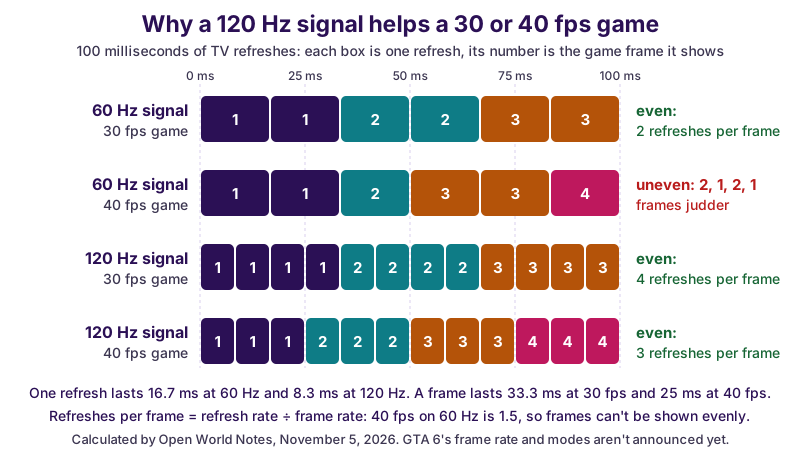
Because 120 divides evenly by 30, 40 and 60, a 120 Hz signal can show every frame of a 30, 40 or 60 fps game for the same length of time; a 60 Hz signal can’t do that for 40 fps. Here’s our own calculation, drawn over 100 milliseconds:
| Game frame rate | One frame lasts | On a 60 Hz signal (16.7 ms per refresh) | On a 120 Hz signal (8.3 ms per refresh) |
|---|---|---|---|
| 30 fps | 33.3 ms | 2 refreshes per frame — even | 4 refreshes per frame — even |
| 40 fps | 25 ms | 1.5 — uneven (2, 1, 2, 1), so frames judder | 3 refreshes per frame — even |
| 60 fps | 16.7 ms | 1 refresh per frame — even | 2 refreshes per frame — even |
| 120 fps | 8.3 ms | 0.5 — half the frames can’t be shown | 1 refresh per frame — even |
That’s why some PS5 games only offer a 40 fps mode on a 120 Hz screen. Insomniac’s Ratchet & Clank: Rift Apart is the best-known example: its patch 1.002 Added 120 Hz Display Mode, which reduces input latency when using a compatible display
, and in that mode the frame rate target for the Fidelity graphics mode increases to 40 frames per second
, as Push Square’s Liam Croft reported on June 30, 2021. Whether GTA 6 offers anything like that is unknown — but with 120 Hz and VRR switched on, your setup is ready if it does.
Where are all the GTA 6 display settings on PS5, Xbox and your TV?
On a PS5, nearly everything is under Settings > Screen and Video > Video Output; on an Xbox Series X|S it’s Settings > General > TV & display options; on the TV it’s the game mode and the HDMI port’s signal setting. Here they are in one place — menu names can shift a little between system updates and TV model years.
| Setting | PS5 and PS5 Pro | Xbox Series X|S |
|---|---|---|
| Turn on HDR | Video Output > HDR: On When Supported or Always On | TV & display options > Video modes > Allow HDR10 |
| Calibrate HDR | Video Output > Adjust HDR | TV & display options > Calibrate HDR for games |
| 120 Hz signal | Video Output > 120 Hz Output (used by games that support it) | TV & display options > Refresh rate > 120 Hz |
| VRR | Video Output > VRR, plus Apply to Unsupported Games | Video modes > Allow variable refresh rate |
| Game mode on the TV (ALLM) | Video Output > ALLM; low-latency mode also kicks in whenever VRR is in use | Video modes > Allow auto-low latency mode |
| Check what the TV supports | Sony’s 4K 120 Hz checklist on PlayStation Support | TV & display options > 4K TV details (green checkmarks) |
| Performance or quality preference | Saved Data and Game/App Settings > Game Presets (only games that offer modes) | No system-wide preset on the Microsoft pages we checked |
| Dolby Vision for games | Not listed on the Sony pages we checked | Video modes > Dolby Vision for Gaming (Dolby Vision TVs) |
| Setting | LG (webOS 6.0 and later) | Samsung | Sony BRAVIA |
|---|---|---|---|
| Full HDMI bandwidth for the console’s port | HDMI Ultra HD Deep Color: On | Connection > External Device Manager > Input Signal Plus | Channels & Inputs > External inputs > HDMI signal format/VRR > Enhanced format |
| Game mode | General > Game Optimizer | Game Mode: automatic for detected consoles, or from Quick settings | Game mode; Auto Genre Picture Mode switches to it on “Perfect for PlayStation 5” models |
| HDR tone mapping for games | Game Optimizer > Screen > Tone Mapping Compensation > HGIG | Not on the Samsung page we checked — see your model’s manual | Auto HDR Tone Mapping, set by the PS5 during setup on “Perfect for PlayStation 5” models |
What TV features matter most for the best GTA 6 picture?
For a top-end GTA 6 screen, look for a 4K TV with enough HDMI 2.1 ports for every console you own, 4K at 120 Hz, VRR, ALLM, strong HDR and an HGIG option — OLED for deep contrast in dark scenes, mini-LED for extra brightness in a sunny room. Here’s the list we’d shop by:
- HDMI 2.1 ports
- One for each console you plan to connect; on some TVs only certain inputs carry 4K at 120 Hz, so check the spec sheet port by port.
- 4K at 120 Hz
- At 4K, not only at 1080p — Xbox Wire warns some displays reach 120 Hz only at lower resolutions.
- VRR and ALLM
- HDMI 2.1 VRR for smoother frame-rate dips, ALLM so game mode switches on by itself.
- HDR
- HDR10 support is the baseline; Dolby Vision is a bonus for Xbox Series X|S owners through Dolby Vision for Gaming.
- HGIG
- An HGIG tone-mapping option, so the TV follows your console’s HDR calibration.
- Console extras
- Sony’s “Perfect for PlayStation 5” BRAVIA XR TVs add Auto HDR Tone Mapping and Auto Genre Picture Mode for PS5 owners.
If you’re going all-in on Leonida, browse OLED TVs with HDMI 2.1 on Amazon, mini-LED TVs with 4K at 120 Hz, or the brands from our tables directly: LG OLED TVs and Sony BRAVIA TVs. Check each listing’s specs for the features above rather than the name alone.
Is OLED or mini-LED better for GTA 6?
Neither wins everywhere: OLED gives the deepest contrast, and mini-LED gets brighter. On an OLED TV every pixel makes its own light, so a dark scene can sit right next to bright lights without a glow around them; a mini-LED TV lights an LCD panel from behind with many small LEDs dimmed in zones, which suits a bright living room. If you play mostly at night in a dim room, OLED’s contrast is the treat; if your TV faces a sunny window, mini-LED’s brightness helps.
OLED owners who play long sessions can lean on the screen-care features built in. LG’s OLED reliability page lists Screen Shift, which moves the pixels of the static area
, Logo Luminance Adjustment, which detects on-screen logos and reduces the luminance in the affected areas
, and a Pixel Refresher that automatically detects pixel deterioration through periodic scanning, compensating for it as needed
. LG describes the risky case as a static image displayed for an extended period
, so the thing to avoid is a paused game left on screen for hours — switch the TV off when you step away for long.
What should you check in GTA 6’s own menus on November 19?
Open GTA 6’s settings before your first drive: look for display or graphics options — brightness, HDR sliders, any performance or quality modes — and set them against the console calibration you’ve already done. As of November 5, 2026, Rockstar hasn’t said what those menus hold.
If the GTA 6 picture looks wrong after launch, start with the basics — the HDMI 2.1 port, the port’s enhanced signal and HDR on for that input — then check Rockstar’s Newswire and Rockstar Support for patch notes and known issues. If you haven’t preloaded yet, here’s how to preload GTA 6 on PS5 and Xbox and when GTA 6 unlocks in your time zone.
Calibrate once, flip on game mode, and let that first Leonida sunset show your TV what it was made for.
Sources and further reading
- PlayStation Support: how to enable HDR on a PS5 console — HDR Always On vs On When Supported, Adjust HDR
- PlayStation Support: how to change PS5 console resolution — 120 Hz Output, VRR and Apply to Unsupported Games, ALLM, the 4K 120 Hz checklist
- PlayStation Support: customize game presets on PS5 consoles — Performance Mode or Resolution Mode, only in games that offer these modes
- PlayStation: Grand Theft Auto VI (PS5 game page) — PS5 Pro Enhanced, haptic feedback, adaptive triggers, Tempest 3D audio; no HDR or frame-rate label
- Xbox Store: Grand Theft Auto VI — Optimized for Xbox Series X|S
- Xbox Wire: You’re ready to power your dreams — is your TV? (November 6, 2020) — HDMI 2.1, 120 Hz at some resolutions only, 4K TV details, Calibrate HDR for games, Video modes, Refresh rate
- Xbox Wire: Xbox Series X — what’s the deal with latency? (March 16, 2020) — 4K at 120 Hz cuts frame transmission time from 16.6 ms to 8.3 ms; ALLM; VRR
- Xbox Wire: an Xbox Series X|S technology glossary (March 16, 2020) — ALLM, VRR, Auto HDR, 120 FPS
- Xbox Wire: Dolby Vision gaming now available on Xbox Series X|S (September 28, 2021) — Dolby Vision for Gaming menu path, ALLM, VRR and up to 120 FPS depending on the TV
- Microsoft Learn: Gaming Sustainability Certification Testing — the Xbox Video modes list: Allow auto-low latency mode, Allow variable refresh rate, Allow HDR10, Auto HDR, Dolby Vision for Gaming
- LG USA Support: how can I use the HGIG function? — HGIG definition, Tone Mapping Compensation menu path, Game Optimizer only
- LG USA Support: how to turn on Game Optimizer — menu path; HDMI Ultra HD Deep Color must be on; brief flicker
- LG: OLED TV reliability — Screen Shift, Logo Luminance Adjustment, Pixel Refresher
- Samsung: use Game Mode on your Samsung TV (June 17, 2026) — automatic Game Mode for consoles, Input Signal Plus, VRR
- Sony BRAVIA help guide: settings for viewing pictures through HDMI input with higher quality — HDMI signal format/VRR, Enhanced format, 48 Gbps Ultra High Speed HDMI cable for 4K 100/120 Hz
- Video Games Chronicle: Sony introduces ‘Perfect for PS5’ TVs (Chris Scullion, October 7, 2021) — Auto HDR Tone Mapping and Auto Genre Picture Mode
- Engadget: Change these PlayStation 5 settings before GTA 6 comes out (Nimrod Aldea, November 1, 2026) — HDMI 2.1 input, 120 Hz is the signal not the game speed, HDR on the TV input
- Video Games Chronicle: GTA V’s PS5 and Xbox Series X/S graphics modes confirmed (Tom Ivan, March 4, 2022) — Fidelity, Performance and Performance RT modes
- Rockstar Games Newswire: GTAV and GTA Online coming March 15 for PlayStation 5 and Xbox Series X|S — GTA V’s next-gen release
- Video Games Chronicle: GTA 6 is confirmed to run at 30 frames per second (Dave Aubrey, August 28, 2026) — reported, machine-translated remark about development builds; 60 FPS option undecided
- Push Square: Ratchet & Clank: Rift Apart patch 1.002 adds 40fps mode for 120Hz TVs (Liam Croft, June 30, 2021) — a 40 fps mode that needs a 120 Hz display
- HDMI Licensing Administrator: HDMI 2.1 variable refresh rate (VRR) — what VRR does
- Rockstar Games: Grand Theft Auto VI official page — platforms and the November 19, 2026 date
- Rockstar Games Customer Support — patch notes and known issues after launch
Questions and answers
Does GTA 6 have HDR?
Not confirmed yet. As of November 5, 2026, Rockstar hasn’t announced GTA 6’s HDR options, and PlayStation’s GTA VI page lists no HDR label. Setting up HDR on your console and TV now does no harm, and you can check the game’s own display menu on November 19.
Is 120Hz worth it for a 30fps game?
On Xbox Series X|S, yes: Microsoft says a 4K 120 Hz signal cuts frame transmission time from 16.6 ms to 8.3 ms and benefits games at all frame rates. A 120 Hz signal also lets 30, 40 and 60 fps games show every frame evenly. On PS5, the 120 Hz Output setting is used by games that support it, so turning it on simply leaves the door open.
Should PS5 HDR be set to Always On or On When Supported?
On When Supported is the safer pick: HDR games get HDR, and games and apps that aren’t HDR-compatible display in SDR, as Sony describes it. Always On converts everything to HDR output, even content that wasn’t made for it. Either way, run Adjust HDR afterwards.
Do you need a new HDMI cable for 120Hz?
Usually not: Sony says the cable that comes with the PS5 works for 4K 120 Hz, and so does any Ultra High Speed HDMI cable rated for it. Sony’s BRAVIA help guide says 4K at 100 or 120 Hz needs an Ultra High Speed HDMI cable that supports 48 Gbps, so replace an older cable only if you swapped the original out.
Will GTA 6 have a performance mode?
Rockstar hasn’t said. Video Games Chronicle reported on August 28, 2026 that the consoles were running GTA 6 at 30 frames per second during development, with a 60 FPS option still undecided. For comparison, GTA V on PS5 and Xbox Series X|S launched in 2022 with Fidelity, Performance and Performance RT modes.