What Can GPT-6 Astra Do, and How Do You Use It?
Disclosure: this page contains Amazon affiliate links. As an Amazon Associate we earn from qualifying purchases, at no extra cost to you.
Ooh, chief delegator, this one’s for everybody who’s ever wished they could hand a fiddly computer chore to someone else and go put the kettle on! Everyone’s seen the videos of GPT-6 Astra using a laptop by itself
, and it’s a lot more useful once you know where it lives and where the brakes are. If you’d like to watch it work while you keep your own window open, a portable USB-C monitor on Amazon makes a handy second screen.
Short answer: GPT-6 Astra is OpenAI’s most capable model for complex work across code, apps and research, and it can operate apps on your computer. Plus gets it in ChatGPT Work and Codex; Pro, Business and Enterprise get it in Chat as GPT-6’s Pro effort. Choose it with the Power control, start at Astra Light, and give it a scoped task.
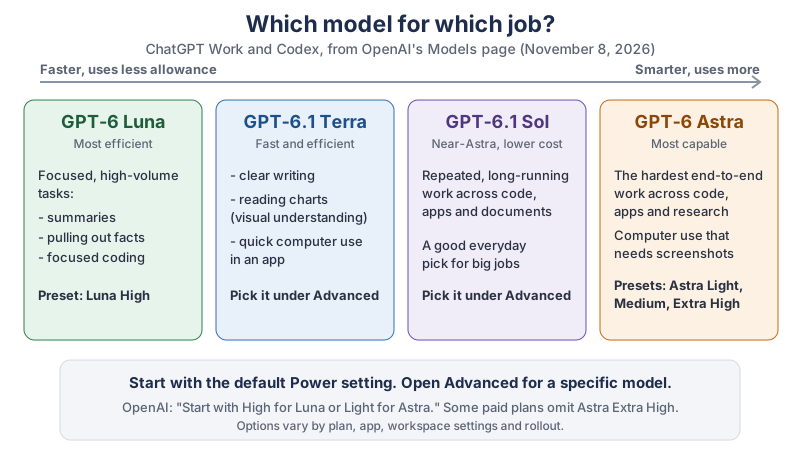
The same picture in plain text (descriptions from OpenAI’s Models page, November 8, 2026):
- GPT-6 Luna: focused, high-volume tasks such as summaries, extraction and focused coding. Power preset: Luna High.
- GPT-6.1 Terra: clear writing, visual understanding (charts) and computer use in an app. Choose it under Advanced.
- GPT-6.1 Sol: near-Astra performance at a lower cost than Astra, for repeated, long-running work.
- GPT-6 Astra: the hardest end-to-end work across code, apps and research, including computer use that depends on screenshots. Power presets: Astra Light, Astra Medium and Astra Extra High.
What is GPT-6 Astra?
GPT-6 Astra is OpenAI’s top model in ChatGPT, built for long, hard tasks that mix reasoning, apps and judgment. OpenAI’s Models page describes GPT-6 Astra as Our most capable model for complex work across code, apps, and research, combining advanced reasoning, computer use, and stronger judgment.
The same page says: Choose Astra for complete workflows across code, apps, and research that need sustained reasoning and judgment.
OpenAI announced GPT-6 Astra in early September 2026. Its announcement (read through search excerpts) calls Astra a leader in computer use and reports a score of 72.6% on the OSWorld 2.0 computer-use benchmark. That’s OpenAI’s own figure, not an independent test, and not something we measured.
The Astra uses your laptop
videos are showing a ChatGPT feature called Computer Use, which works with several models; Astra is the one OpenAI suggests for the hardest screen-reading jobs (more on that below).
How is GPT-6 Astra different from GPT-6.1 Sol, Terra and Luna?
GPT-6 Astra is the most capable of the four models and uses up your allowance fastest, so the others are often the better pick for everyday jobs. OpenAI’s Models page describes them like this:
- GPT-6.1 Sol:
Near-Astra performance for complex work at a lower cost than Astra. Consider it for repeated, long-running work across code, apps, and documents.
- GPT-6.1 Terra:
A fast, efficient model for clear writing, visual understanding, and computer use.
- GPT-6 Luna:
Our most efficient model for focused, high-volume tasks, including summarization, extraction, and focused coding.
OpenAI’s Help Center article on GPT-6 models (read through search excerpts) says GPT-6.1 Sol, GPT-6.1 Terra, GPT-6 Sol and GPT-6 Luna are models for ChatGPT Work and Codex, not for regular ChatGPT conversations.
Which ChatGPT plans have GPT-6 Astra?
GPT-6 Astra is on the paid plans only: Plus, Pro, Business and Enterprise. Free and Go don’t list it. On Plus, Astra is in ChatGPT Work and Codex but not in regular Chat; on Pro, Business and Enterprise it also powers the Pro effort of GPT-6 in Chat.
| Plan | GPT-6 Astra in regular Chat | GPT-6 Astra in ChatGPT Work and Codex | What else to know |
|---|---|---|---|
| Free | No | No (not listed) | GPT-6 Luna; limited ChatGPT Work on the desktop app |
| Go | No | No (not listed) | GPT-6 Luna; limited ChatGPT Work on the desktop app |
| Plus | No (GPT-6 in Chat runs on GPT-6 Sol; no Pro effort) | Yes, limited Astra usage, with optional credits after | ChatGPT Work on desktop, web and mobile; no Extra High in Chat |
| Pro | Yes, as GPT-6 Pro (the Pro effort) | Yes, expanded | Longer Work and Codex sessions; dots |
| Business | Yes, as GPT-6 Pro | Yes: limited on Standard seats, full allowance on Premium seats | Premium seats also get dots |
| Enterprise | Yes, as GPT-6 Pro | Yes | Admins decide who can use agents, connected tools and actions |
How many GPT-6 Astra messages do you get?
GPT-6 Astra has no fixed message count; OpenAI measures your allowance in work done, and Astra uses it up faster than the other models. OpenAI’s Help Center article Managing usage with GPT-6 Astra in Work and Codex
(read through search excerpts) says plans can have a five-hour window and a weekly window, that you need allowance left in both, and that you can check what’s left and when it resets in Settings > Usage. Higher reasoning effort, bigger inputs and multi-step tasks use more.
The same article gives five-hour estimates for Plus and for Standard Business seats. We added a column comparing each model with Astra:
| Model | Estimated messages per 5 hours | Compared with GPT-6 Astra (our arithmetic) |
|---|---|---|
| GPT-6 Astra | about 5 to 45 | 1x |
| GPT-6 Sol | about 15 to 150 | about 3x (15 / 5 and 150 / 45 = 3.3) |
| GPT-6.1 Sol | about 15 to 160 | about 3x to 3.6x (15 / 5 and 160 / 45) |
| GPT-6 Luna | about 350 to 3,000 | about 67x to 70x (3,000 / 45 and 350 / 5) |
So on Plus, by OpenAI’s estimates, you get roughly a third as many GPT-6 Astra messages as GPT-6.1 Sol messages in the same five hours. Save Astra for the job that really needs it. The same article says switching models doesn’t refill a shared pool.
How do you choose GPT-6 Astra in ChatGPT?
In ChatGPT Work or Codex, you choose GPT-6 Astra with the Power control under the message box, or pick it by name under Advanced. OpenAI’s Models page lists the steps:
- Open the ChatGPT desktop app, or ChatGPT Work on the web, and switch to Work.
- Use the model and reasoning control beneath the composer. OpenAI says to
start with the default Power setting available to your account
, thenMove toward Smarter for deeper reasoning or Faster for faster, lower-cost work.
- Pick a preset. OpenAI’s example shows six: Luna High, GPT-6 Sol Light, GPT-6 Sol Medium, Astra Light, Astra Medium and Astra Extra High. OpenAI notes
Some paid plans omit Astra Extra High.
- For a specific model,
Open Advanced to choose a specific model, reasoning effort, or speed.
How do you use GPT-6 Astra in a regular chat?
In regular Chat, GPT-6 Astra sits behind the Pro effort of GPT-6, on Pro, Business and Enterprise plans. OpenAI’s Help Center article GPT-6 and other models in ChatGPT
(read through search excerpts) says GPT-6 replaces Latest in the model menu and that you choose your effort with the Thinking slider. GPT-6 Sol powers Instant, Medium, High and Extra High, and Pro uses GPT-6 Pro, powered by GPT-6 Astra. If you don’t see GPT-6 in the menu, the Help Center says it may not have reached your account yet.
How does GPT-6 Astra use your computer?
GPT-6 Astra uses your computer through ChatGPT’s Computer Use feature, which lets ChatGPT see an app’s window and click, type and navigate in it, after you allow that app. OpenAI’s Computer Use page says: In supported regions, Computer Use in the ChatGPT desktop app is available on macOS and Windows with ChatGPT Work and Codex.
It’s meant for jobs where a file upload or a plugin isn’t enough, such as changing an app’s settings.
OpenAI’s page names Astra for the hardest of these jobs:
For difficult tasks that depend on screenshots or visual judgment, choose GPT-6 Astra when it is available in your model selector. The same operating-system permissions and app access controls apply.
To set up Computer Use, OpenAI’s page gives three steps:
- In the ChatGPT desktop app, switch to Work (or select Codex).
- Open Settings > Computer use. Under Control, find Any App. If the row shows Install, select it and follow the prompts; if the switch is off, turn it on.
- Start a Computer Use task. ChatGPT asks for permission before it uses each app. Apps you approve for future tasks appear under Always-allowed apps in the same settings.
On a Mac, OpenAI says to grant Screen Recording permission so ChatGPT can see the target app
and Accessibility permission so ChatGPT can click, type, and navigate.
If it can’t see or control an app, check both in System Settings > Privacy & Security.
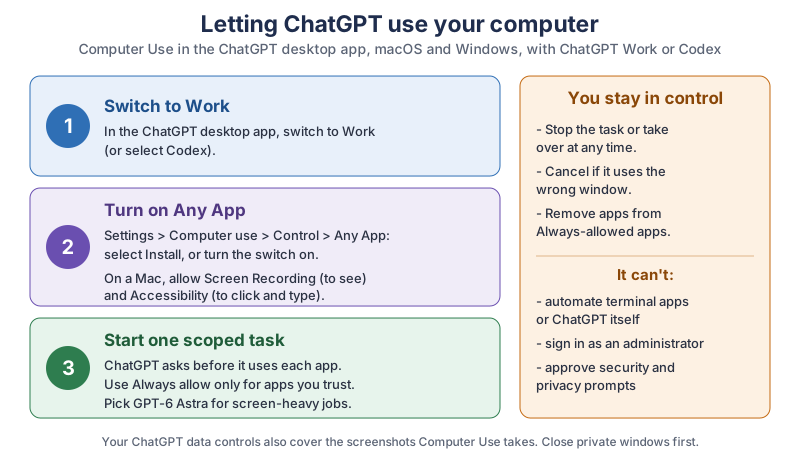
The same picture in plain text:
- Step 1
- Switch to Work in the ChatGPT desktop app (macOS or Windows).
- Step 2
- Settings > Computer use > Any App: Install, or turn it on. On a Mac, allow Screen Recording and Accessibility.
- Step 3
- Start one scoped task and approve each app when ChatGPT asks. Use Always allow only for apps you trust.
- Staying in control
- Stop the task or take over at any time; cancel if it uses the wrong window; remove apps from Always-allowed apps.
- What it can’t do
- Automate terminal apps or ChatGPT itself, sign in as an administrator, or approve security and privacy prompts.
What can ChatGPT see and do on your computer?
ChatGPT’s Computer Use can see and work inside the apps you allow, and nothing else is supposed to be in reach. OpenAI’s Computer Use page says that ChatGPT can view screen content, take screenshots, and interact with windows, menus, keyboard input, and clipboard state in the target app.
It also lists the limits: The feature can’t automate terminal apps or ChatGPT itself, since automating them could bypass ChatGPT security policies. It also can’t authenticate as an administrator or approve security and privacy permission prompts on your computer.
Because the clipboard is in reach, copy nothing private before a task starts, and close windows you don’t want on screen.
How do you stop GPT-6 Astra while it’s using your computer?
You can stop a Computer Use task or take over your computer whenever you like. OpenAI’s Computer Use page says: You can stop the task or take over your computer at any time,
and Cancel the task if ChatGPT starts interacting with the wrong window.
The page doesn’t name a stop button, so look for the stop or cancel control on the running task in the ChatGPT app.
- Take back an app: remove it from Always-allowed apps in Settings > Computer use, and ChatGPT will ask again next time.
- Safety pauses: OpenAI’s Agent approvals and security page says
GPT-6 Astra includes safety monitoring in Codex and ChatGPT Work
thatcan pause a task if it detects potentially unsafe model behavior.
If that happens, read the notice and resume only once you’ve checked the task can safely continue. - Locked use (Mac only): OpenAI says locked use lets ChatGPT use Computer Use after your Mac locks,
but only after you enable it.
Leave it off unless a task really needs it.
What privacy settings matter when GPT-6 Astra uses your computer?
Your ChatGPT data controls matter most, because they also cover the screenshots Computer Use takes. OpenAI’s Computer Use page says: Your ChatGPT data controls apply to content processed through ChatGPT, including screenshots taken by Computer Use.
For a personal plan, OpenAI’s data controls page (read through search excerpts) says you can turn off sharing your chats for model training at Settings > Data controls > Improve the model for everyone.
Honestly, my favorite line on OpenAI’s whole Computer Use page is the one that says you can take over your computer at any time. It’s the AI version of hands where I can see them
, and I find it very reassuring.
Web pages can carry hidden instructions too. OpenAI’s Agent approvals and security page warns that Prompt injection can cause the agent to fetch and follow untrusted instructions
and says to Treat web results as untrusted.
Keep tasks scoped to the sites and files you name.
What are good first tasks to try with GPT-6 Astra?
Good first tasks for GPT-6 Astra have a clear result, a few sources you choose, and an output you can check before anything is sent. That’s OpenAI’s own advice on its Get started with Work mode page: Good tasks have a clear outcome, a few source materials, and an output you can review.
It suggests boundaries such as use only these sources
, compare the top five options
or stop before sending anything
. Three to try, in Work with Astra Light:
- A one-page brief from your own files.
Using only these three files, write a one-page brief for my team on what changed this month. List anything you couldn't confirm. Stop before sending anything. - A careful comparison.
Compare the top five options for a laptop for my dad, who mostly does video calls and email. Use only the makers' own spec pages, make a table, and tell me which spec matters most and why. - One small Computer Use job.
In my spreadsheet app, open budget.xlsx only. Sort the sheet by date, bold the header row, and ask me before you save.Approve just that one app when ChatGPT asks.
Review every result before you use or share it. A polished table can still hold a wrong number.
Is ChatGPT Work the same thing as GPT-6 Astra?
No: ChatGPT Work is a mode, and GPT-6 Astra is one of the models that can run inside it. OpenAI’s Work page says ChatGPT Work is a way to delegate real work to ChatGPT,
and puts the difference this way: Use Chat when you want an answer, explanation, brainstorm, or short draft. Use ChatGPT Work when you want ChatGPT to complete a task with a clear outcome, such as a brief, deck, analysis, recurring update, workflow, or file you can review and use.
In Work you can follow progress, answer questions, change direction and approve important actions, and the page adds that on the desktop app, Work can also use local files, apps, and the browser when those tools are available.
OpenAI’s always-on agent, dots, draws on Astra too; our guide to how ChatGPT Dots work covers that.
What helps when you let GPT-6 Astra use your computer?
A second screen helps most, because you can watch Computer Use work in one window while you keep your own work in another. None of this is required.
- A second screen. A portable monitor plugs into most laptops with one cable. Browse portable USB-C monitors on Amazon.
- A supported computer. Computer Use runs in the ChatGPT desktop app on macOS and Windows. Browse MacBook Air laptops on Amazon or Windows 11 laptops on Amazon.
- A USB microphone. Long task descriptions are easier to say than to type. Browse USB microphones on Amazon.
What should you do next?
This week, open ChatGPT Work, check Settings > Usage, and try the one-page brief on Astra Light before you turn on Computer Use. If you’re brand new to ChatGPT, start with your very first ChatGPT chat; if you make videos, see how Computer Use helps you edit videos with ChatGPT; and if you’ve got a game idea, here’s how to start a game with ChatGPT. The newsletter box below sends you each new tutorial, and we’ll update this page when the plans change.
Go give Astra one small, boring, clearly fenced-in job this week, and watch how it works. If you get back a tidy brief and all you had to do was say yes, that one
, you’ll see why people can’t stop making videos about it.
Sources and further reading
- Models (OpenAI) — GPT-6 Astra, GPT-6.1 Sol, GPT-6.1 Terra, GPT-6 Luna, Power presets and Advanced; read Nov 8, 2026
- Computer Use (OpenAI) — macOS and Windows, Settings > Computer use, Screen Recording and Accessibility, limits, stopping, data controls; read Nov 8, 2026
- Get started with Work mode (OpenAI) — Chat vs Work, good first tasks; read Nov 8, 2026
- Agent approvals and security (OpenAI) — GPT-6 Astra safety monitoring, prompt injection; read Nov 8, 2026
- ChatGPT plan comparison (OpenAI) — which models each plan lists; read Nov 8, 2026, prices left out
- GPT-6 and other models in ChatGPT (OpenAI Help Center) — Thinking slider, Pro effort powered by GPT-6 Astra; read through search excerpts
- Managing usage with GPT-6 Astra in Work and Codex (OpenAI Help Center) — five-hour and weekly windows, Plus estimates, Settings > Usage; read through search excerpts
- ChatGPT Work and Codex (OpenAI Help Center) — Astra usage by plan and seat; read through search excerpts
- GPT-6 Astra announcement (OpenAI) — OSWorld 2.0 72.6%; read through search excerpts
- Data controls FAQ (OpenAI Help Center) — Improve the model for everyone; read through search excerpts
Questions and answers
Is GPT-6 Astra free?
No. OpenAI’s plan comparison at chatgpt.com/pricing lists GPT-6 Astra for Plus and Pro, and OpenAI’s Help Center adds Business and Enterprise. Free and Go plans use GPT-6 Luna and don’t list Astra, as of November 8, 2026.
Does ChatGPT Plus have GPT-6 Astra?
Yes, in ChatGPT Work and Codex, with limited usage and optional credits after that. OpenAI’s Help Center says regular Chat on Plus runs GPT-6 on GPT-6 Sol, while the Astra-powered Pro effort is for Pro, Business and Enterprise. Check Settings > Usage to see what’s left.
Can GPT-6 Astra control my computer?
Yes, through Computer Use in the ChatGPT desktop app on macOS and Windows, in ChatGPT Work or Codex. You turn it on in Settings > Computer use, and ChatGPT asks before it uses each app. OpenAI says it can’t automate terminal apps or ChatGPT itself, or approve security prompts.
What is the difference between GPT-6 Astra and GPT-6.1 Sol?
OpenAI’s Models page calls GPT-6 Astra its most capable model for complex work, and GPT-6.1 Sol near-Astra performance at a lower cost. OpenAI’s Help Center estimates about 5 to 45 Astra messages per five hours on Plus, against about 15 to 160 for GPT-6.1 Sol.
How do I stop ChatGPT from using my computer?
Stop or cancel the running task; OpenAI says you can stop the task or take over your computer at any time. To stop future access, remove apps from Always-allowed apps in Settings > Computer use, or turn Any App off there.